A DAW does not automatically compose a finished song when you open it. It provides a place to organize musical decisions: what plays, when it plays, how it sounds, and how the parts fit together. Understanding those jobs makes an unfamiliar interface much less intimidating.
Read the screen as time and layers
The main arrangement view usually has a horizontal timeline and vertical tracks. Moving right means moving later in the song. Moving down means looking at another layer, such as a vocal, bass, or drum part.
The timeline may display minutes and seconds, bars and beats, or both. Bars and beats are useful when writing in musical phrases. Minutes and seconds are useful when matching a video or checking a finished track's duration.
A track is a lane that holds musical material and usually has controls for playback, recording, routing, and processing. The rectangles on the track may be called clips, regions, events, or items. They represent pieces of material placed in time. Moving one changes when it starts. Trimming its edge changes which part plays or how long it lasts, depending on the material and software.
A clip is not necessarily a separate file. Two clips can refer to different portions of the same recording. Likewise, repeating one drum pattern across the arrangement may reference the same underlying pattern several times. This is why editing one occurrence sometimes changes others.
TRY IT HERE
Follow the signal
Put the stages in order, then check the route.
Ready when you are. Audio starts only when you press Play.
Keep experimenting in the sample pads LabAudio tracks hold recorded sound
Audio represents sound itself. A microphone recording, a drum sample, and an imported WAV file are audio sources. Many DAWs draw a waveform inside an audio clip: a visual representation of changing signal amplitude over time.
A waveform is useful for locating a word, a drum hit, or a quiet passage, but it is not a complete picture of how something sounds. Two sounds can have similar peak heights and very different perceived loudness or tone.
Try importing a short voice recording onto an audio track. Move it two bars later. Split it at a pause and move the second half farther right. Add a small fade at the edit if you hear a click. These edits change the arrangement of an existing performance rather than rewriting the words or notes that were performed.
Pitch and time tools can modify audio, sometimes extensively. However, stretching a recording is different from changing the note instructions that originally generated a software instrument performance.
MIDI and instrument tracks hold instructions
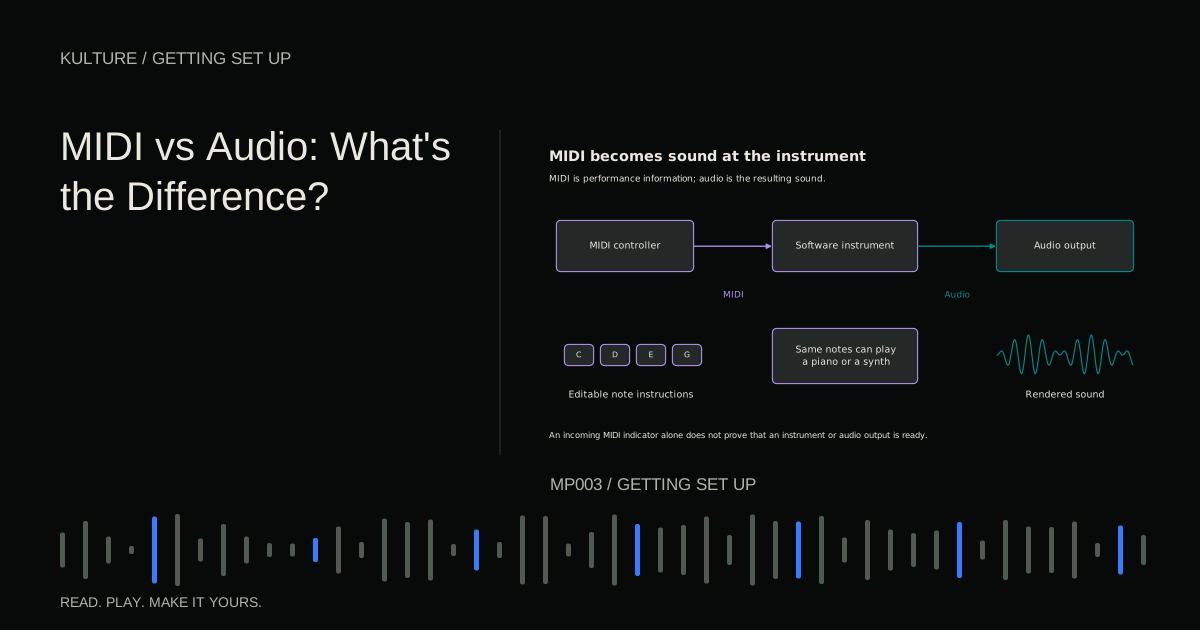
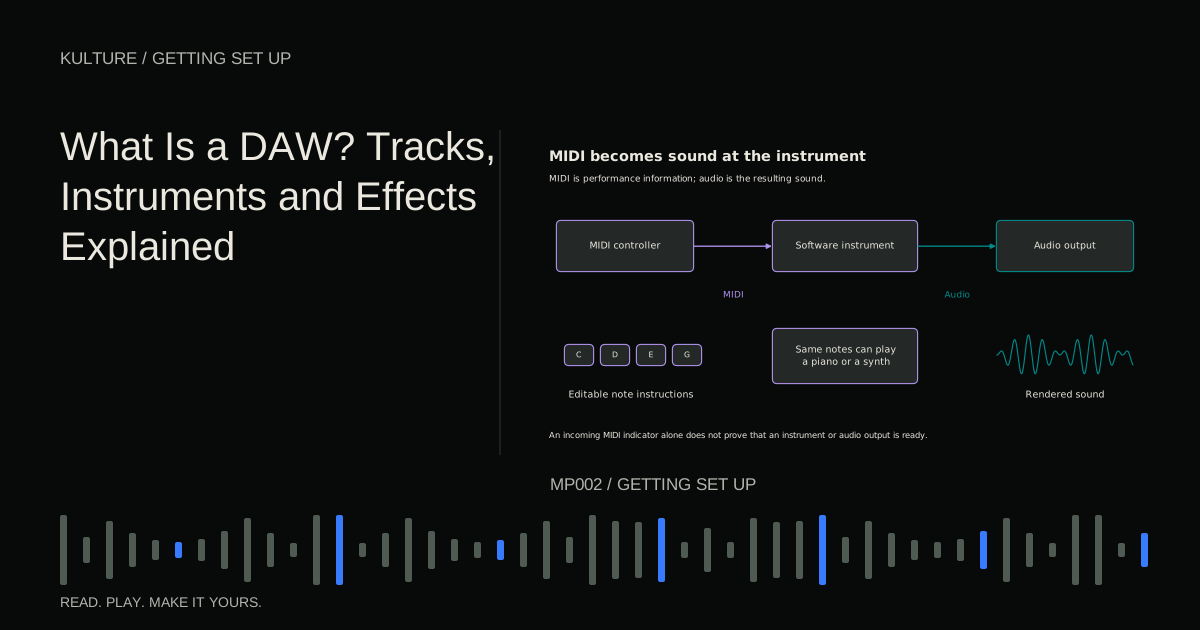
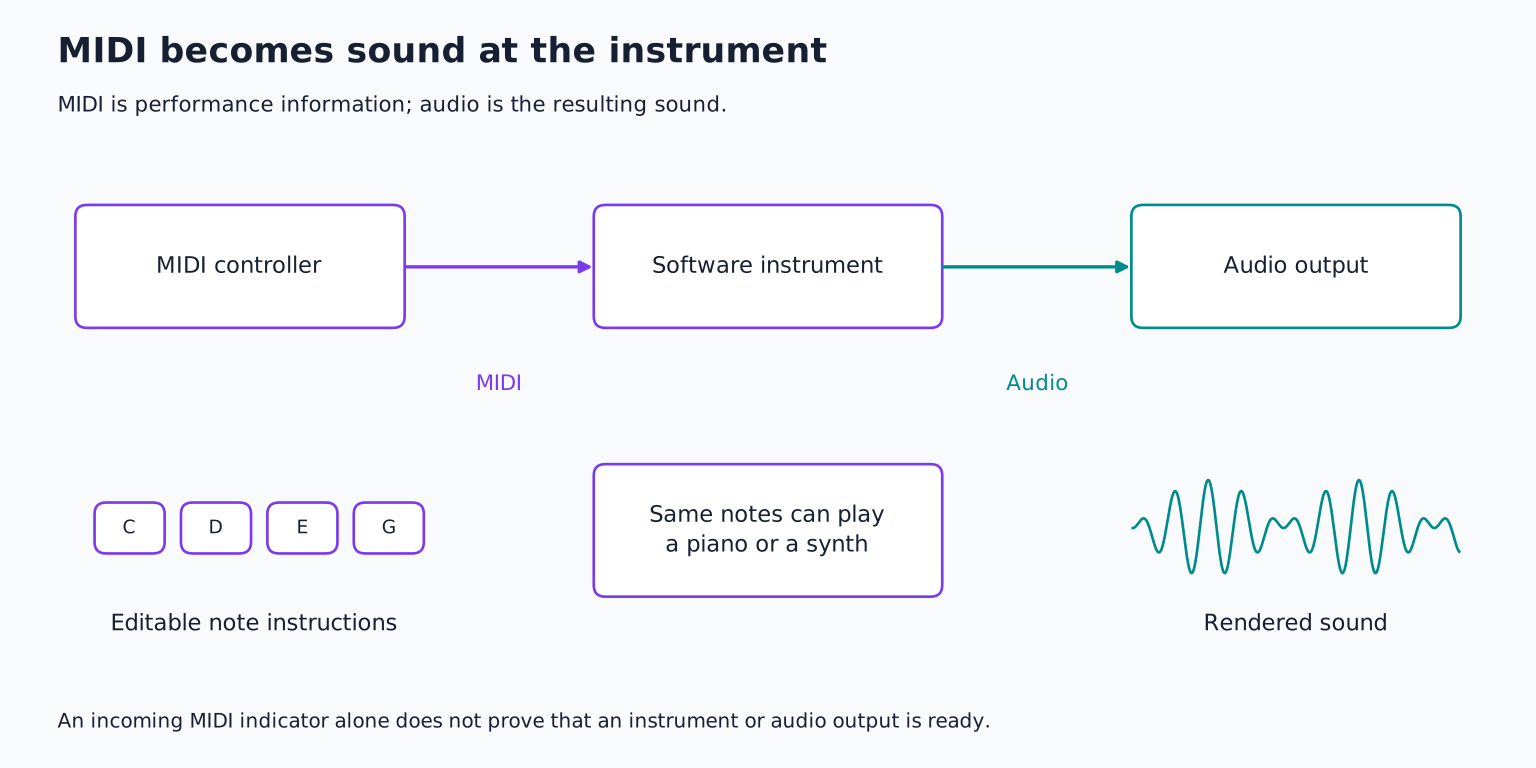
MIDI is musical control data. It can describe which note was played, when it began, how strongly it was struck, and when it ended. It does not contain a recording of the sound. The MIDI Association's overview makes this distinction explicit.
A software instrument turns those instructions into audio. For example, the same four MIDI notes can trigger a piano, a synthesizer, or a sampled string instrument. An instrument track commonly combines the MIDI clip and the sound generating instrument in one convenient track. Some DAWs separate these functions more explicitly.
The piano roll is an editor for note data. Its vertical axis represents pitch, and its horizontal axis represents time. A note's left edge sets its beginning; its width usually sets its duration. Velocity is commonly displayed below the notes and influences how the instrument responds. It often affects volume and tone together, rather than acting as a simple volume fader.
Create a software instrument track, load a piano, and draw C, E, and G starting together. You have made a C major chord. Move the E down one semitone to E flat and listen again. You changed one instruction, and the instrument generated a different chord. For a fuller comparison, read MIDI vs audio.
Instruments create; effects process
An instrument generates audio. An effect changes audio that already exists. This difference helps explain why an empty MIDI track does not make sound and why adding an equalizer will not turn it into a piano.
Common effects include:
- Equalization, or EQ, which changes the balance of frequency ranges.
- Compression, which changes level dynamically according to its settings and the input.
- Reverb, which creates a sense of reflected sound or space.
- Delay, which produces audible repetitions or related time based effects.
- Distortion or saturation, which reshapes a signal and can add harmonics.
An effect inserted directly on a track processes that track's signal. A send routes some signal to another channel, often used for an effect shared by several tracks. For example, several instruments can send different amounts to one reverb return. This can create a related sense of space while allowing separate dry and reverberant levels.
Signal order matters. Distorting a clean guitar before reverb does not necessarily sound like distorting the guitar and its entire reverb tail together. Begin with one effect and compare it bypassed before building a long chain.
The mixer controls relationships
The mixer presents tracks as channel strips. A volume fader adjusts a channel's level at its position in the signal path. A pan control positions a mono source within the stereo field; stereo track controls can behave differently depending on the DAW's pan mode.
Mute stops a channel from being heard through its usual path. Solo isolates selected material, subject to the program's routing and solo rules. Record arm prepares a track to capture input. Input monitoring lets you hear an incoming source through the DAW. These controls do different jobs; arming a track is not the same as recording a take.
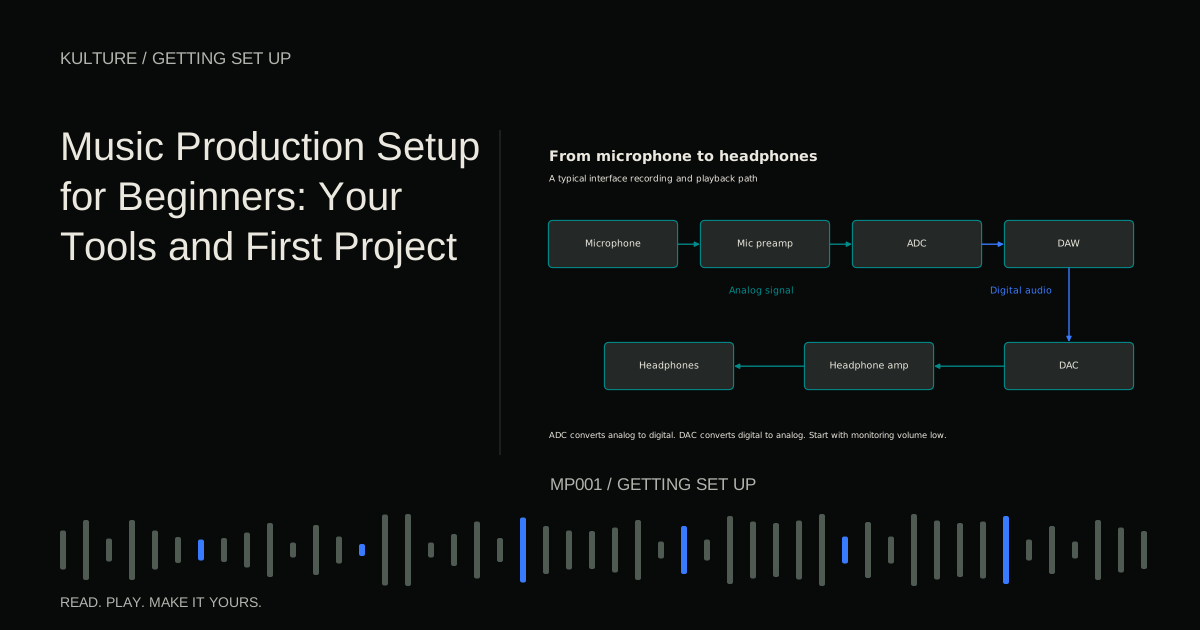
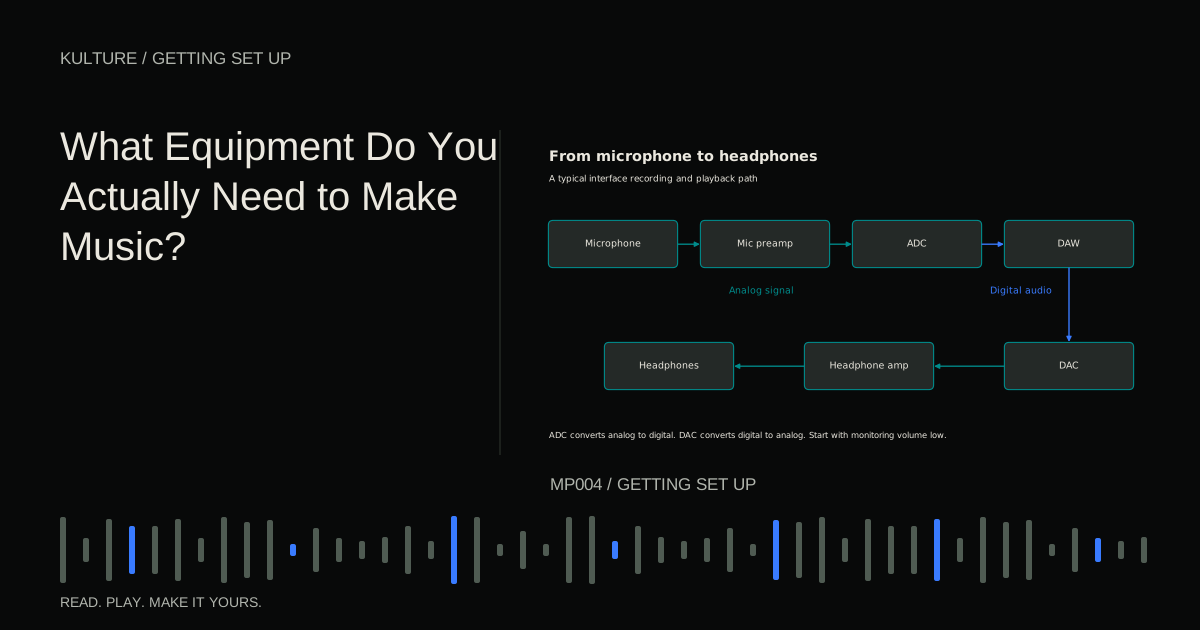
The main output collects the mix sent to your listening device. Imagine this simple route:
Piano notes piano instrument piano track level main output audio device headphones.
For a microphone, the beginning changes:
Microphone interface input audio track main output headphones.
Ableton's routing explanation provides a concrete example of choosing track sources and destinations. Other DAWs use different labels for the same basic questions: where does this signal come from, and where does it go?
Automation makes controls change over time
Automation records or draws parameter changes along the timeline. You might lower a pad during a verse, increase a delay send at the end of a phrase, or open a synthesizer filter across eight bars.
For an easy demonstration, make a sustained chord and draw its track volume down gradually across two bars. Play from before the change and listen. Then move the fader manually during playback. If it returns to the drawn value, automation is controlling it. This is normal behavior, not a broken fader.
Keep the first example small. An automated filter movement may change perceived brightness and loudness simultaneously, making it harder to tell what you are evaluating.
A project and a finished audio file are different
Saving preserves the editable session. Exporting, rendering, or bouncing creates audio from some or all of its output. Sending only a project file to someone without the same software, plugins, and media may leave them unable to hear it correctly.
When exporting your first sketch, choose the main stereo output, the intended start and end, and an audio format such as WAV. Play the result in another application. If it is silent, check the render source and output routing; if it is too short, check the selected time range.
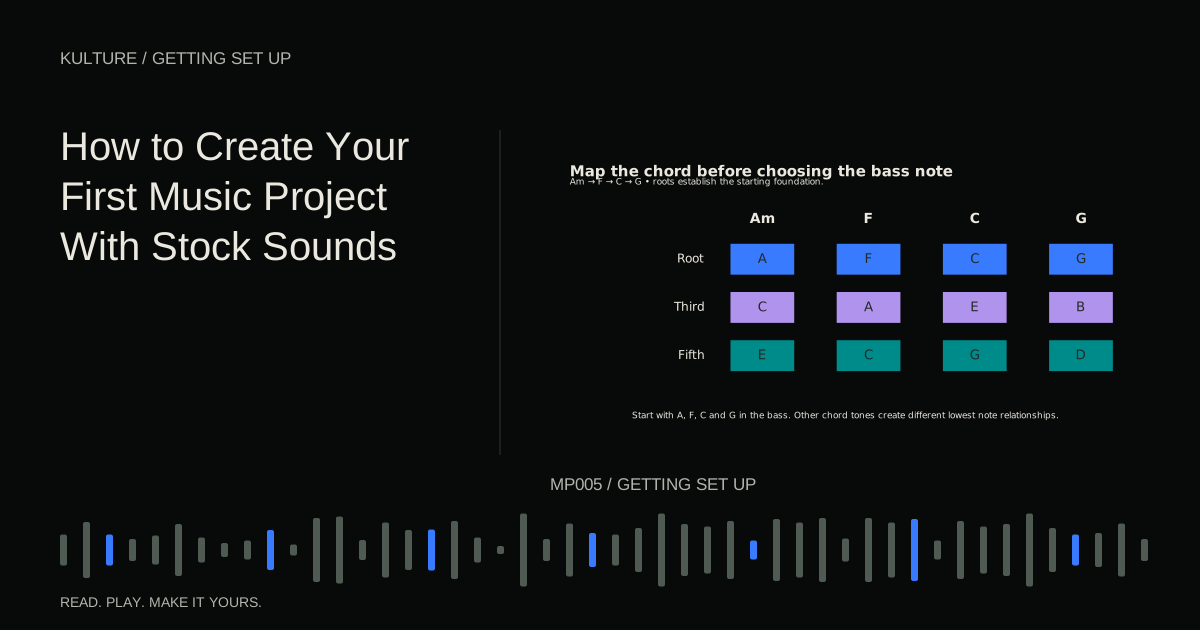
Your practical exercise is to make two tracks: one audio clip and one piano instrument playing C, E, G. Adjust their relative levels, add one reverb, and export eight bars. Name each object aloud as you work: track, clip, instrument, effect, output. Once those distinctions feel natural, move to your first stock sound project.
TAKE IT INTO YOUR OWN MUSIC
Your next session.
Saving preserves the editable session. Exporting, rendering, or bouncing creates audio from some or all of its output. Sending only a project file to someone without the same software, plugins, and media may leave them unable to hear it correctly.
Notes and progress stay in this browser.