Latency means delay between an action and its audible result. Buffer size contributes to that delay, but converters, drivers, plugins, and listening devices can contribute too. That is why two systems at the same nominal setting can feel different.
What the buffer actually does
An audio buffer holds a block of digital samples while the computer processes them. The system must finish each block before its playback deadline. A smaller block gives it less time, which can improve responsiveness but make dropouts more likely when processing is demanding.
At a sample rate of 48,000 samples per second, one 128 sample block represents about 2.67 milliseconds. A 512 sample block represents about 10.67 milliseconds. These are durations for one block, not promises of total input to output latency.
A signal monitored through the computer may involve input buffering, processing, output buffering, conversion, and safety buffers. The DAW's reported input and output latency can help you understand the setup, but an actual measurement may differ if the driver reports inaccurately. Focusrite's latency explanation discusses why the selected buffer is only part of what reaches your ears.
TRY IT HERE
Count the buffer
Compare one buffer block at different sample rates.
Ready when you are. Audio starts only when you press Play.
Keep experimenting in the sample pads LabRecording a microphone through software
When you monitor a microphone through the DAW, the input must enter the computer, pass through the track and any relevant processing, and return to your headphones. Too much delay can feel like an echo or make singing and playing awkward.
Try 128 samples as an initial experiment, then perform the loudest and busiest section of the song. If you hear crackles, increase the buffer to the next supported size and repeat. If the performance feels late, test a smaller setting only if playback remains stable.
Do not judge solely while the transport is stopped. A project that responds smoothly with one armed track may struggle while dozens of tracks and effects play. Test under the conditions you will actually record.
Keep the monitor level comfortable. If your own acoustic voice and delayed headphone voice are distracting, reducing the backing level or changing the monitoring route may help more than turning everything up.
Direct monitoring changes the route
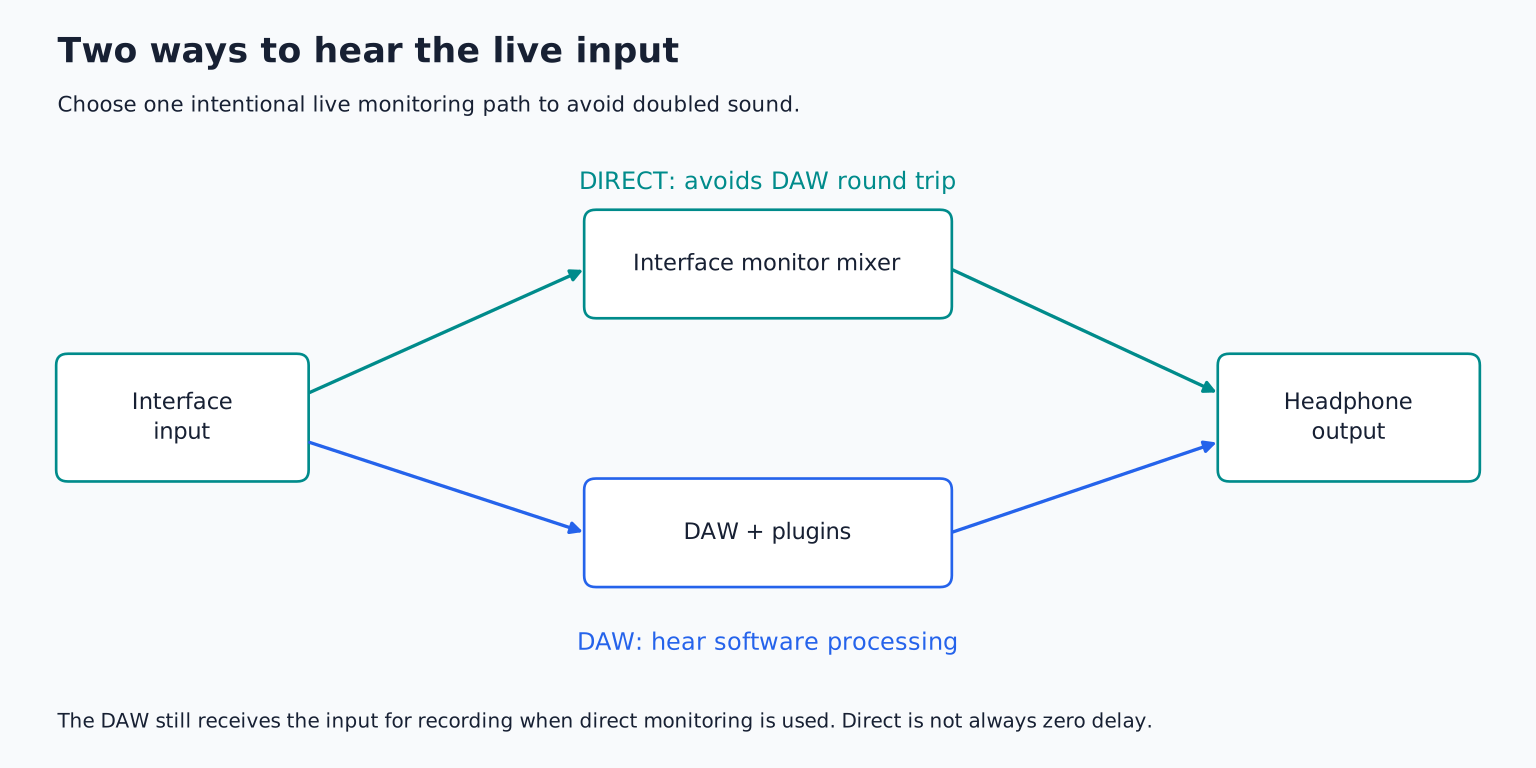
Many interfaces can send the incoming signal to headphones without the normal computer processing round trip. This is direct monitoring. Depending on the interface, it can use an analog or onboard digital path, and its controls may be on the hardware or in a mixer application.
Direct monitoring can make recording a clean vocal or acoustic instrument comfortable even with a larger DAW buffer. Turn off the competing software monitor path when appropriate, or you may hear both an immediate and delayed copy.
The tradeoff is that you may not hear the DAW's insert effects in the direct signal. Some interfaces provide their own monitoring effects, but capabilities are product specific. Focusrite's Scarlett 4i4 example shows how a hardware controlled monitoring mix differs from the DAW route.
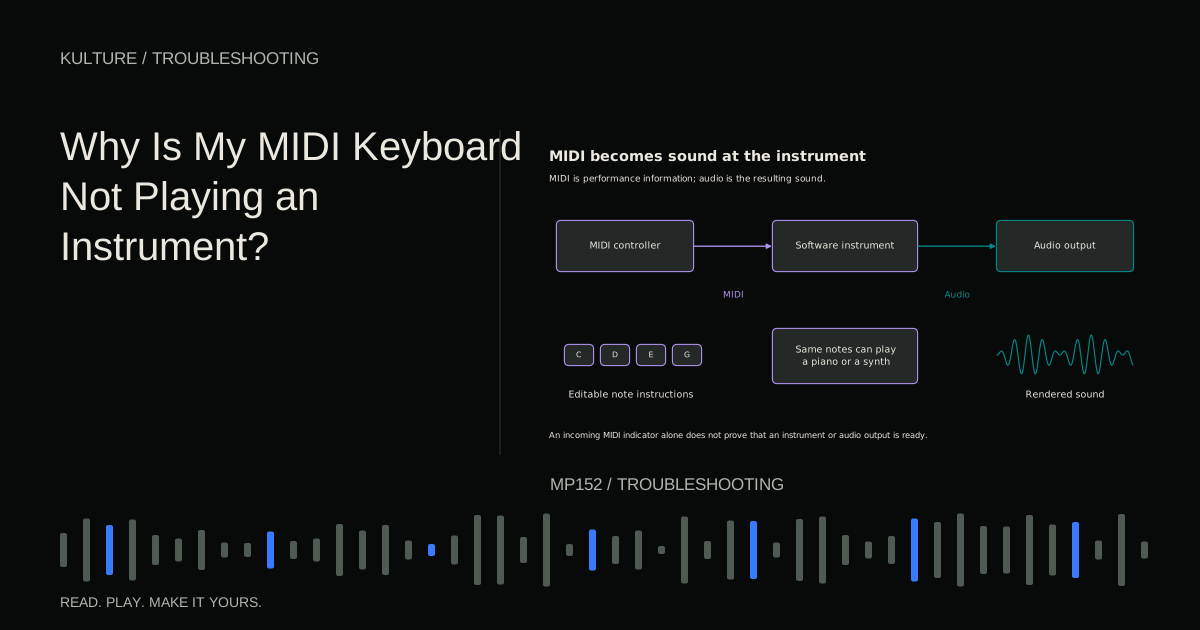
Direct monitoring cannot bypass the processing needed to create a software piano from MIDI notes. That sound does not exist until the computer generates it.
Software instruments and guitar simulations
For a MIDI keyboard controlling a software instrument, response includes the instrument's processing and the audio output path. A short attack piano makes latency easier to judge than a slow pad. Test with a plain preset before blaming the controller.
For a directly connected guitar using a software amp, you normally want to hear the processed sound. Direct monitoring may give you only the dry guitar alongside it. Use software monitoring, a stable low buffer, and a reduced processing chain while tracking.
Some plugins introduce additional latency by looking ahead or processing larger blocks. Linear phase EQ, look ahead limiting, certain noise reduction tools, and some oversampling modes can contribute. The effect may be on the main output or a group rather than on the recording track itself.
Bypass the suspected plugin and compare, but remember that some hosts preserve its reported delay until it is fully disabled or removed. Consult the DAW's low latency mode and plugin delay documentation rather than assuming every bypass button changes latency identically.
Mixing prioritizes stability
Once you are adjusting recorded material rather than performing live, a larger buffer is usually less disruptive. Try 512 or 1024 samples if a dense session crackles at a smaller setting. These are examples, not required mixing values.
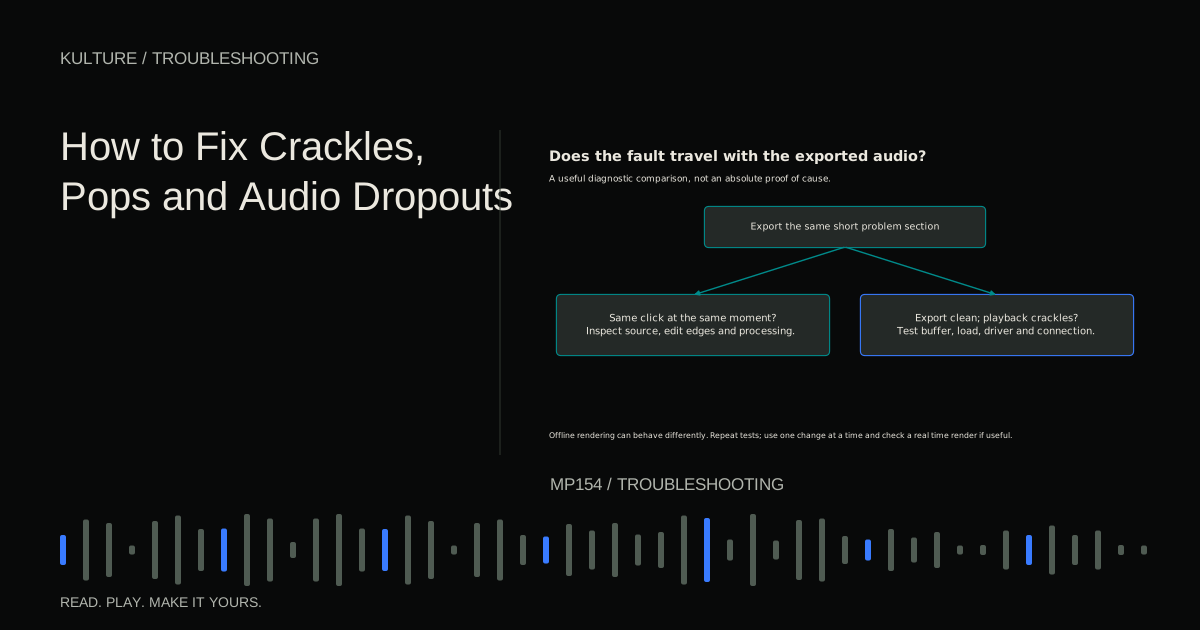
A larger buffer does not inherently make the exported mix lower quality. It changes how the real time processing workload is scheduled. Offline rendering has its own behavior and plugin settings, so check the result rather than assuming buffer size is a mastering quality control.
Freeze or render demanding instruments when necessary. Freezing temporarily substitutes rendered audio for live instrument processing in a DAW specific way. Keep the editable source so you can return to the notes later.
A session can overload one real time processing path even when total CPU usage looks moderate. A long chain on one busy instrument or bus may be harder to distribute than several independent tracks. Removing one expensive processor can help more than deleting many simple ones.
Sample rate is related, but not a free solution
At a fixed number of samples, a higher sample rate makes each buffer represent less time. It also asks the computer to process more samples per second and may increase storage and CPU demands. Raising sample rate simply to reduce latency can therefore exchange one problem for another.
Choose a project rate appropriate to the work and delivery requirements, then optimize the buffer and processing chain. Avoid switching an established session's sample rate casually while diagnosing a problem; keep a copy and confirm how the DAW handles existing media.
On some Windows systems, the interface's own control panel sets the buffer. On macOS, the setting is commonly in the DAW. Focusrite's Windows instructions provide one device family example.
Monitoring delay is not the same as recording offset
You might hear yourself late while the DAW still places the recorded take correctly using driver reported timing. Conversely, monitoring can feel acceptable while a repeatable recording offset exists because of incorrect reporting or routing.
Do not compensate by moving every take earlier based only on how monitoring felt. That can create timing errors. If you suspect a consistent placement problem, follow the DAW or interface manufacturer's loopback calibration procedure with suitable connections and safe levels. Never connect a power amplifier's speaker output to an interface input.
Wireless headphones can introduce substantial additional delay outside the buffer setting. Use wired monitoring for a meaningful performance latency test.
Create two tested working settings
Make a small table for your own setup: project sample rate, buffer, active effects, and whether playing is comfortable and playback is clean. Test a short piano phrase and a microphone phrase if you record both.
Choose one tracking configuration and one mixing configuration. Before recording, switch to the tracking setup and temporarily disable high latency processing. Afterward, restore the mixing setup and verify the processing you intended to keep.
Your exercise is to compare the same phrase at 128 and 512 samples without changing anything else. Note response and stability, then choose based on the task. If crackles persist at both settings, continue with the dropout troubleshooting guide rather than assuming a still larger buffer will solve every cause.
TAKE IT INTO YOUR OWN MUSIC
Your next session.
Make a small table for your own setup: project sample rate, buffer, active effects, and whether playing is comfortable and playback is clean. Test a short piano phrase and a microphone phrase if you record both.
Notes and progress stay in this browser.