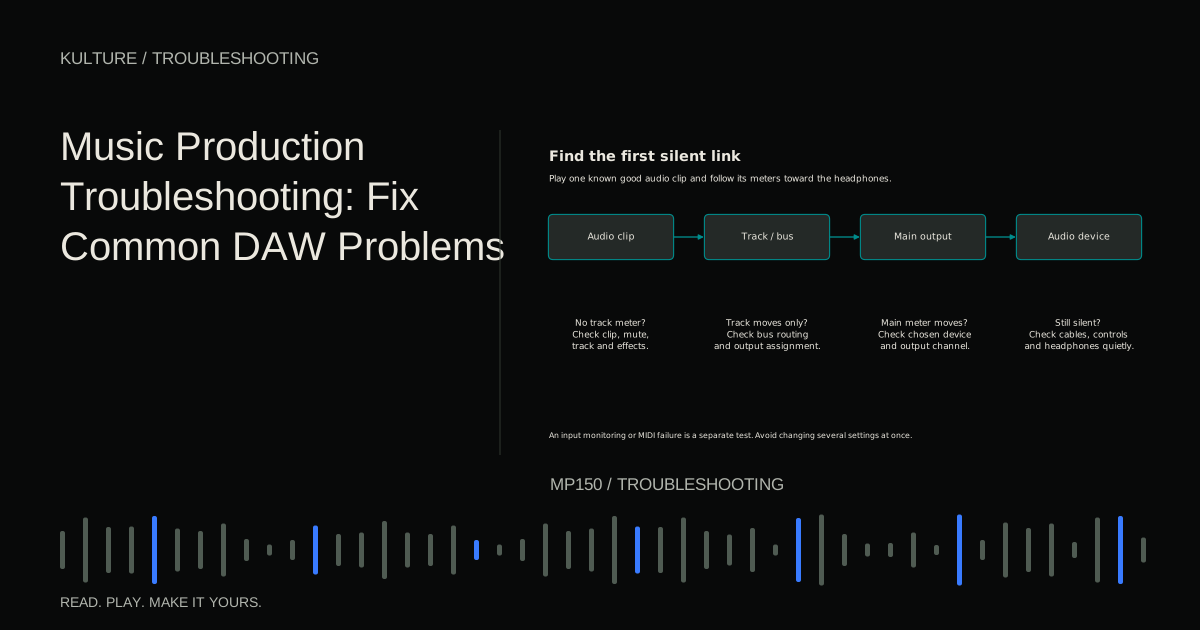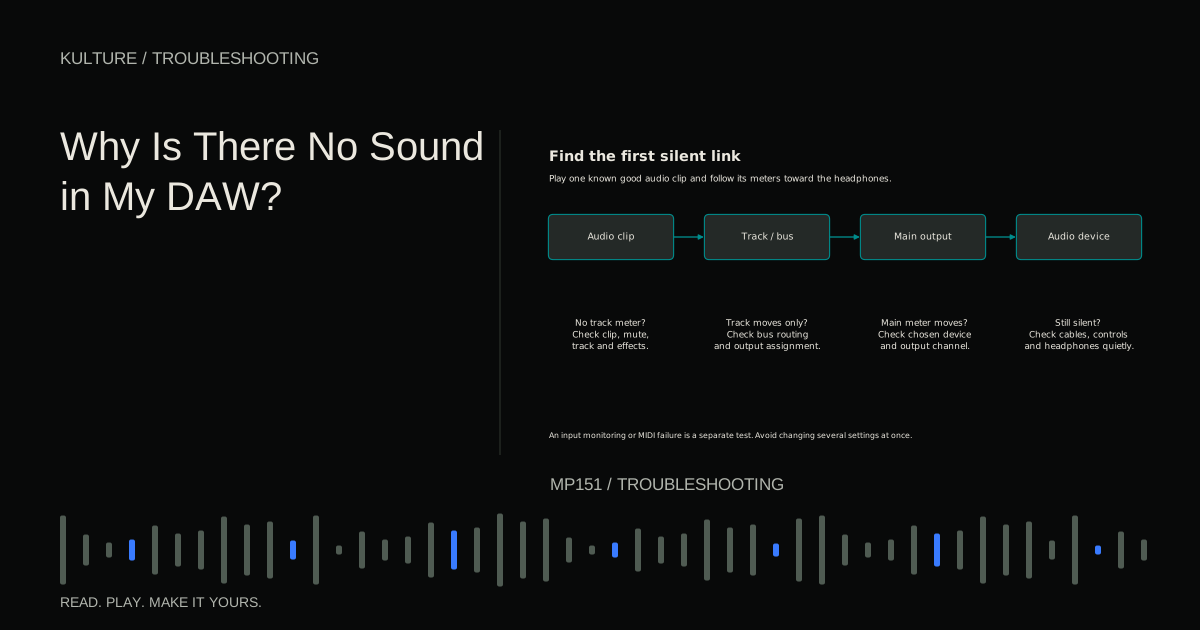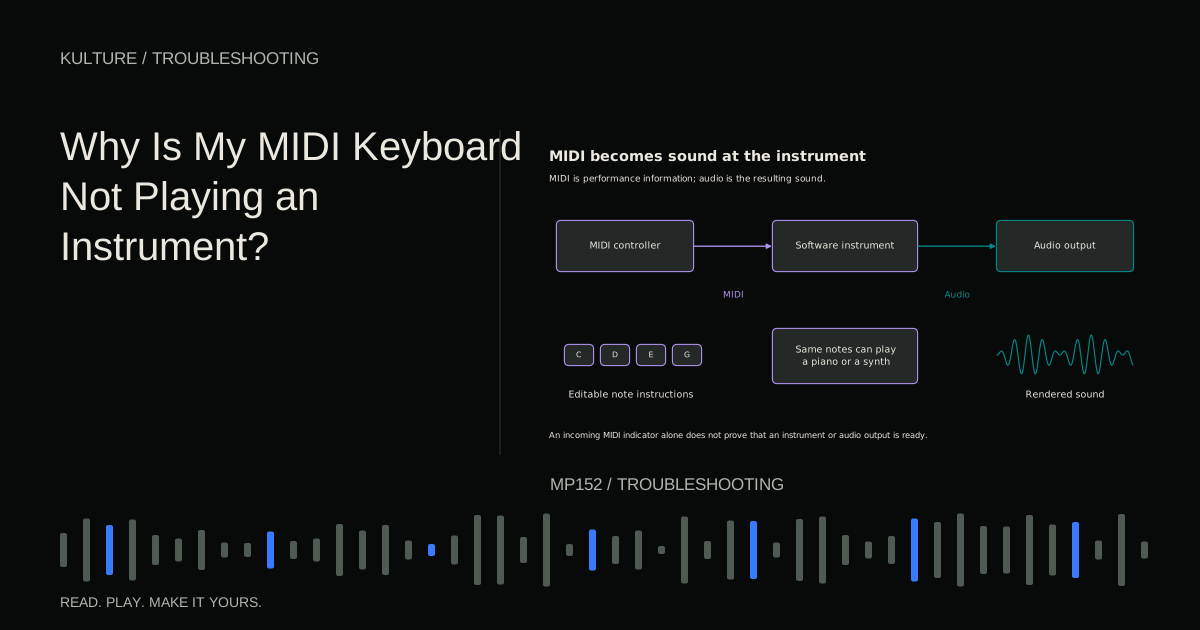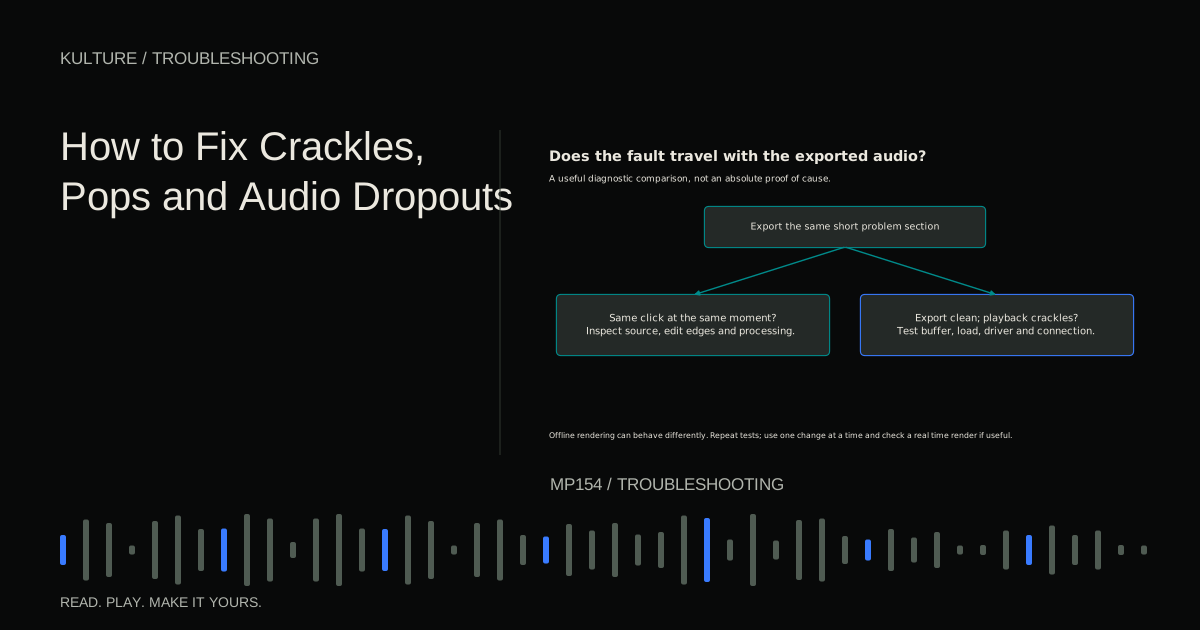
Save a copy of the project, turn monitoring down, and test one change at a time. Keep a short section ready to replay so that comparisons are meaningful.
Separate four common symptoms
A click is a brief discontinuity, often heard at an abrupt edit or waveform boundary. Crackling can mean repeated discontinuities caused by overloaded playback, a faulty connection, or another problem. A dropout is a gap where audio stops arriving in time. Distortion is a broader change in waveform shape and can occur even with stable playback.
The words overlap in everyday descriptions, so describe what you hear: “one click at bar 9,” “random ticks while moving the plugin window,” or “half second gaps when the chorus begins.” That description points toward a more useful test than “bad sound.”
Also note whether the problem affects every track, one plugin, one input, or only headphones. A fault confined to the left headphone channel is unlikely to be caused by the entire arrangement's CPU load.
TRY IT HERE
Count the buffer
Compare one buffer block at different sample rates.
Ready when you are. Audio starts only when you press Play.
Keep experimenting in the sample pads LabTest whether the fault is in the file
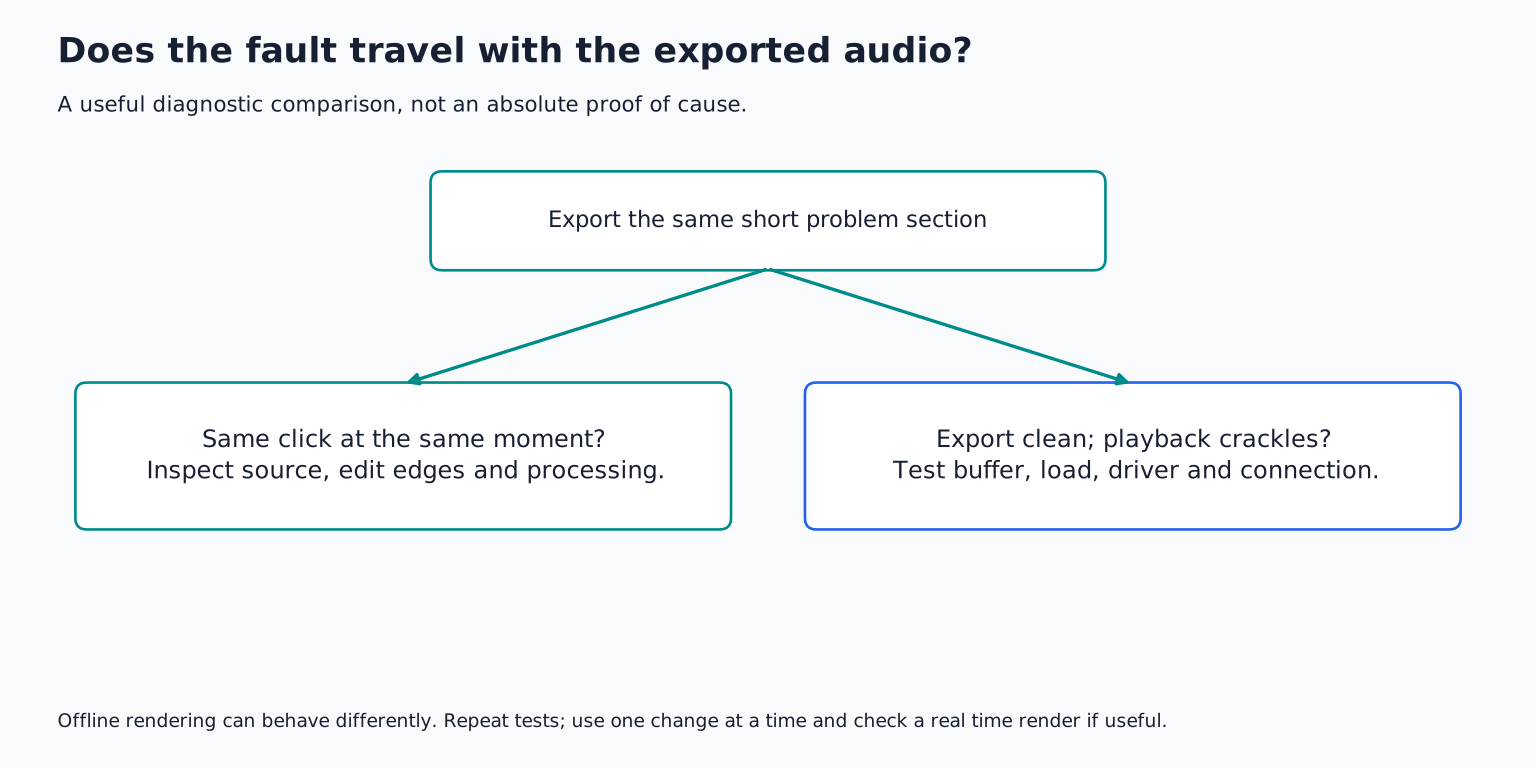
Export the problem section and listen in another application. If the click remains at exactly the same location, inspect the audio and processing there. If the export is clean but real time playback crackles, concentrate on playback performance and hardware routing.
This test is informative but not absolute. Some plugins behave differently during offline rendering, and a random fault may not occur on every pass. Repeat the comparison and, if needed, try a real time render supported by your DAW.
For a click at an edit, zoom in and add a short fade or crossfade. A fade changes the level smoothly rather than jumping between unrelated waveform values. Use the shortest fade that removes the click without softening an important attack. A long fade across a snare hit can remove the very impact you want.
For a loop boundary, inspect both ends. The loop may jump abruptly from a positive waveform value to a negative one, or cut off a long effect tail. A small crossfade or a different edit point may solve it. If a sampled bass clicks at note boundaries, also inspect its amplitude envelope and overlapping notes.
Check for overload before changing the computer
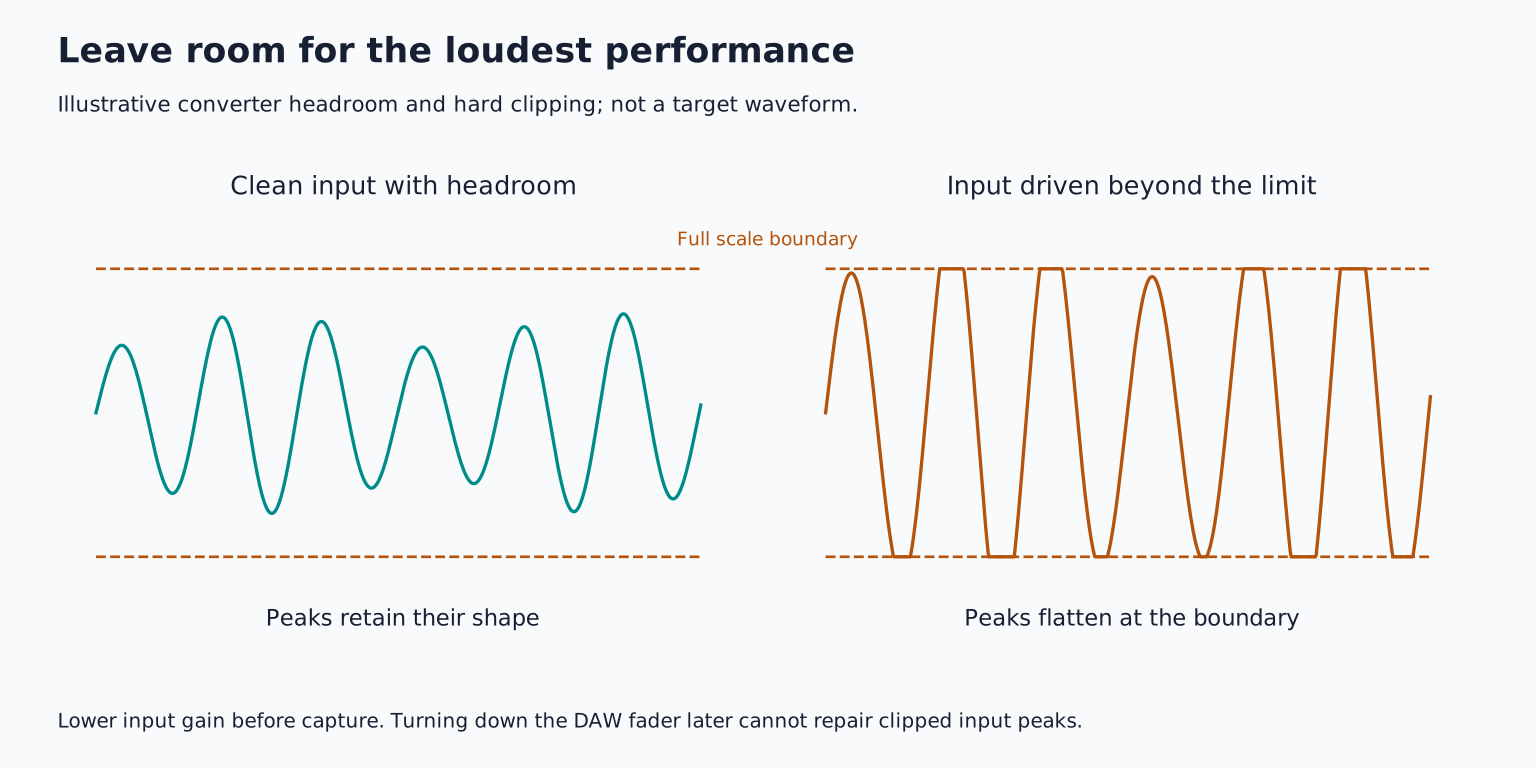
Look for clipping at the interface input, track, plugins, buses, and main output. Lower the signal before the stage that overloads. Turning down a later fader can make the distortion quieter without removing it.
If an input recording is already clipped, rerecording at an appropriate gain is generally the cleanest solution. Software repair may help some material but cannot guarantee restoration of the original waveform.
Some distortion is intentional within a synthesizer, saturation effect, or guitar amp model. Bypass the effect and compare at a similar level. If it produces the roughness only on loud notes, the issue may be its input level rather than the audio driver.
Give real time processing more time
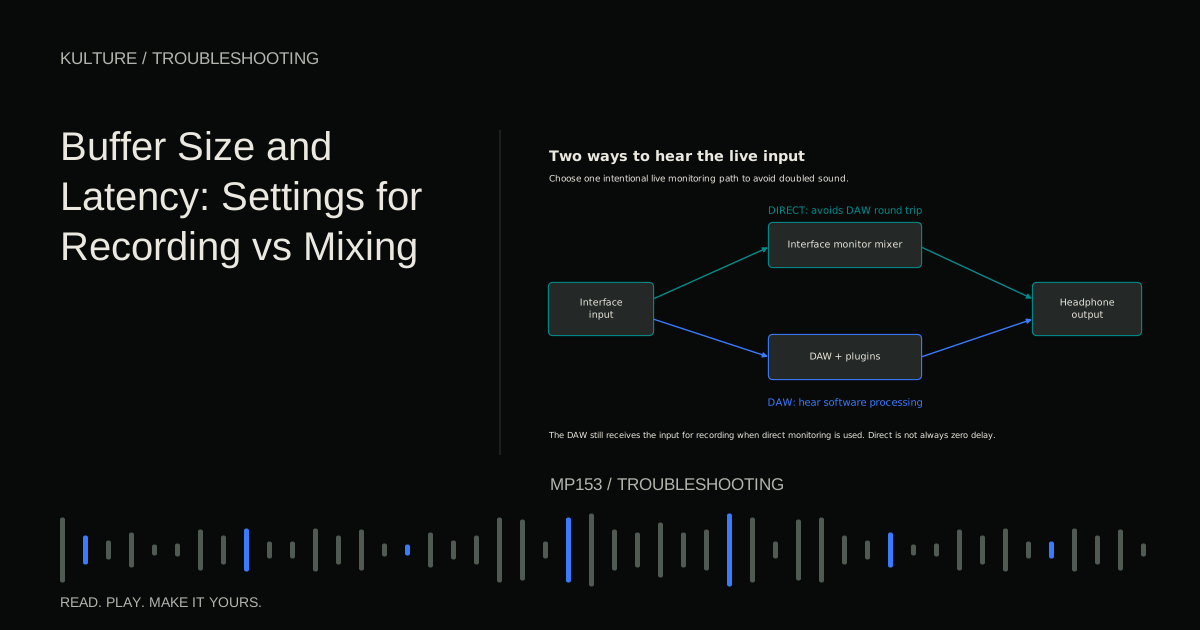
Increase the audio buffer by one supported step and replay the same passage. For example, compare 128 with 256 samples, then 512 if needed. A larger buffer gives processing more time but increases monitoring delay.
If the problem disappears, you have evidence that the previous setting was too demanding under those conditions. You can keep the larger buffer for mixing, freeze instruments, reduce oversampling, or simplify effects while recording. The buffer and latency lesson explains those tradeoffs.
Do not assume total CPU percentage tells the full story. Real time audio must meet deadlines, and a heavily loaded serial effects chain can cause trouble even when other processor cores are relatively idle. Watch the DAW's own performance indicators and identify the passage that triggers the problem.
Ableton's official dropout guide describes buffer, processor, disk, and connection causes as separate branches.
Isolate demanding or malfunctioning plugins
Make a copy of the project and bypass half the processing, then retest. If the fault stops, narrow the affected half until you identify a specific plugin or chain. This is faster than changing every processor randomly.
Test the suspected plugin in a new small project. Check its supported version, authorization, sample library, and any demo restrictions. A trial plugin may deliberately insert silence or noise at intervals, which can resemble a system failure.
If reducing a quality or oversampling setting resolves the problem, use a documented lower demand tracking setting and restore the desired setting for final rendering. Confirm the final output because the sound can change between modes.
Do not remove the only saved instance of a plugin without preserving its settings or the original project. A diagnostic copy protects the musical work while you investigate.
Inspect the connection and driver
Use the audio interface manufacturer's supported driver and check its compatibility with your operating system. Updates can resolve faults, but install a version explicitly supported for the device and system rather than assuming the newest available package fits every older interface.
Try a known working data cable and a supported direct computer port. An unreliable hub, loose adapter, or damaged connector can interrupt audio even in an empty project. Turn output levels down before reconnecting devices.
Test a simple session with the computer's built in output if the DAW supports it. If that is clean while the interface path fails, focus on the interface, driver, cable, power, or routing. This does not prove the interface itself is defective; it narrows the area to investigate.
For Windows specific problems, Focusrite's glitchy audio guide provides a manufacturer supported sequence. Avoid copying drastic system tweaks intended for a different computer without understanding their consequences.
Consider storage and digital clocking
Large sample libraries and many audio tracks require timely disk access. Make sure media is actually downloaded locally rather than represented only by cloud placeholders. Test with the project on a reliable local drive and enough free space. A disconnected external library can create missing sounds as well as interruptions.
If you connect digital audio devices through formats such as ADAT or S/PDIF, their clocking and sample rate configuration must agree. Digital clocking determines the timing of audio samples. A mismatch can cause clicks even when CPU load is low. Follow the specific devices' manuals to designate the clock source and confirm lock; do not change clock settings blindly in a working multi device system.
For a simple single interface USB setup with no external digital audio, begin with the ordinary driver, buffer, and connection checks before investigating elaborate clock systems you do not use.
Verify the repair under real conditions
Once a change appears to work, replay the busiest section several times, record a short test if recording was affected, and reopen the project. Check the exported file too. A fault that disappears once but returns after reconnecting hardware is not fully resolved.
Write down the cause and working configuration. Your exercise is to compare a clean single track project with the failing session at the same sample rate and buffer. Record which difference changes the outcome. If no repeatable cause emerges, gather exact versions, error messages, and a small neutral example for manufacturer support. Use the broader troubleshooting guide to organize that evidence.
TAKE IT INTO YOUR OWN MUSIC
Your next session.
Once a change appears to work, replay the busiest section several times, record a short test if recording was affected, and reopen the project. Check the exported file too. A fault that disappears once but returns after reconnecting hardware is not fully resolved.
Notes and progress stay in this browser.