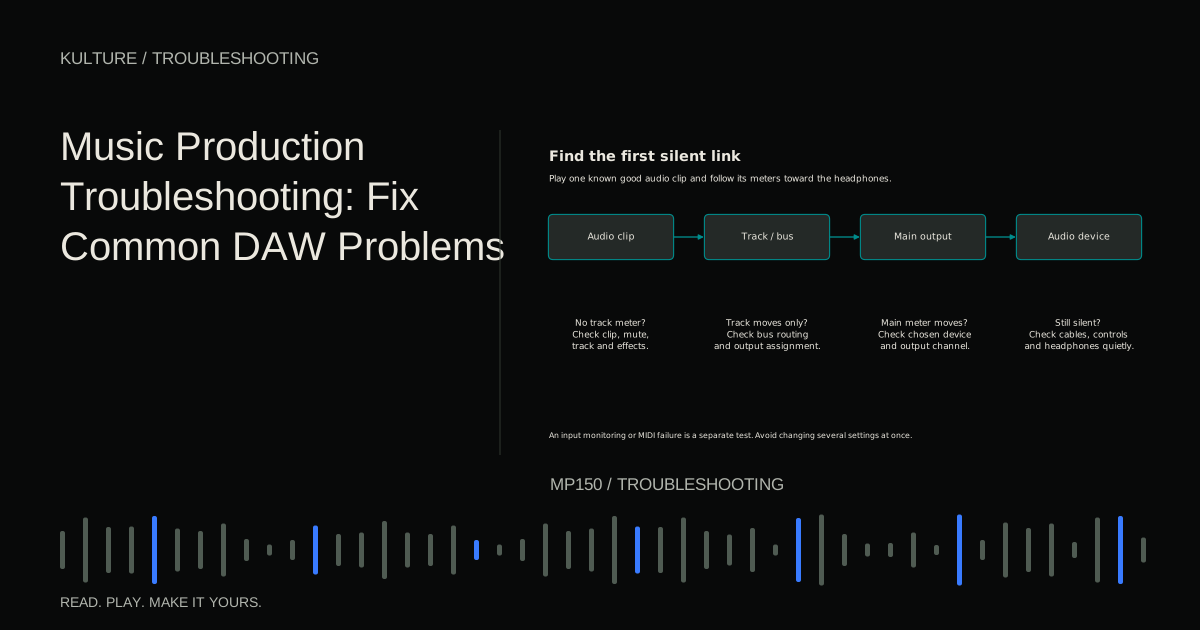
Start by protecting the session. Save a new version, keep the original recordings, and note the current settings. Then describe the symptom precisely: no sound anywhere, one silent instrument, late monitoring, random clicks, a missing plugin, or missing media. These problems point to different parts of the system.
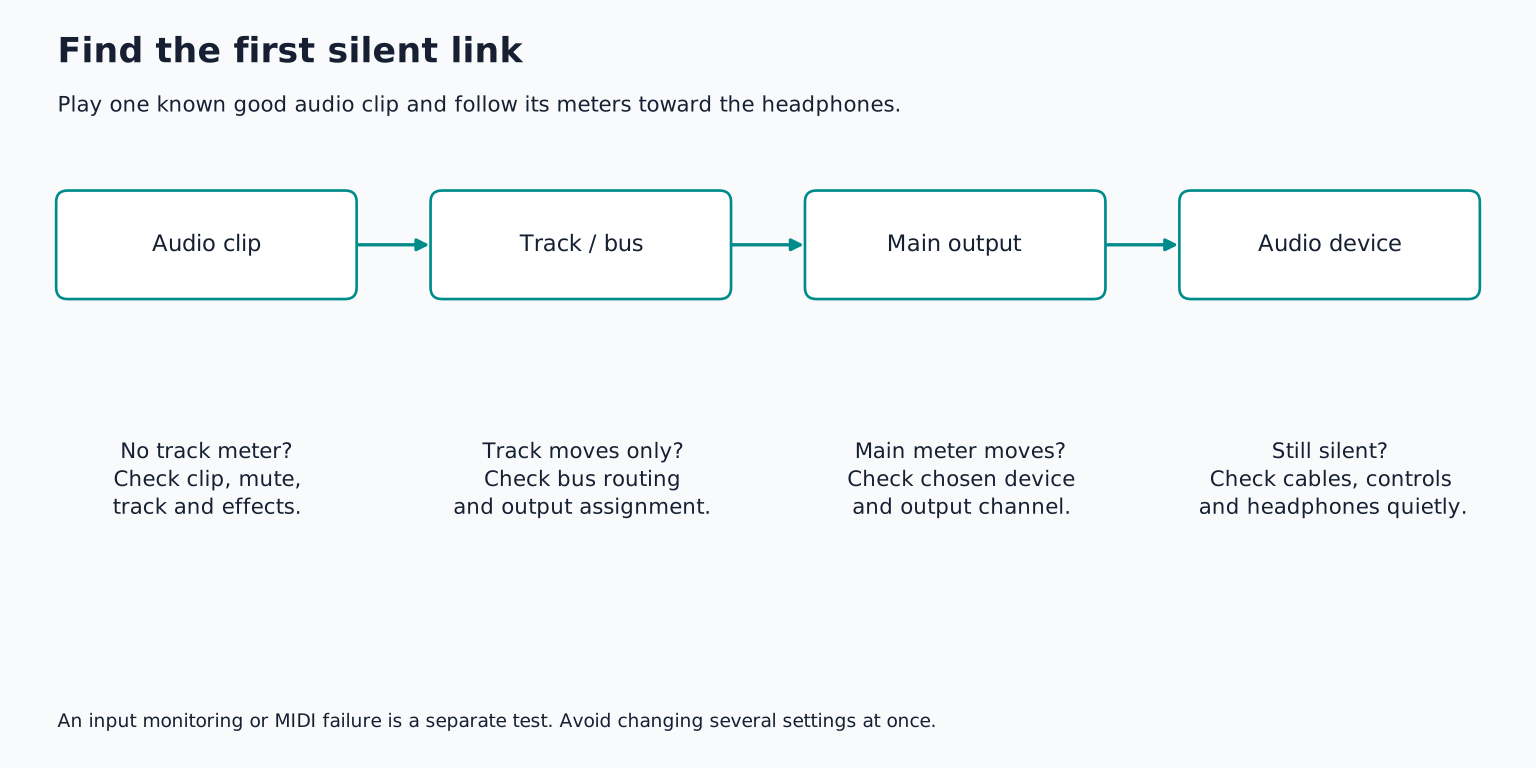
Use a simple map of the signal
For a recorded instrument, the usual path is:
Source cable interface input DAW track processing main output interface output headphones or speakers.
For a software instrument, it is:
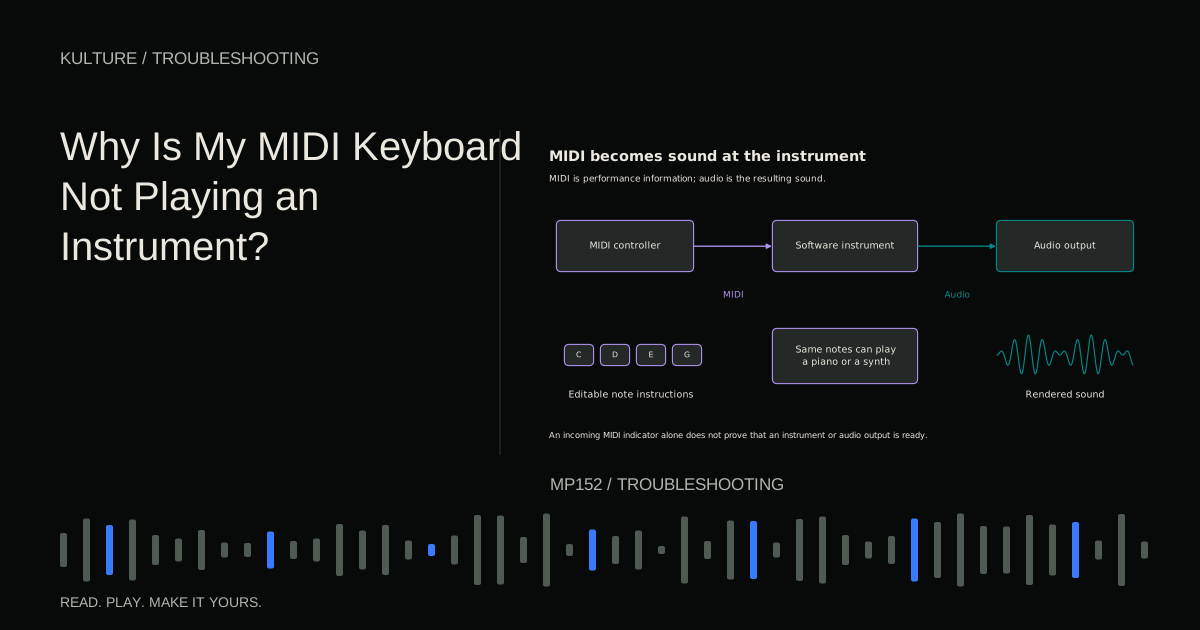
MIDI notes instrument processing track output main output listening device.
Meters help locate the break, but know what each meter measures. A MIDI activity indicator proves that messages arrived; it does not prove audio was generated. An interface's direct monitor signal can reach headphones even when the DAW receives nothing. A track meter before an effect can move while a later effect blocks the sound.
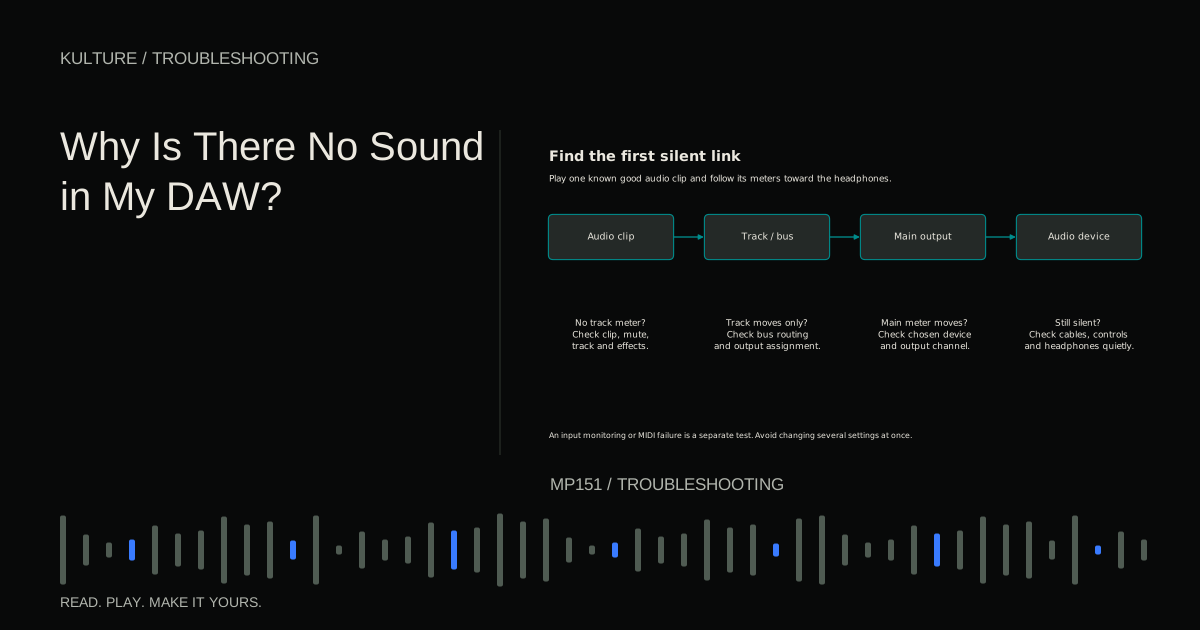
Work from a known signal. Import a short audio file you know plays correctly into an empty project. Keep monitoring low initially. If it plays there, the basic output system works and the original session deserves closer inspection. If it does not, troubleshooting every synthesizer in the original project is premature.
TRY IT HERE
Make it your session
Turn the steps into a plan you can save.
Ready when you are. Audio starts only when you press Play.
Keep experimenting in the sample pads LabSilence: distinguish source, routing, and output
If no track meters move, check whether the transport is running over actual material. A visible clip can be muted, outside the loop, or empty. A MIDI clip can contain notes but have no instrument assigned.
If one track meter moves but the main output does not, inspect that track's destination, parent group, mute state, and processing chain. Route the track directly to the main output in a saved test copy. If sound returns, the bypassed route contains the problem.
If the main output moves but nothing is audible, inspect the selected audio device, enabled output channels, hardware mixer, headphone socket, and physical monitoring level. A laptop may have changed its default output after an HDMI display or headset was connected.
Do not turn every volume control to maximum. Restoring the missing route could then produce a sudden loud signal. Raise the final monitoring control cautiously after confirming the path. The no sound lesson gives a more detailed decision sequence.
Live input and recorded playback are separate tests
Suppose a microphone is audible through direct monitoring but no waveform is recorded. That establishes that some analog hardware path is working; it does not establish the DAW's input assignment. Check the selected input device, the track's mono input, its record arm state, and operating system microphone permission.
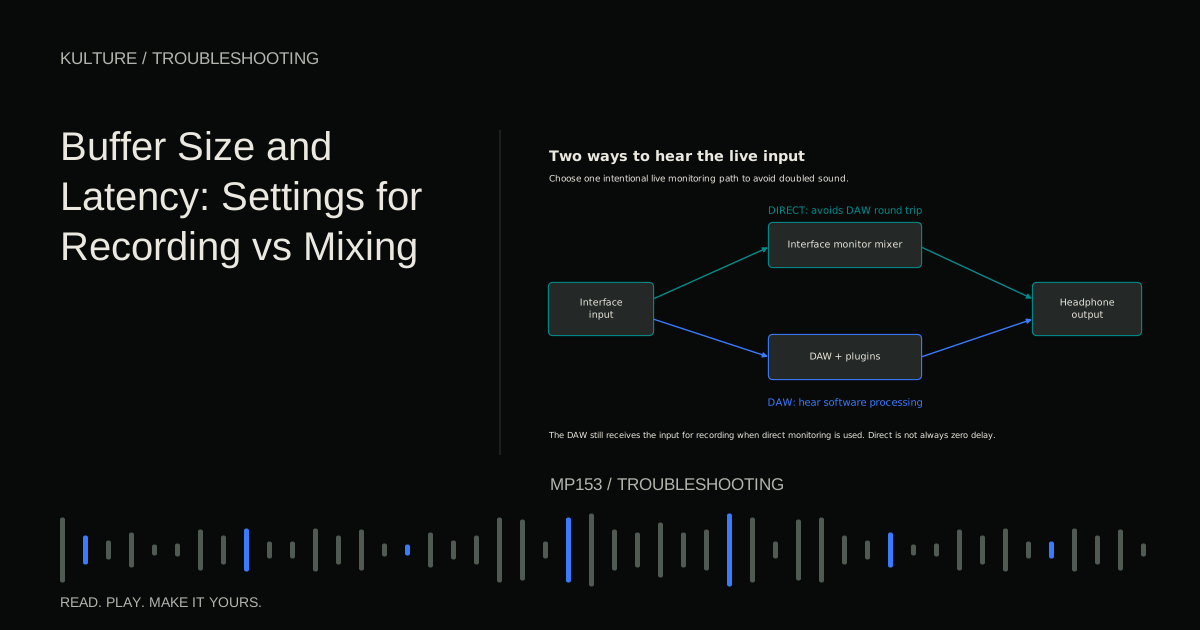
Now suppose the waveform records and plays correctly, but you cannot hear yourself during recording. The recording path works. You need to select a monitoring method, not replace the microphone. Use either an appropriate hardware direct monitor path or DAW software monitoring.
If you hear a doubled or hollow version of yourself, both may be active. Temporarily disable one route and listen again. This small test is more informative than adding an EQ to remove the hollow sound.
A controller is not an audio source
When a MIDI keyboard lights up but makes no sound, separate power, MIDI communication, and audio generation. A USB cable can provide power without functioning as the required data connection. A recognized controller can still be disabled as a note input in the DAW.
Create a fresh instrument track with a built in piano. Draw a note and play it. If that works, the software instrument and audio output are functional. Next select the controller's note input port, enable monitoring or record arm as required, and press a key.
If incoming activity appears but the piano remains silent, inspect MIDI channel filtering and note range. If nothing arrives, inspect the controller, cable, port, and input configuration. Ableton's controller FAQ illustrates why note input and remote control assignments are separate functions.
Delay: measure the situation before chasing a number
Latency is the time between an action and its audible result. Audio buffers contribute to it, but so do conversion, drivers, some plugins, and wireless listening devices.
Try a new project with one plain instrument and no main output effects. If playing feels responsive there but late in the full mix, look for look ahead dynamics, linear phase processing, oversampling, or other high latency effects. The relevant plugin may be on a bus or the main output rather than the track you are playing.
For microphone recording, direct monitoring may avoid the normal software round trip. It will not make a computer generated instrument respond faster, because that instrument still has to run in the computer. Nor does it automatically correct an inaccurately placed recording.
Record placement and monitoring feel are different questions. Do not drag every new take earlier or alter driver compensation without evidence. Use the manufacturer's documented calibration procedure when a repeatable offset remains. Focusrite explains the buffer and latency relationship.
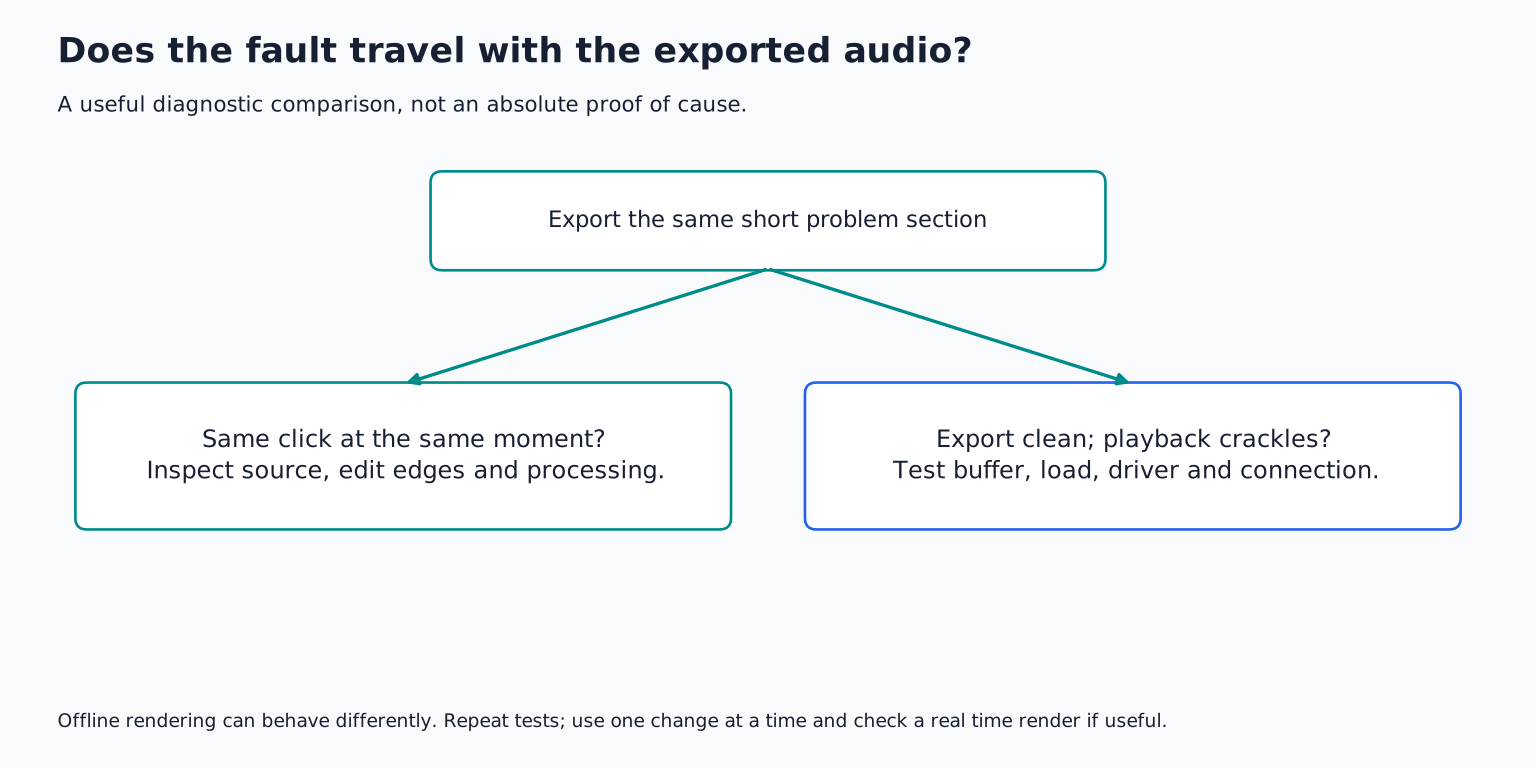
Clicks: ask whether the fault repeats in the same place
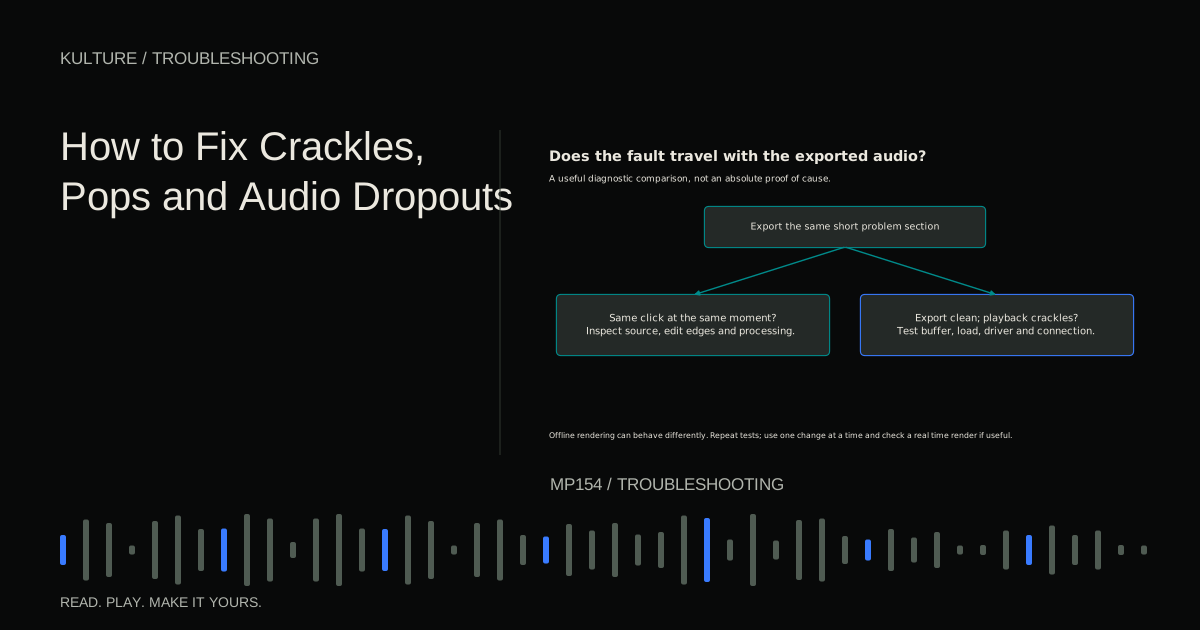
A click at exactly the same edit on every playback often belongs to the material or an abrupt transition. Zoom in and try a short fade. A click that moves around or appears only under heavy playback load may indicate a processing or connection problem.
Increase the buffer one step and replay the same section. If the fault stops, you have useful evidence about real time processing pressure. Then decide whether to keep the larger buffer, freeze demanding instruments, or remove unnecessary processing while recording.
If clicks persist in an empty project, test the supported driver, connection cable, and interface without an unnecessary hub. A damaged cable and a busy processor can produce superficially similar symptoms. Ableton's dropout guide covers these different causes.
Do not disable security tools permanently or make undocumented BIOS changes as an early experiment. Start with reversible, supported adjustments and retain a record of what changed.
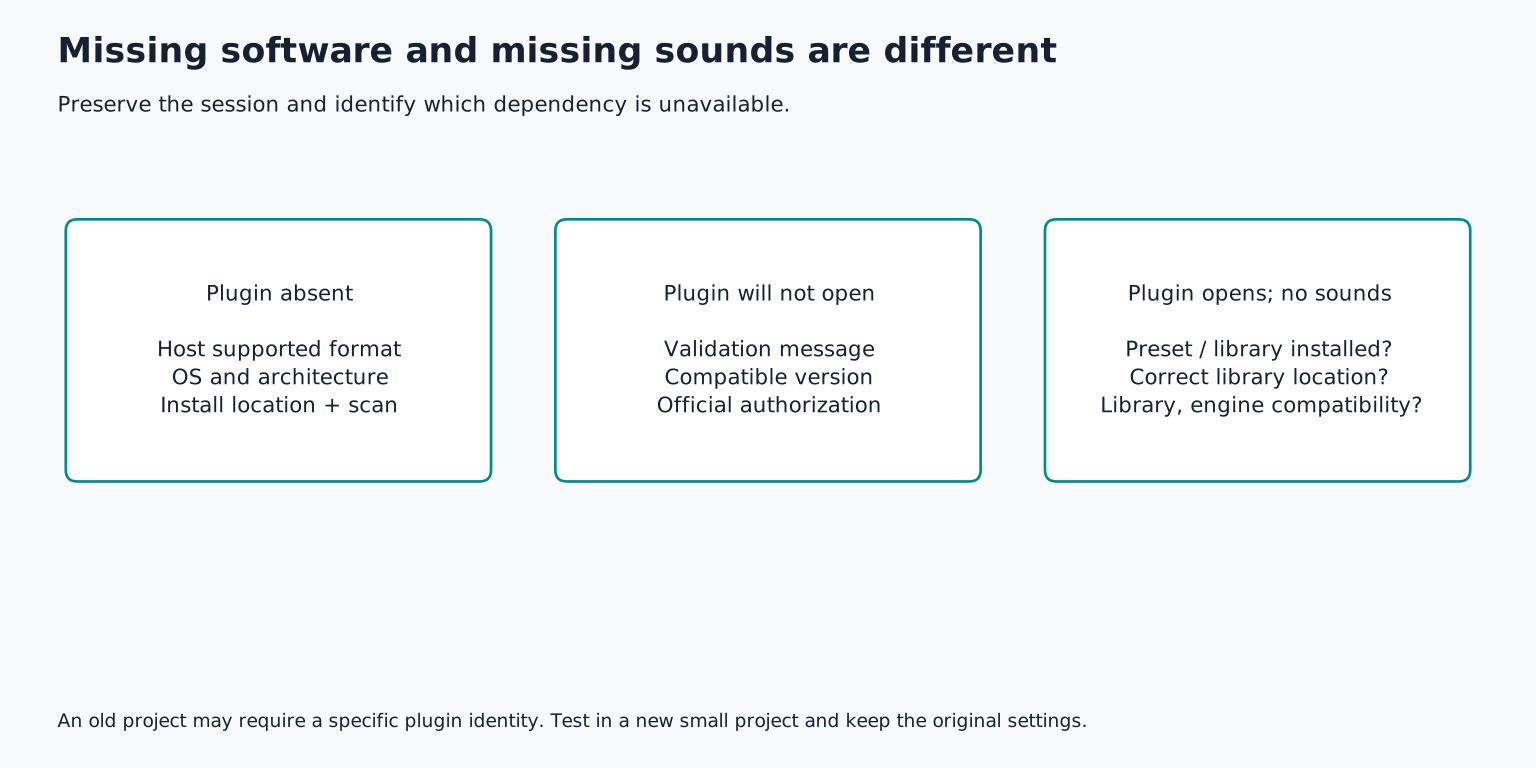
Missing plugins and missing audio require different repairs
A missing plugin means the DAW cannot load a particular software component. Check the plugin format, operating system support, processor architecture, installation, scan result, and authorization. A VST3 installation does not automatically supply an Audio Unit or AAX version.
Missing media means the project cannot locate a file it references. Search the expected drive and folder, make cloud only files available locally, and use the DAW's relink tool. Reinstalling the DAW does not recreate your deleted recordings. Ableton's reinstalling FAQ explicitly separates application problems from user content and plugin issues.
If a project crashes only while loading one plugin, use the application's documented recovery or plugin disabled opening method, if available. Work on a copy. Removing all plugins from the only saved version may destroy the very settings you want to recover.
Build a small diagnostic notebook
A useful log contains the symptom, test, result, and next step. For example:
| Observation | Test | Meaning |
|---|---|---|
| Full mix crackles at 128 samples | Repeat at 512 | Clean playback suggests deadline pressure |
| One vocal is silent | Bypass its effect chain | Sound returns; inspect effects individually |
| Piano responds to drawn notes only | Check incoming MIDI indicator | No activity points upstream of the instrument |
| Project opens with missing kick | Inspect original sample folder | Moved file needs relinking |
Do not overinterpret one result. A problem that disappears briefly may be intermittent. Repeat the same passage several times and, if relevant, reopen the project before calling it fixed.
Know when support needs evidence
If the issue remains, prepare a concise report for the relevant manufacturer. Include your computer and operating system, DAW version, interface and driver version, sample rate and buffer, the smallest project that reproduces the fault, and the exact error text.
Describe what you observed rather than your preferred diagnosis. “The output stops after thirty seconds in an empty session” is more useful than “the audio engine is broken.” Avoid sending private recordings or entire client sessions when a neutral test file reproduces the problem.
Your practice exercise is to create a harmless fault in a copy of a working project: mute a group, choose a different MIDI channel, or disconnect a sample reference by moving only a duplicate. Restore it using the signal map and one change at a time method. Then save a clean test project you can reuse. Troubleshooting becomes easier when you have a known working baseline rather than only a complicated song and a guess.
TAKE IT INTO YOUR OWN MUSIC
Your next session.
If the issue remains, prepare a concise report for the relevant manufacturer. Include your computer and operating system, DAW version, interface and driver version, sample rate and buffer, the smallest project that reproduces the fault, and the exact error text.
Notes and progress stay in this browser.