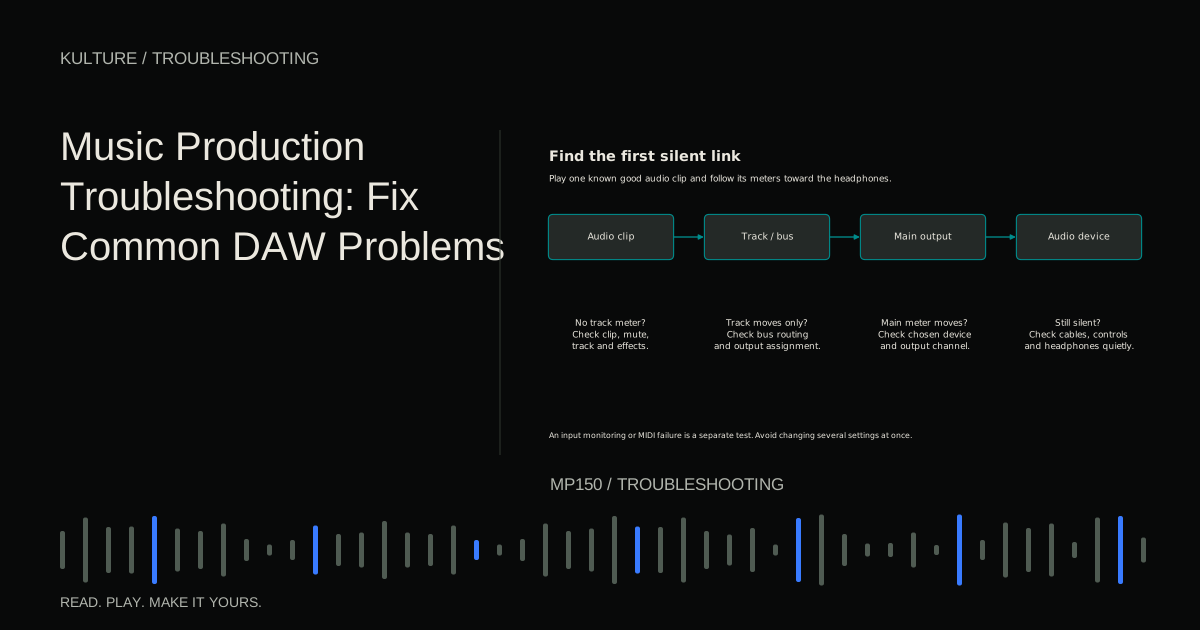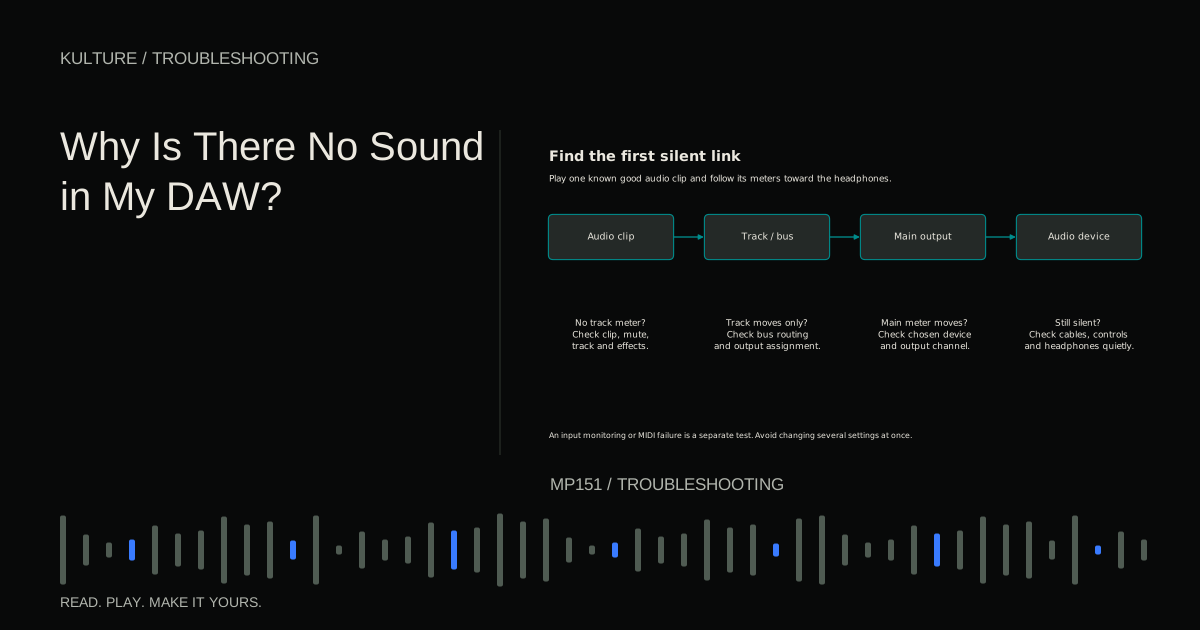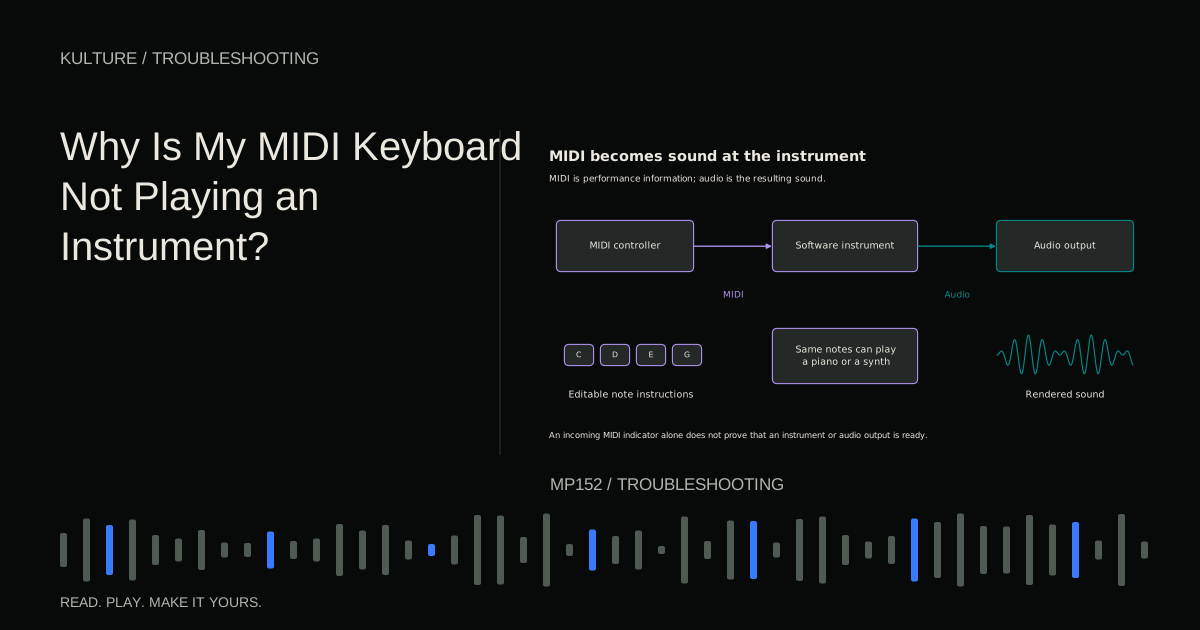
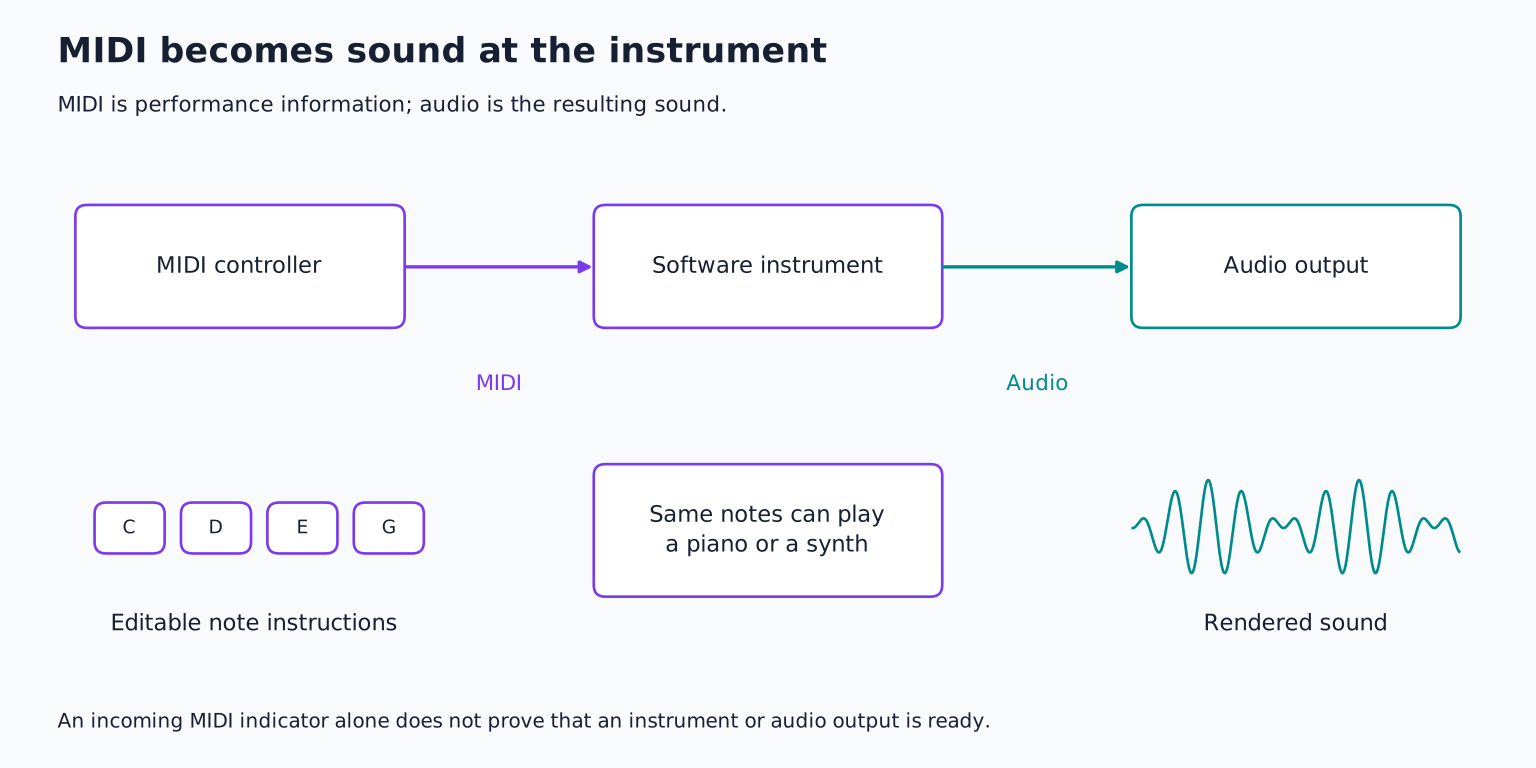
The quickest test is to separate the keyboard from the instrument: draw a note in the DAW and play it. If that makes sound, investigate MIDI input. If it remains silent, investigate the instrument and audio output first.
Confirm what kind of keyboard you own
A controller may have no internal sounds or headphone output. It relies on a software instrument or connected hardware sound module. A synthesizer or digital piano may generate its own sound and also send MIDI. Some devices carry both audio and MIDI over USB, while others carry only MIDI.
Check the manual rather than assuming a USB port includes audio. If you want the sound built into a hardware keyboard, you may need to record its audio outputs separately. The MIDI Association's overview explains the fundamental distinction between MIDI communication and audio.
A traditional five pin MIDI cable also has direction. Connect the keyboard's MIDI OUT to the interface's MIDI IN. The receiving instrument's audio still needs its own route. A cable from OUT to OUT will not produce the intended communication.
TRY IT HERE
Follow the signal
Put the stages in order, then check the route.
Ready when you are. Audio starts only when you press Play.
Keep experimenting in the sample pads LabProve the instrument can make sound
Create a new instrument track and load a built in piano or simple synthesizer. Use a preset with a quick attack and no complicated key switching. Draw a note near the middle of the piano roll and press Play.
If it plays, you know that this instrument, track, and output route can work. Leave that simple setup in place for the keyboard test. If it does not play, check that you loaded an instrument rather than an audio effect, that the track is unmuted, and that the main output reaches your headphones.
An onscreen keyboard inside the instrument can be another useful test, but it may bypass some track input processing. Drawn note playback and onscreen auditioning answer slightly different questions. If one works and the other does not, examine track routing and MIDI effects between the clip and instrument.
For silent audio output generally, use the no sound guide before changing controller settings.
Check the physical data connection
Connect the controller with a known data capable USB cable. Some cables are designed only for charging. Try a supported direct computer connection instead of an unnecessary hub, and use the controller's required power arrangement.
If the controller requires a driver, install the official supported version for your operating system. Class compliant devices may not require a separate driver, but their editor software and advanced integration can have additional requirements. Do not assume another model from the same manufacturer uses the same setup.
Close and reopen the DAW if it does not refresh newly connected devices. If the controller still does not appear in the application's MIDI device list, check whether the operating system recognizes it. A failure at that stage points toward the device, cable, port, power, or driver rather than your piano preset.
Ableton's connection troubleshooting includes direct connection and configuration checks that illustrate this separation.
Enable the note input port
Many controllers expose more than one virtual port. One may carry keyboard notes, while another supports a control surface protocol for faders, transport, or display feedback. Names vary, so use the manufacturer's DAW setup instructions to identify them.
Enable the ordinary note input port in the DAW and choose it on the instrument track. If the DAW offers separate note input, clock sync, and remote control switches, do not assume all three are required to play a piano. Clock synchronization keeps devices in time; remote mapping assigns controls; note input supplies the performance.
As one concrete example, Live distinguishes Track, Sync, and Remote functions in its MIDI settings. Its controller FAQ explains the relevant configuration. Other DAWs use different labels for these roles.
Avoid enabling every port in both directions without a reason. Duplicate routes can cause doubled notes, and feedback loops can create stuck or repeated messages.
Arm or monitor the intended track
Some DAWs play incoming MIDI through the selected instrument track automatically. Others require record arm, input monitoring, or a specific combination. Select the piano track, enable its appropriate monitoring state, and press a key.
Watch for incoming MIDI activity and the instrument's audio meter. These indicators locate the break:
| What you see | What to inspect next |
|---|---|
| No incoming MIDI activity | Device, cable, enabled input, port choice |
| MIDI activity but no instrument audio | Channel filtering, note range, instrument, MIDI effects |
| Instrument audio but no main output | Track or bus routing, mute, faders |
| Main output activity but no sound | Audio device and physical listening route |
Record a short MIDI clip even if monitoring remains unclear. If note rectangles appear, the DAW captured performance data. Playback may work even when live monitoring was disabled. That is useful evidence that the physical MIDI connection is functioning.
Remove channel and range surprises
Conventional MIDI provides sixteen channels on a port. If the controller transmits on channel 2 while the track accepts only channel 1, the notes may be ignored. For a simple test, accept all channels or set the sender and receiver to the same one.
Check octave transpose buttons. A small keyboard shifted far downward may play below a sampled piano's range or trigger unused drum notes. Return the transpose setting to a neutral position and try several notes across the middle register.
Drum kits map notes to individual sounds. A pad that sends an unmapped note can appear unresponsive while the next pad works. Use the instrument's note labels or mapping page rather than assuming the controller's factory pad layout matches it.
Temporarily bypass arpeggiators, chord tools, scale filters, and MIDI transformations. Some require the transport to run; others remap or suppress notes. Restore them only after direct note input works.
Fix stuck, doubled, or delayed notes separately
If a note continues after release, check the sustain pedal and its polarity or configuration. Some pedals establish their normal state when the keyboard powers on, so follow the manufacturer's startup instructions. Use the DAW's all notes off or panic function if available to stop a stuck note, but identify the cause before recording again.
If each key produces two notes, inspect duplicate input routes and the keyboard's local control behavior when using its internal sound engine. Do not switch local control off blindly; first decide whether you want the keyboard to play itself, a DAW instrument, or both.
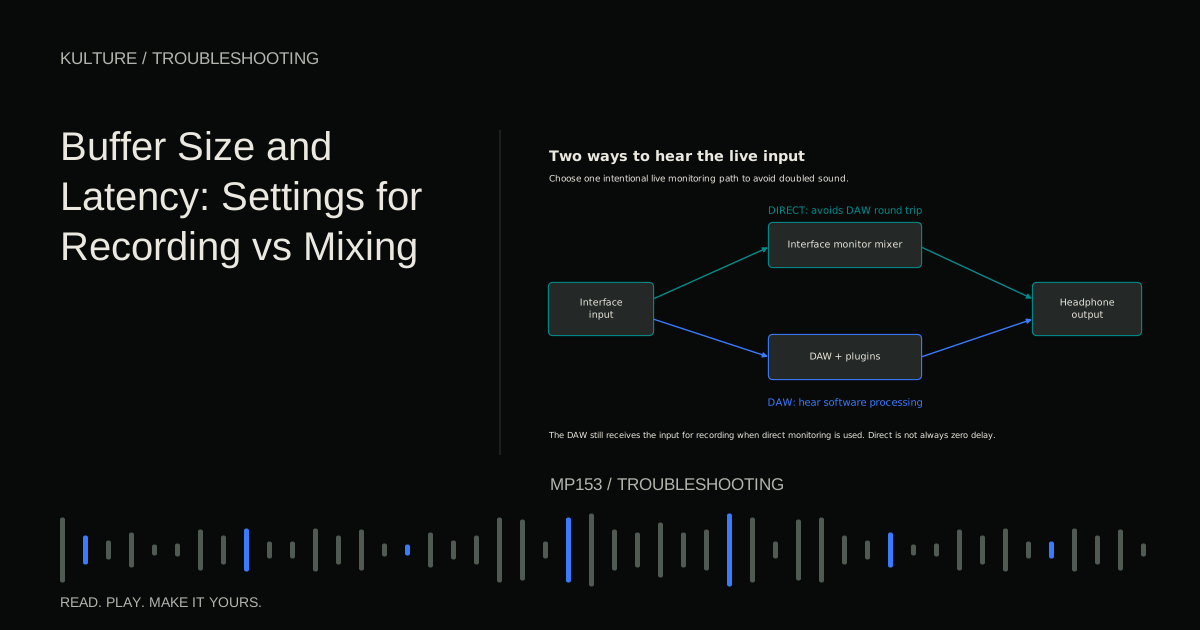
If notes work but feel late, the MIDI connection may be fine. Inspect audio buffering, high latency effects, and Bluetooth listening. The latency guide explains those tests.
Your completion exercise is to record eight separate notes and one sustained chord. Play them back, inspect their lengths, and confirm the sustain pedal returns to its normal state. Save this working track as a template or test project. Then add your usual instrument and controller mappings one at a time, keeping the successful basic route available for comparison.
TAKE IT INTO YOUR OWN MUSIC
Your next session.
If a note continues after release, check the sustain pedal and its polarity or configuration. Some pedals establish their normal state when the keyboard powers on, so follow the manufacturer's startup instructions. Use the DAW's all notes off or panic function if available to stop a stuck note, but identify the cause before recording again.
Notes and progress stay in this browser.