Turn the final listening level down before changing routing. A disconnected path can become suddenly loud when restored. Save the project under a new name if you are about to alter several routing choices.
Begin with a known audio file
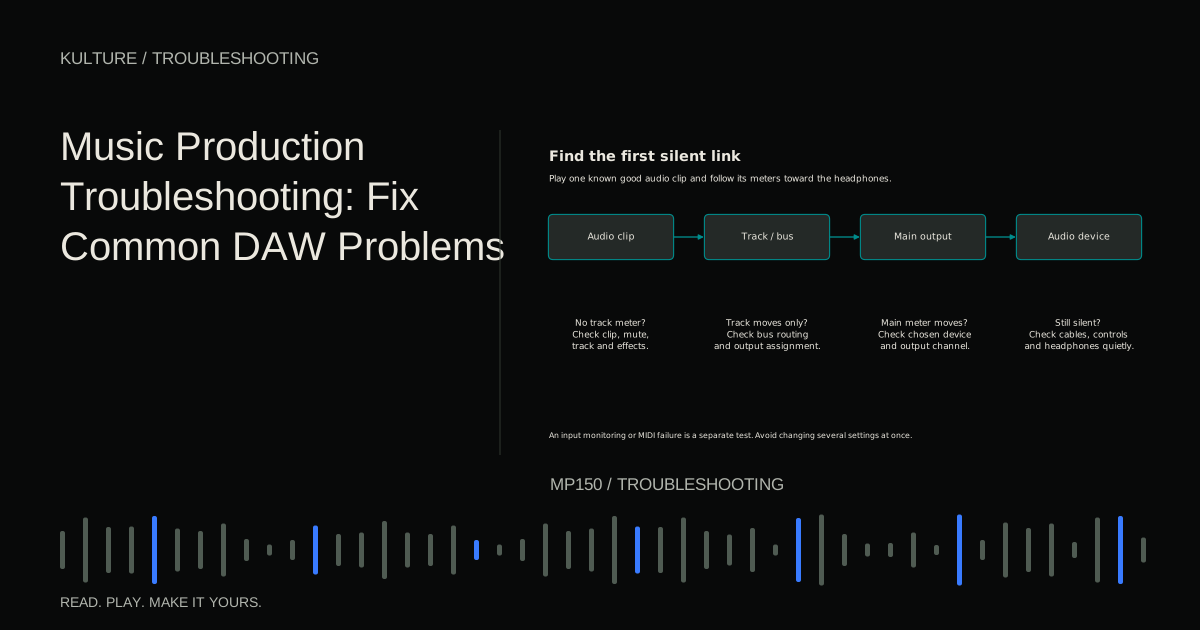
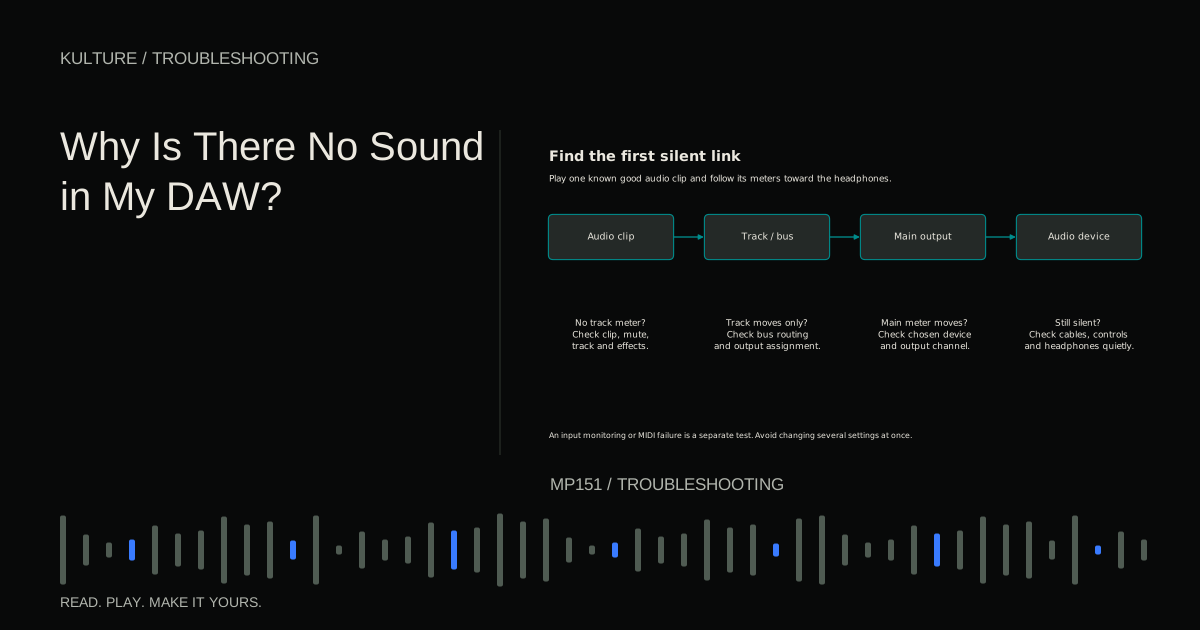
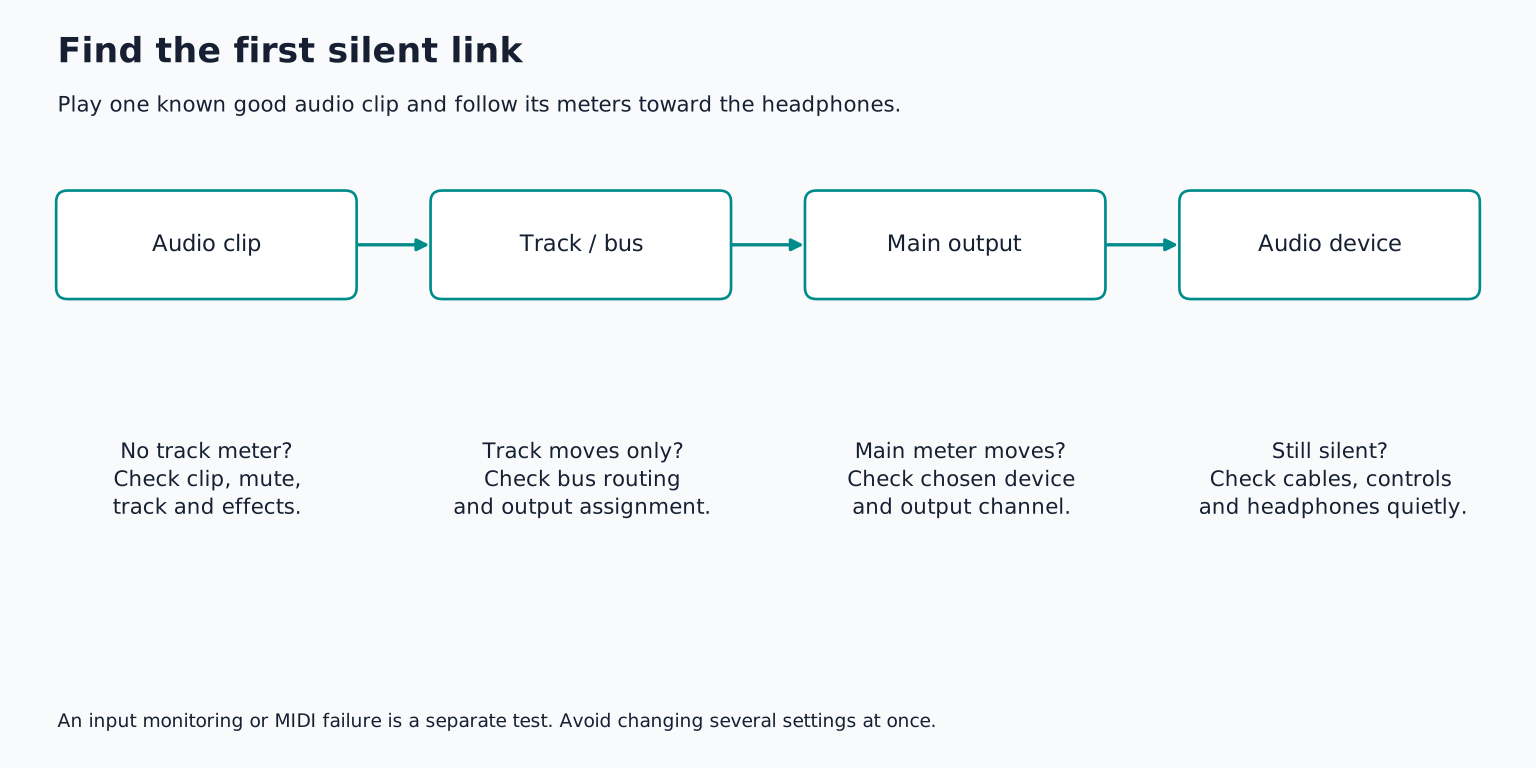
Create an empty project and import a short audio file that plays correctly in another application. Put it on an audio track, route that track to the main stereo output, and start playback over the clip.
This removes microphones, MIDI controllers, instrument presets, and complex session routing from the test. Watch the track meter and main output meter. The result divides the investigation into useful branches.
If the simple project plays, your audio device can produce sound through the DAW. Return to the original project and inspect its tracks, groups, effects, and output choices. If the simple project is also silent, concentrate on audio device setup and the physical output path first.
Do not use a generated test tone at an unknown level as your first experiment. Familiar short audio at a modest track level is easier to judge and less surprising.
TRY IT HERE
Follow the signal
Put the stages in order, then check the route.
Ready when you are. Audio starts only when you press Play.
Keep experimenting in the sample pads LabWhen the track meter does not move
Check that the playhead actually crosses the clip. A loop range may be repeating an empty part of the timeline. A pattern oriented DAW may be playing the selected pattern rather than the arrangement. A clip itself may be muted even when the track is enabled.
Look inside the clip. An empty MIDI region is a container without note instructions. An audio clip may point to missing media or consist of silence. A waveform image can occasionally remain visible even though the underlying file is unavailable, so read any missing file warning.
For an instrument track, confirm that a sound generating instrument is loaded. An EQ or reverb is an effect, not a piano. Try a built in preset and draw a note in its playable range. If that works, the original instrument or its input needs attention.
Some sampled instruments have limited key ranges or require a library to finish loading. Some presets have a slow attack, meaning the sound takes time to rise after a note starts. Hold a note long enough to distinguish a slow entrance from complete silence.
When the track moves but the main output does not
Inspect the track's output destination. It may be routed to an unused bus, a hardware output you are not listening to, or a group whose channel is muted. A bus is an internal signal path that can connect several channels; it does not automatically lead to your speakers.
Temporarily route the test track directly to the main output. If it becomes audible, restore the original route one stage at a time. Check the group or bus meter, fader, mute, and output assignment. This reveals which link interrupts the chain.
Bypass processing in the saved test copy. A gate can close on quiet material, a filter can remove most of the audible range, and a plugin's output control can be turned down. A trial or unauthorized plugin may deliberately interrupt audio. If bypass restores sound, re enable effects individually until the failure returns.
Also inspect automation. A fader that jumps back down when playback begins may be following a recorded automation curve. Raising it while stopped does not necessarily override that curve during playback.
Ableton's routing manual illustrates source and destination choices, although the names and meter positions differ in other DAWs.
When the main output moves but the room is silent
Open the DAW's audio settings and verify the actual output device. Operating system playback and DAW playback can use different devices. Hearing a web video does not prove the DAW is assigned to the same output.
If using an interface, confirm that the DAW's main output reaches the physical pair connected to your speakers or headphone mix. Outputs 3 to 4 are not interchangeable with 1 to 2 unless your hardware mixer routes them that way. Some interfaces have separate headphone mixes or a direct versus playback balance control.
Check the headphone plug and adapter. A partly inserted connector can cause missing channels, cancellation, or intermittent sound. Turn the level down before reseating it. Test a known working pair of headphones if available.
For powered speakers, confirm power, input selection, cable connection, and their level controls. For passive speakers, a suitable amplifier is also required. Never connect an amplifier's speaker output to an interface input as a test.
On Windows, select the manufacturer's supported audio driver when applicable. On macOS, verify the intended Core Audio device. If a device was unplugged, the application may need you to select it again after reconnection.
When playback works but recording input is silent
You have already proved the output route, so work upstream. Choose the correct input device and the exact track input. For a microphone on interface input 2, selecting input 1 will produce no useful signal even though the interface itself is working.
Use a mono input for one microphone. Arm the track and enable the intended monitoring route. Check the operating system's microphone permission for the DAW, and the browser's permission as well if using a browser studio.
A condenser microphone may need manufacturer specified power; a guitar may need instrument mode. Read the device requirements rather than switching phantom power on indiscriminately. If the interface meter remains inactive, inspect the source, cable, input mode, and gain before the software.
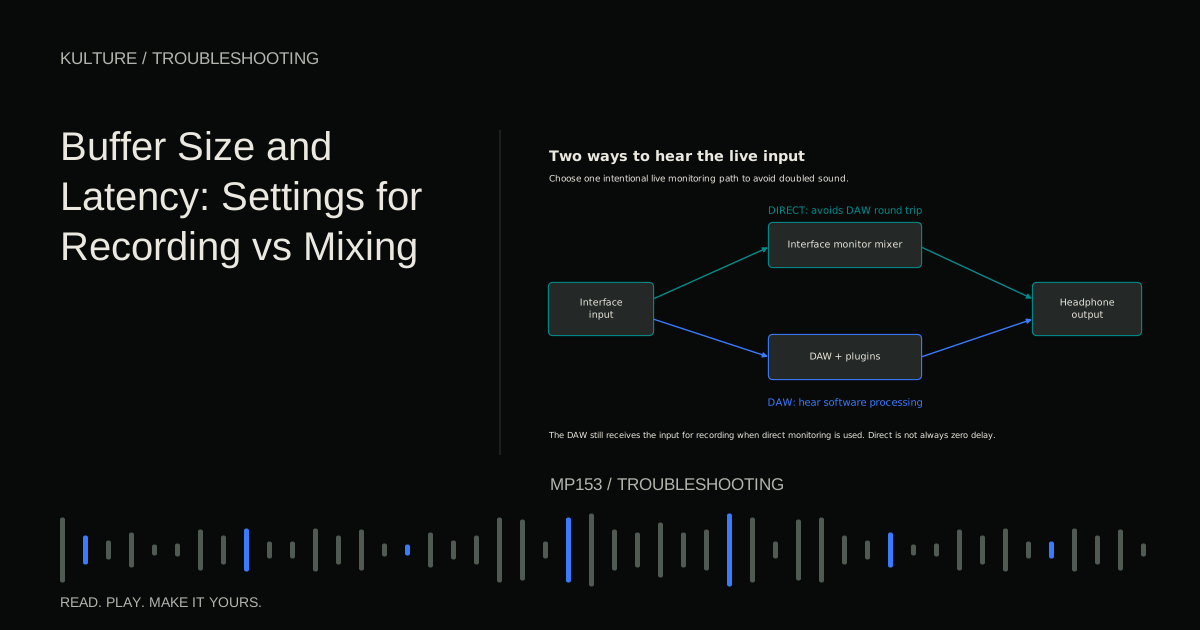
If you can hear direct monitoring but no DAW meter moves, the interface's listening path is working while its software recording path remains unresolved. Direct monitoring is not proof that the track is assigned correctly.
When only MIDI is silent
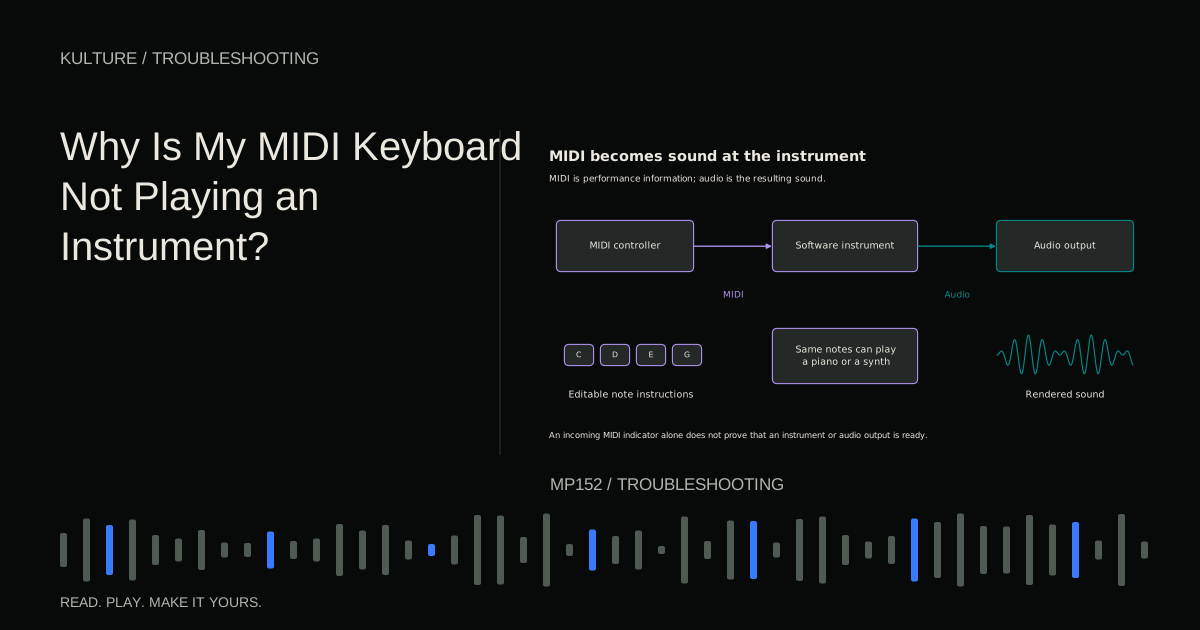
Try the instrument's onscreen keyboard or draw a note. If that produces sound, focus on the hardware controller's connection and the track's MIDI input. Check the note input port, MIDI channel, record arm, and monitoring behavior.
A device's remote control port may control transport buttons without supplying ordinary note input. Likewise, a MIDI activity light may show controller messages rather than notes. Use the MIDI keyboard troubleshooting lesson for the next tests.
If the onscreen instrument is also silent, return to its preset, output level, missing sample library, and track routing. Buying a different keyboard will not repair those stages.
When the exported file is silent
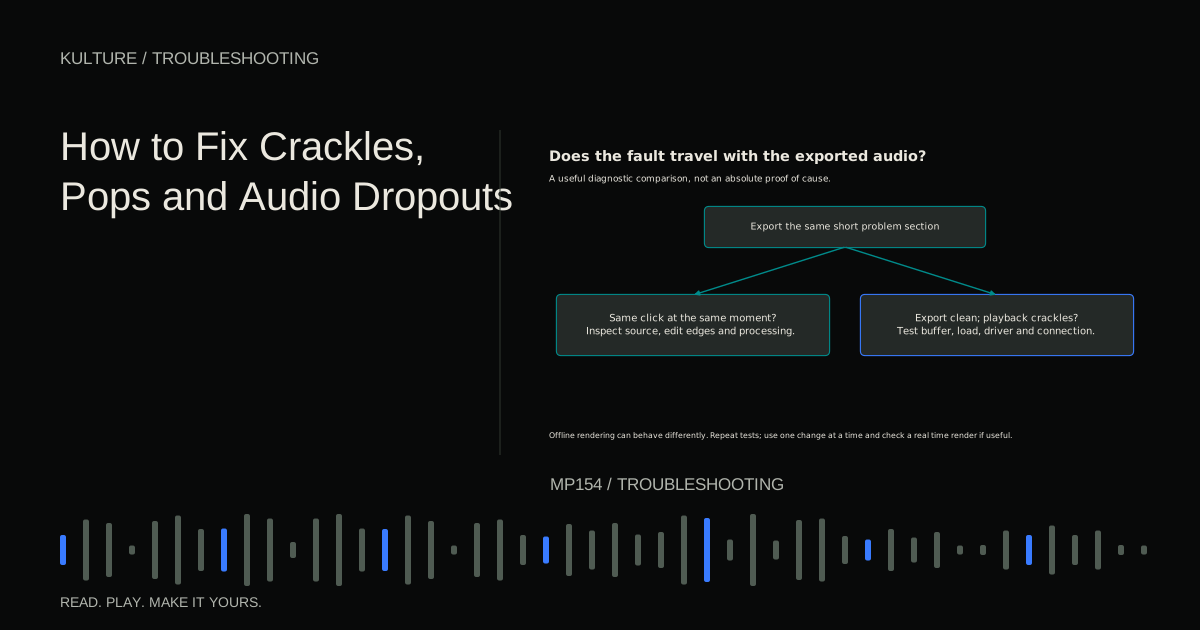
A mix can play correctly inside the DAW yet export silence if the wrong output or time range is selected. Choose the main stereo mix and the section containing your arrangement. Confirm that the tracks are not muted or excluded from the export.
External hardware instruments require their audio to return to the DAW, and may need real time capture or rendering. MIDI sent to hardware is not itself an audio recording. Cubase's mixdown documentation specifically warns that output routing determines what reaches export.
For your final check, save a small known good project with one audio clip, no external processing, and a working output. Reopen it and export ten seconds. Keep it as a diagnostic reference. If silence returns later, compare that project with the failing one before reinstalling anything, and use the broader troubleshooting guide to follow the evidence.
TAKE IT INTO YOUR OWN MUSIC
Your next session.
A mix can play correctly inside the DAW yet export silence if the wrong output or time range is selected. Choose the main stereo mix and the section containing your arrangement. Confirm that the tracks are not muted or excluded from the export.
Notes and progress stay in this browser.