This tutorial is for GarageBand on Mac, checked against Apple's 10.4.14 documentation. GarageBand for iPhone and iPad uses a different interface. You do not need an audio interface unless your recording source or listening setup requires one.
Start with an empty project
Create an Empty Project and choose a Software Instrument track. Save it immediately as First GarageBand Track in a location you can find later.
Set the tempo to 96 BPM, the time signature to 4/4, and the project key to A minor for this exercise. Setting a key does not magically prevent every wrong note; it supplies project context for features that use it. You will still choose the notes yourself.
In GarageBand's Audio/MIDI settings, verify the output device. If using a microphone or interface later, select its input too. Test playback quietly before turning monitoring up.
The main Tracks area shows time horizontally and musical layers vertically. The Library selects sounds, the Editor changes region contents, and Smart Controls expose useful sound and effect parameters. Apple's GarageBand guide provides the current interface reference.
TRY IT HERE
Make it your session
Turn the steps into a plan you can save.
Ready when you are. Audio starts only when you press Play.
Keep experimenting in the beat maker LabPlay a piano without buying a keyboard
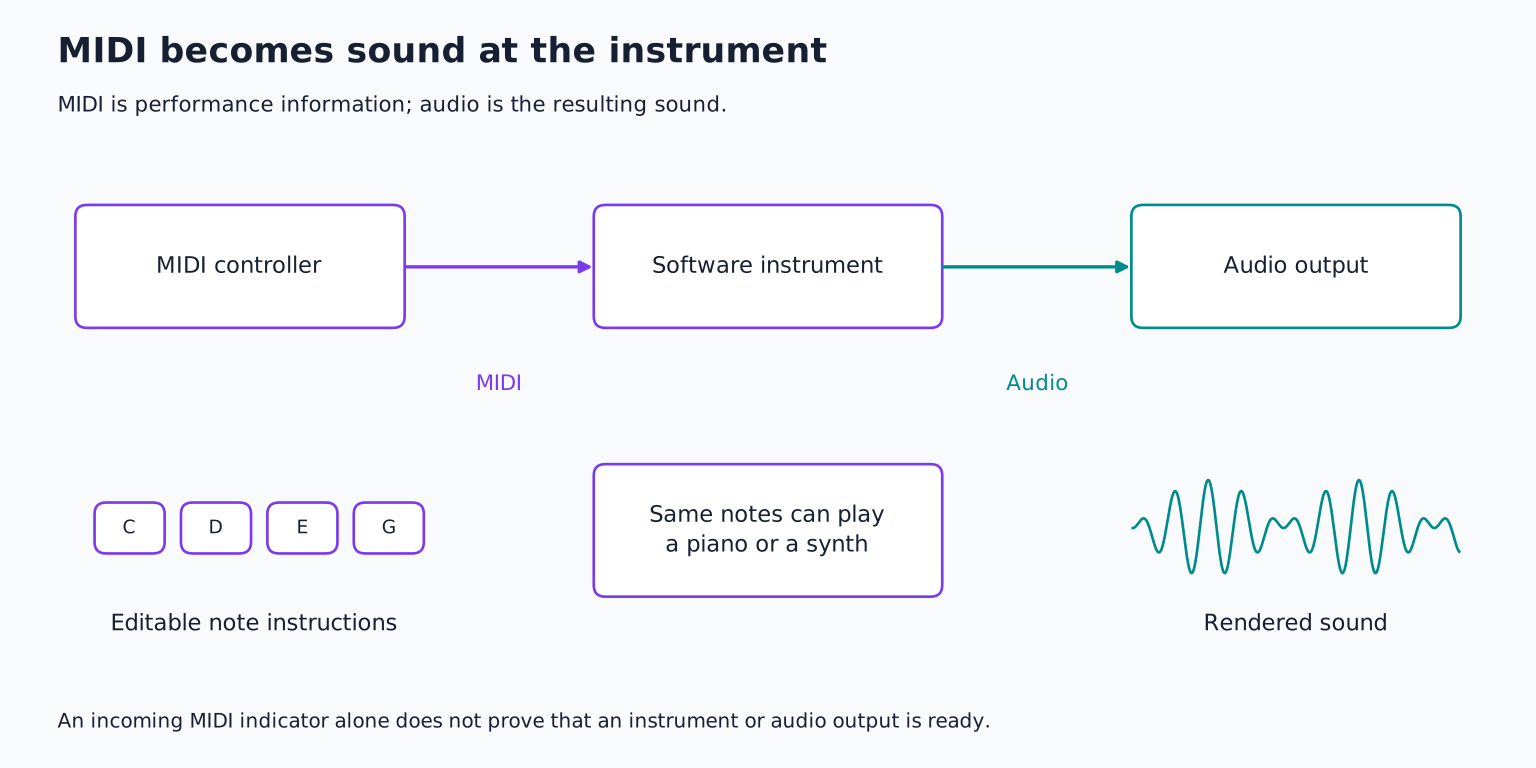
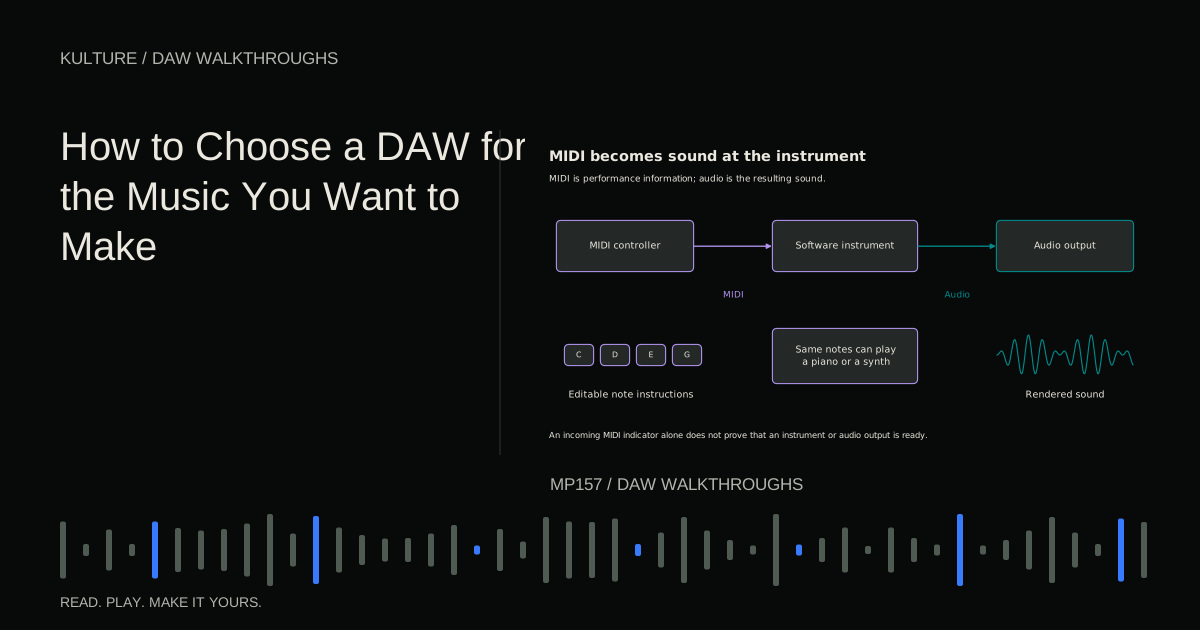
Choose a simple piano or electric piano patch from the Library. Open Window > Show Musical Typing. The onscreen diagram maps computer keys to musical notes and shows controls for changing octave and velocity.
Try a few notes in the middle register. If the sound is too low or high, use Musical Typing's octave controls. Computer keyboard velocity is selected through controls rather than measured from how hard you press the letters, so do not expect piano like touch response.
A connected MIDI keyboard can provide more expressive playing, but it is optional. Apple's software instrument instructions cover the available playing methods.
If Musical Typing changes shortcuts instead of playing notes, check that its window and the intended instrument track are active. If the track meter moves but no audio is audible, inspect the output device rather than the note names.
Record a simple harmonic phrase
Enable the metronome and count in. Record four bars of single notes first: A in bar 1, F in bar 2, C in bar 3, and G in bar 4. Hold each note for most of its bar.
Stop and open the resulting MIDI region in the Piano Roll Editor. Add the other notes to form these chords:
| Bar | Chord notes |
|---|---|
| 1 | A, C, E |
| 2 | F, A, C |
| 3 | C, E, G |
| 4 | G, B, D |
You can also create an empty MIDI region on the software instrument track and enter everything by hand. In the Piano Roll, Apple's documented method includes Command clicking to add a note. Drag note edges to adjust their lengths and move them vertically to change pitch. See adding notes in the Piano Roll.
Make each chord last about three beats, then leave a small gap. Listen to whether the release of the patch fills that gap naturally. If it remains crowded, shorten the notes further or reduce excessive reverb in the patch.
Correct only what needs correction
If a chord starts slightly late, move its notes together toward the intended beat. If one note is much louder than the others, lower its velocity. Velocity can affect the instrument's tone as well as its level.
Quantization moves notes toward a chosen rhythmic grid. It can help a clearly intended beat line up, but it is not a requirement to make every performance identical. For slow chord changes, begin with a simple grid and listen after correction.
Avoid making every note the same length and velocity merely because it looks tidy. A slightly softer repeat or shorter final chord can help a phrase breathe. The editor is a way to make musical decisions more precise, not a command to remove every difference.
Apple's recording software instruments guide explains how played notes become editable regions.
Let Drummer support the phrase
Add a Drummer track and select an available drummer and kit appropriate to the character you want. GarageBand creates a performance region rather than asking you to place every drum note immediately.
Open the Drummer Editor and make the part relatively simple. Listen to the kick and snare first, then adjust the amount of detail and fills. Keep the first four bars restrained enough that the chord rhythm remains obvious.
The Drummer controls influence a generated performance; they are not the same as ordinary MIDI note rectangles. For this first project, use the performance controls and region length rather than trying to turn the drummer into a hand programmed kit.
Apple's Drummer track guide explains creating the track. If you prefer drawing drums yourself, use a software drum kit track and the pattern in the stock sound project lesson.
Add bass as a separate musical layer
Create another Software Instrument track and select an available bass patch. Enter A, F, C, and G in a lower register, corresponding to the four chords.
For each bar, place a short note on beat 1 and another on beat 3. Then compare a variation with the second note on the “and” after beat 3. The first feels more squarely anchored; the second pushes toward the next bar.
Choose one rhythm and keep the bass relatively simple. If its notes overlap awkwardly, shorten them and listen to the preset's release. A long release can keep sounding after the visible MIDI note ends.
Lower the bass until you can hear both its pitch and the drum pulse. If the piano competes in the low range, move the piano's lowest chord note up an octave. This changes the arrangement before you reach for processing.
Write a tiny lead phrase or record one
For an all software project, add a bell, pluck, or other contrasting sound. In bar 2, play E on beat 3 and C on beat 4. In bar 4, play D on beat 3 and B on beat 4. Leave bars 1 and 3 empty.
Those rests make the melody sound like a response to the harmony. Try ending the final phrase on A instead and compare how strongly it resolves. Keep the version that supports the feeling you want.
If you would rather sing or play an instrument, create an Audio track and choose its input. For one microphone, select the appropriate mono input. Set gain while performing the loudest phrase, wear headphones, and choose one monitoring route to avoid hearing a doubled signal.
Follow the microphone's power requirements, and use an instrument input for a suitable direct guitar connection. Never connect an amplifier's speaker output to a normal interface input. The home recording guide covers placement and gain in more detail.
Arrange sixteen bars instead of leaving a loop
Repeat the four bar idea to sixteen bars. Begin with piano and a simple drum part. Add bass in bars 5 to 8. Introduce the lead or recorded phrase in bars 9 to 12. Remove some layers in bars 13 to 16 and finish with A, C, E.
Looping a region and copying it are related but different operations. A loop repeats the source region; an independent copy gives you a place to make a variation. Before changing the final chord, make sure you are editing a separate ending rather than the source that earlier loops repeat.
Listen from the beginning with the cycle region off. If the piece has no obvious high point, make the opening quieter or thinner rather than adding another layer to the busiest section.
Use one small transition, such as a Drummer fill or a missing bass note before the main entrance. Too many effects can make a simple structure harder to hear.
Balance and use Smart Controls deliberately
Adjust track volumes before adding effects. Establish the drums, add bass, then bring in the piano and lead. If the main output overloads, reduce the contributing track levels.
Open Smart Controls for one track and identify what each visible control changes. Names and available controls depend on the selected patch. Move one control at a time, compare, and return it if the change does not help.
A little reverb may add depth to the piano, but excessive reverb can blur the chord gaps. A brighter lead may cut through, but it can also become distracting. Judge every change in the full arrangement at a comfortable playback level.
Save a second project version before major experiments so that returning to the simpler balance is easy.
Export the song, not just the editable project
Choose Share > Export Song to Disk. Give the file a clear name and location, choose an appropriate format such as WAVE, and check whether the option to export only the cycle area or selected regions is active.
For the complete song, make sure the intended full range is included. For a short excerpt, deliberately select the supported range option. Leave enough time for the final decay. Apple's export guide explains these choices.
Play the exported file outside GarageBand. Check the opening, bass entrance, lead phrase, and ending. Keep the .band project as the editable source and back it up separately.
Your next exercise is to make a second arrangement using the same sounds but a different bass rhythm and a sparser opening. Compare the two complete files rather than only the loudest section. Then use the eight bar arrangement lesson to develop a longer track with the same straightforward tools.
TAKE IT INTO YOUR OWN MUSIC
Your next session.
Choose Share > Export Song to Disk. Give the file a clear name and location, choose an appropriate format such as WAVE, and check whether the option to export only the cycle area or selected regions is active.
Notes and progress stay in this browser.

![Ableton Live for Beginners: Make and Export Your First Loop: Kick, snare and closed hat triggers on a sixteen step grid: [[1, 9], [5, 13], [1, 3, 5, 7, 9, 11, 13, 15]].](/assets/guide-art/ableton-live-for-beginners-make-and-export-your-first-loop-7eb7fd8bcc.svg)