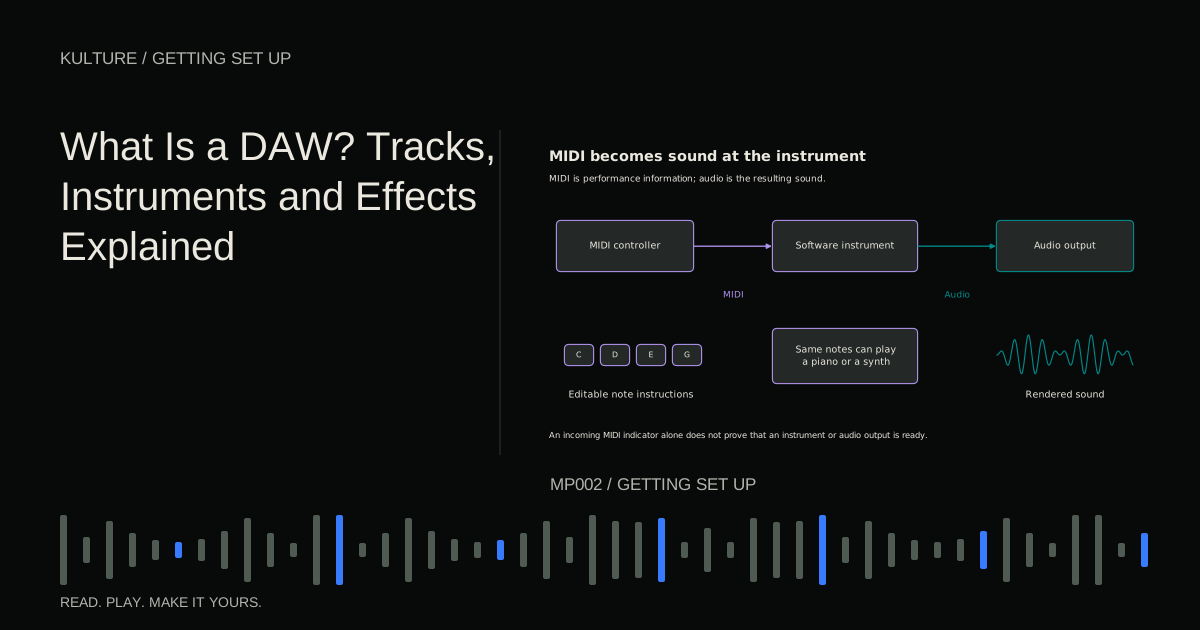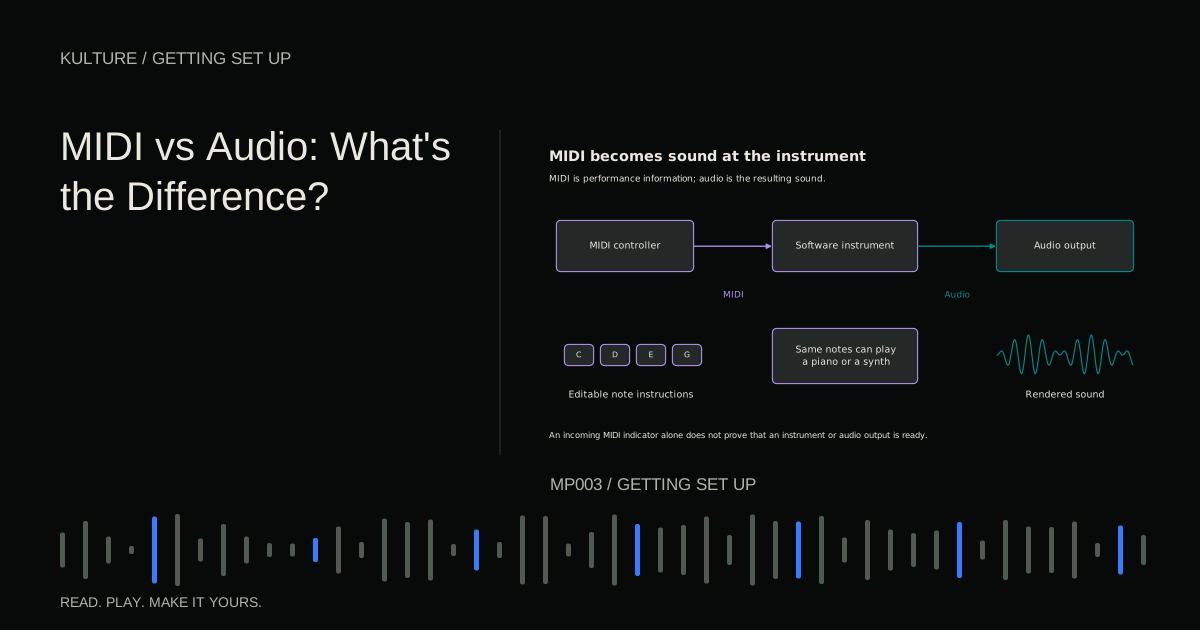
This walkthrough records one voice or instrument onto one audio track. Use a short phrase of roughly twenty seconds so you can compare takes and identify problems quickly. If you are recording a software instrument from a MIDI keyboard instead, follow the MIDI explanation; that is a different input path.
Prepare the physical source
Choose the quietest practical position in the room. Listen for fans, traffic, buzzing lights, chair creaks, and computer noise. Move away from an obvious noise source or change the recording time if possible. Processing can help some recordings, but capturing less noise is usually easier than removing it later.
Set the instrument up before recording. Tune a guitar, replace a rattling accessory, and place lyric sheets where they will not rustle beside the microphone. A stable stand prevents changes in distance and reduces handling noise.
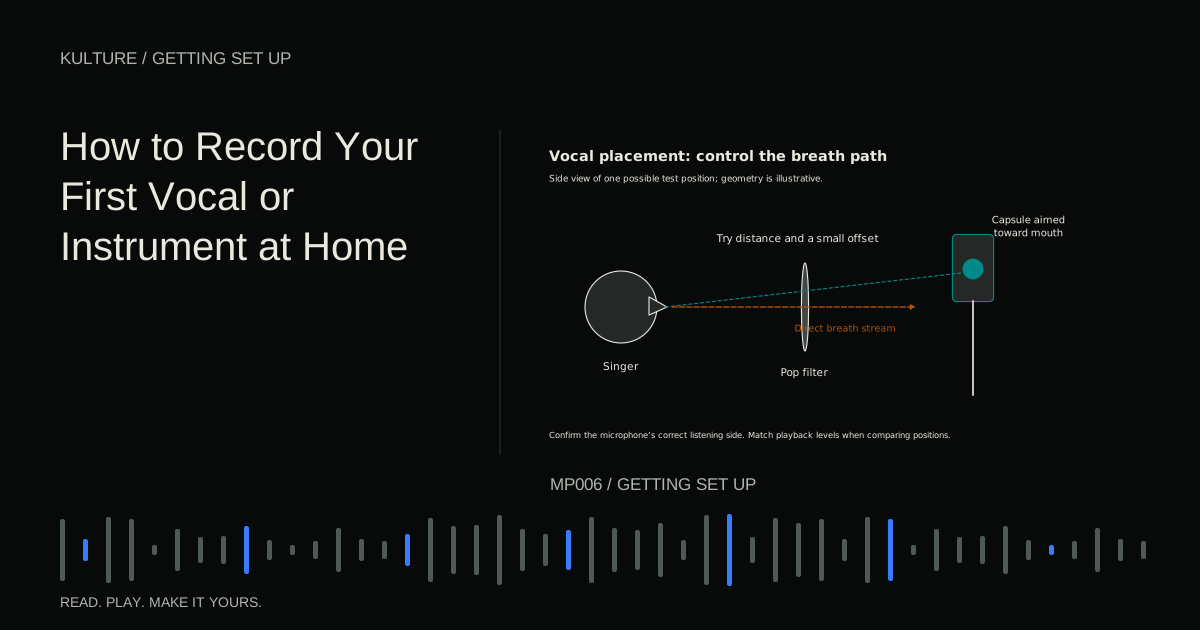
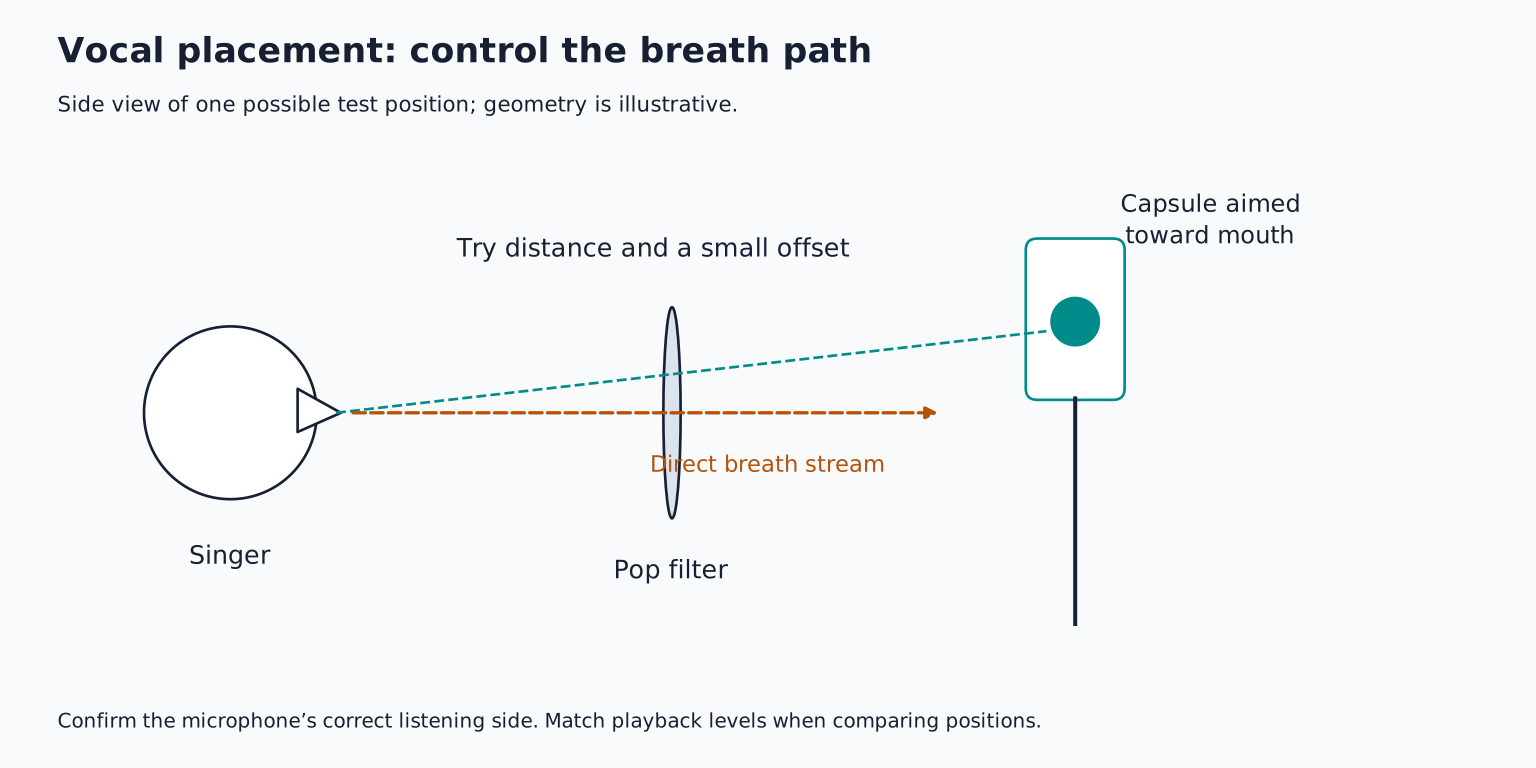
For a vocal, begin with the microphone roughly a handspan or two from the mouth, then adjust for the particular microphone and voice. Use a pop filter and angle the microphone slightly away from the direct stream of breath if plosive consonants cause thumps. This is an initial experiment, not a universal distance rule.
For acoustic guitar, try pointing toward the area around the neck body junction rather than directly into the soundhole. Move the microphone while listening to short recordings: toward the body often adds weight, while other positions change pick attack and string balance. Shure's recording techniques guide provides source specific placement approaches.
TRY IT HERE
Make it your session
Turn the steps into a plan you can save.
Ready when you are. Audio starts only when you press Play.
Keep experimenting in the sample pads LabConnect the correct kind of input
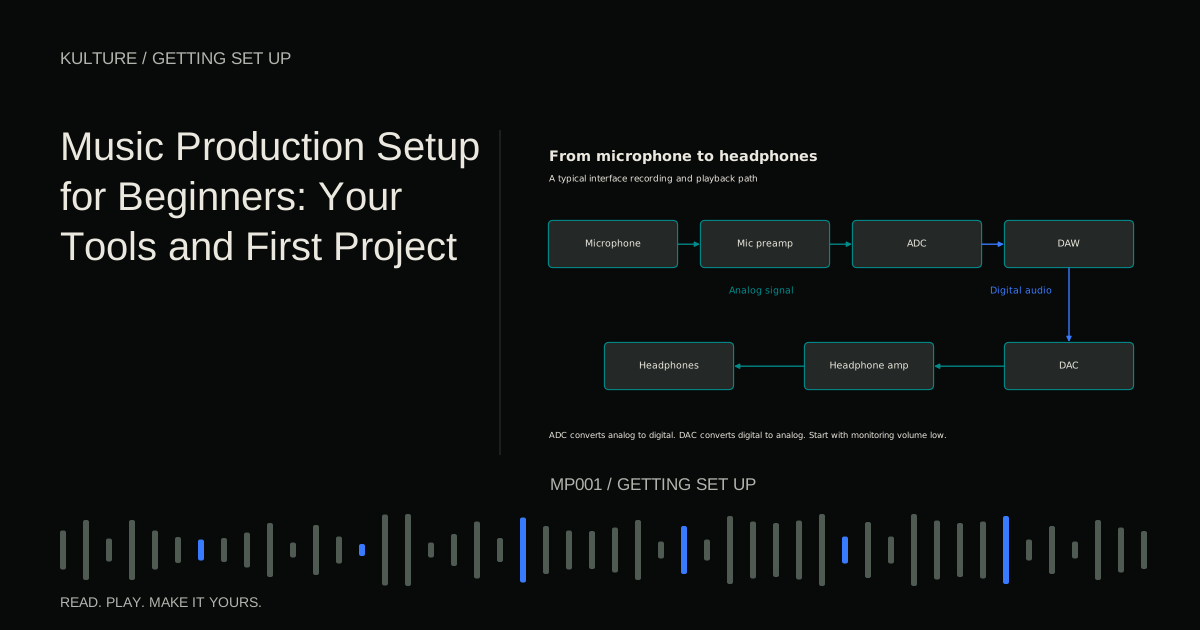
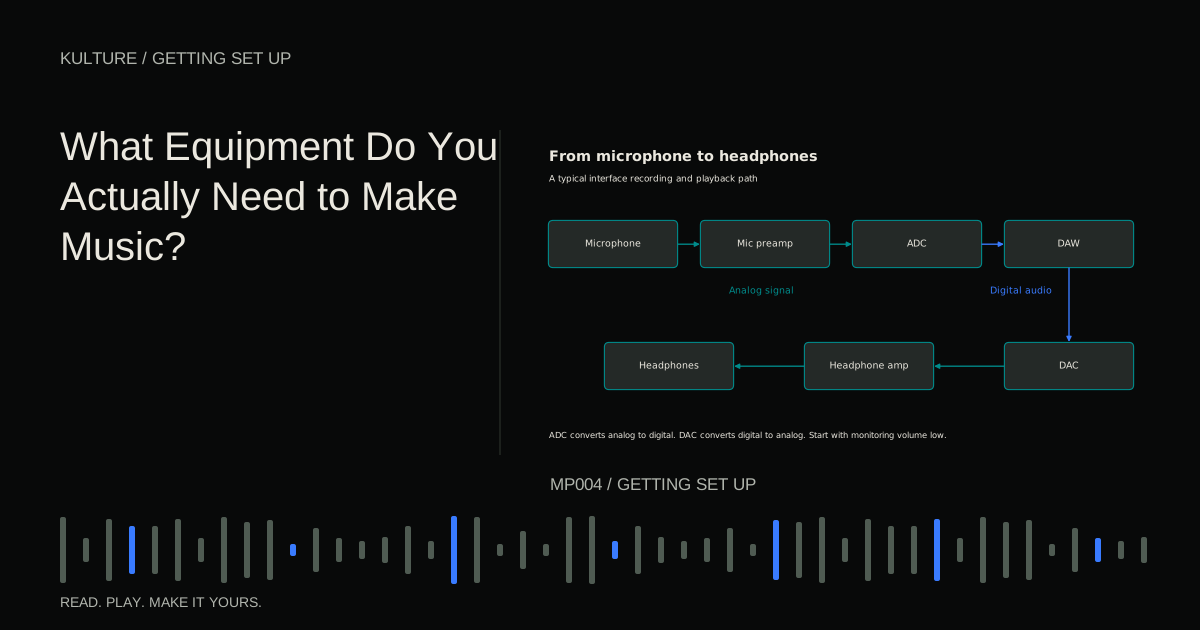
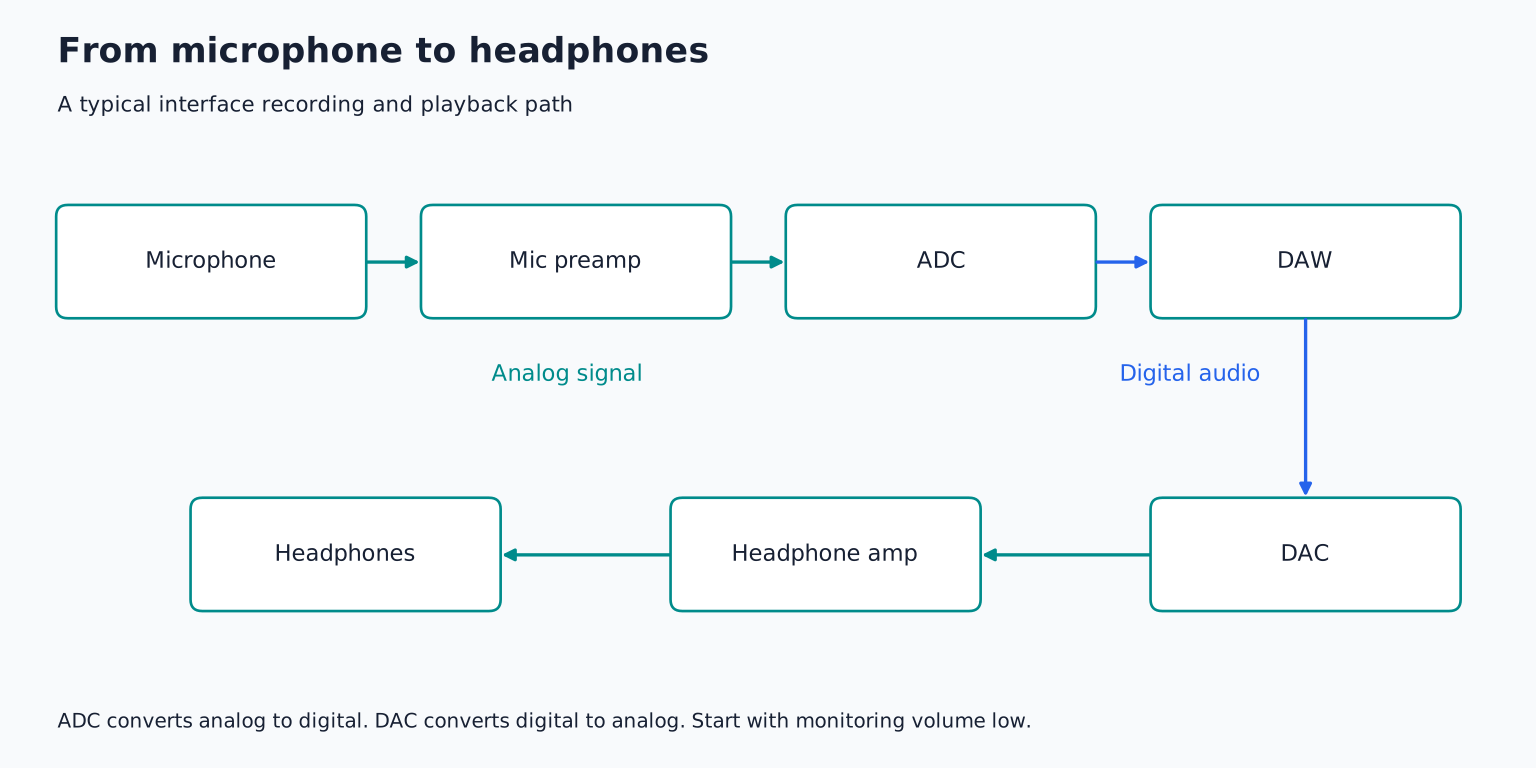
An XLR microphone generally connects to a microphone input on an interface. An electric guitar recorded directly generally needs a high impedance instrument input, often labeled Instrument or Hi Z. A hardware keyboard's audio outputs generally connect to suitable line inputs.
Do not treat all sockets as interchangeable merely because an adapter fits. A guitar amplifier's speaker output must never be connected directly to an interface microphone or line input. It carries power intended for a speaker or an appropriately rated load system, not a normal recording input.
Some condenser microphones need phantom power, commonly labeled 48 V, supplied through a compatible microphone connection. Other microphones have different requirements. Check the microphone and interface manuals before switching it on, especially with passive ribbons, adapters, or unbalanced equipment. Keep monitoring down, switch phantom power off before plugging or unplugging microphones, and allow any discharge time specified by the manufacturer. Follow the microphone and interface manuals' shutdown and connection sequence. Shure's phantom power explanation describes why some microphone electronics require power.
A USB microphone connects directly to the computer and includes its own conversion. Select it as the recording device. If it has a headphone output designed for direct monitoring, that may simplify the first setup.
Create one mono audio track
Choose the intended audio device in the DAW's audio settings. Create an audio track and assign the actual physical input you used. For one microphone on input 1, choose mono input 1 rather than stereo inputs 1 to 2.
A mono source recorded into a stereo pair can appear only on one side. That does not mean the microphone is broken. Recording it as mono lets the DAW place it centrally in the stereo mix using its pan control.
Name the track before recording, for example Lead Vocal or Acoustic Guitar. Save the project in a dedicated folder so the new recordings have a clear home. If the operating system asks for microphone access, grant it only to the recording application you intend to use.
Arm the track. Speak or play and watch the input meter. If it remains still, check the physical input, cable, device selection, and permission before changing effects or output volume.
Set gain using the loudest passage
Input gain controls how strongly the incoming signal enters the recording system. Ask the performer, even if that is you, to play or sing the loudest part at real performance intensity.
Raise gain until the signal is comfortably above the background noise without approaching clipping. For a 24 bit recording, peaks around 12 to 6 dBFS can be a useful initial example, leaving room for unexpected louder moments. These numbers are not a sonic target or a guarantee; meters, sources, and devices differ. The essential requirement is a clean recording with adequate headroom.
Headroom is the remaining margin before a stage overloads. A red overload indicator or flat topped waveform can signal clipping, but distortion may also happen before the DAW meter. If the interface input is overloaded, lowering the track fader afterward cannot undo that damage.
Record ten seconds and listen back. Compare the loudest phrase and the silence between phrases. If the noise is prominent, investigate distance, room noise, cables, and source level rather than simply increasing gain again.
Choose one monitoring route
Monitoring means hearing yourself while performing. Direct monitoring sends the interface input to its headphone or speaker output without making the signal complete the usual computer processing round trip. Software monitoring sends it through the DAW, allowing you to hear its effects but introducing processing delay.
For a first clean vocal or acoustic recording, direct monitoring can be convenient if the interface supports it. Turn off the competing DAW monitoring path when necessary. Hearing both at once can produce an echo or hollow, phasey sound.
For an electric guitar relying on a software amplifier, you may need software monitoring to hear the intended tone. Use a stable low latency configuration and temporarily bypass heavy effects that add delay. The buffer size guide explains the tradeoff.
Wear headphones when recording with a microphone and backing track. Loud speakers can leak into the recording or create feedback. Keep headphone level comfortable; making the cue mix louder is not the only way to help a performer hear themselves. Reduce competing backing instruments first.
Record several complete attempts
Set a short count in or begin playback a bar before the entrance. Record three takes of the same phrase without changing microphone position between them. This lets you compare performance rather than accidentally comparing three different sounds.
After each take, note one specific issue: a late entrance, a rushed syllable, an uneven chord, or a plosive. Avoid stopping after every minor imperfection. A coherent complete performance is often easier to work with than many disconnected fragments.
If your DAW supports take lanes or playlists, use them to keep alternatives organized. Otherwise, place takes on separate clearly named tracks and mute those not being evaluated. Do not delete the original recordings while deciding.
Make a clean edit and a useful listening copy
Choose the strongest overall take. Trim excessive silence while leaving natural breaths and instrumental decay. Add short fades at edits if clicks appear. When combining takes, edit in a quiet gap where possible and use a crossfade, an overlap that fades one clip down while the other rises.
Listen across the join in context. A technically smooth edit can still sound wrong if the singer's tone or the instrument's resonance changes abruptly. Choose a different edit location or keep the intact phrase.
Begin playback a little before the take and confirm that nothing is clipped at the start. Export a listening copy with the backing track if useful. Also preserve the unprocessed recording and project folder so later decisions remain reversible.
Your exercise is to record the same phrase at two microphone distances, matching playback levels before comparing. Write down which has clearer words or notes, less room, and more consistent tone. Use that evidence to choose placement for the next full take, then consult the microphone guide only if the current microphone creates a specific unresolved limitation.
TAKE IT INTO YOUR OWN MUSIC
Your next session.
Choose the strongest overall take. Trim excessive silence while leaving natural breaths and instrumental decay. Add short fades at edits if clicks appear. When combining takes, edit in a quiet gap where possible and use a crossfade, an overlap that fades one clip down while the other rises.
Notes and progress stay in this browser.