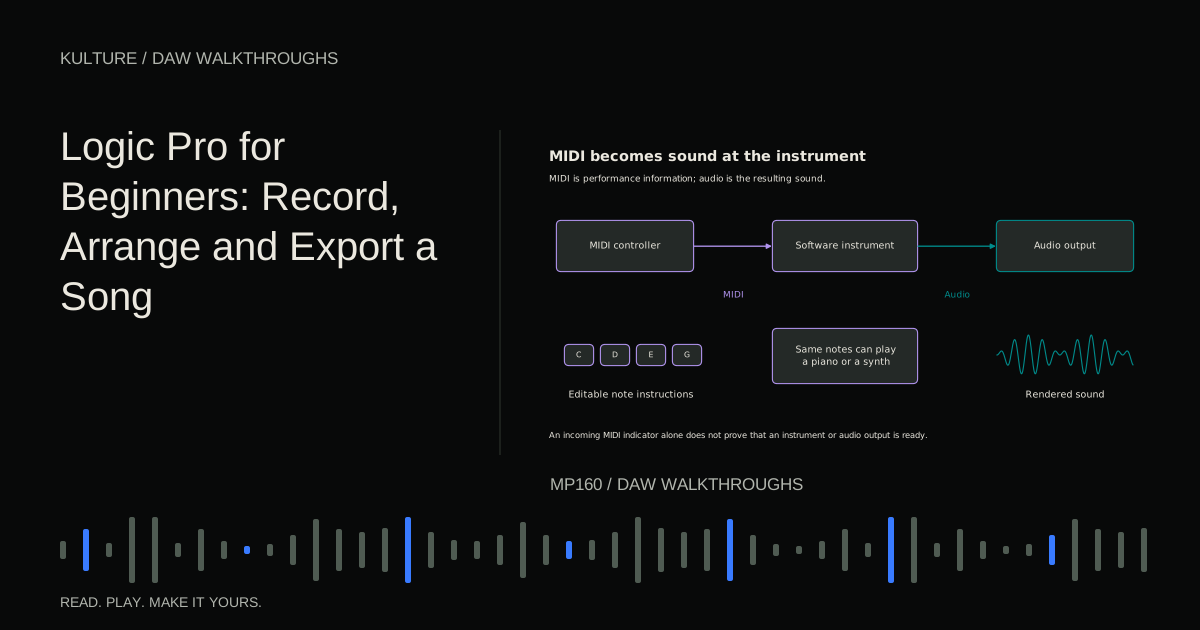
This guide is for Logic Pro on Mac, checked against Apple's current Mac documentation, whose version selector lists 12.3 at the time of research. Logic Pro for iPad has a different interface. The exercise uses the Tracks area and familiar recording tools rather than requiring advanced composition features or third party plugins.
Create a project with a clear home
Start a new empty project and save it immediately as First Logic Song. Choose a dedicated location and include the relevant audio assets when saving. A project package or folder can organize the work, but you still need to understand which external files it depends on.
Set the tempo to 92 BPM and the time signature to 4/4. Use a fixed tempo for this first exercise rather than asking the project to infer tempo from a performance. A steady grid makes the relationship between recording and arrangement easier to inspect.
In Logic Pro's Audio settings, choose your intended input and output devices. If you use an interface, connect your headphones to the listening path you selected. Start with a comfortable low volume while checking the route.
Apple's Logic Pro guide provides the current navigation and version selector. If an older tutorial says Preferences where your Mac says Settings, check the current guide rather than assuming the function disappeared.
TRY IT HERE
Make it your session
Turn the steps into a plan you can save.
Ready when you are. Audio starts only when you press Play.
Keep experimenting in the beat maker LabMake a software instrument track
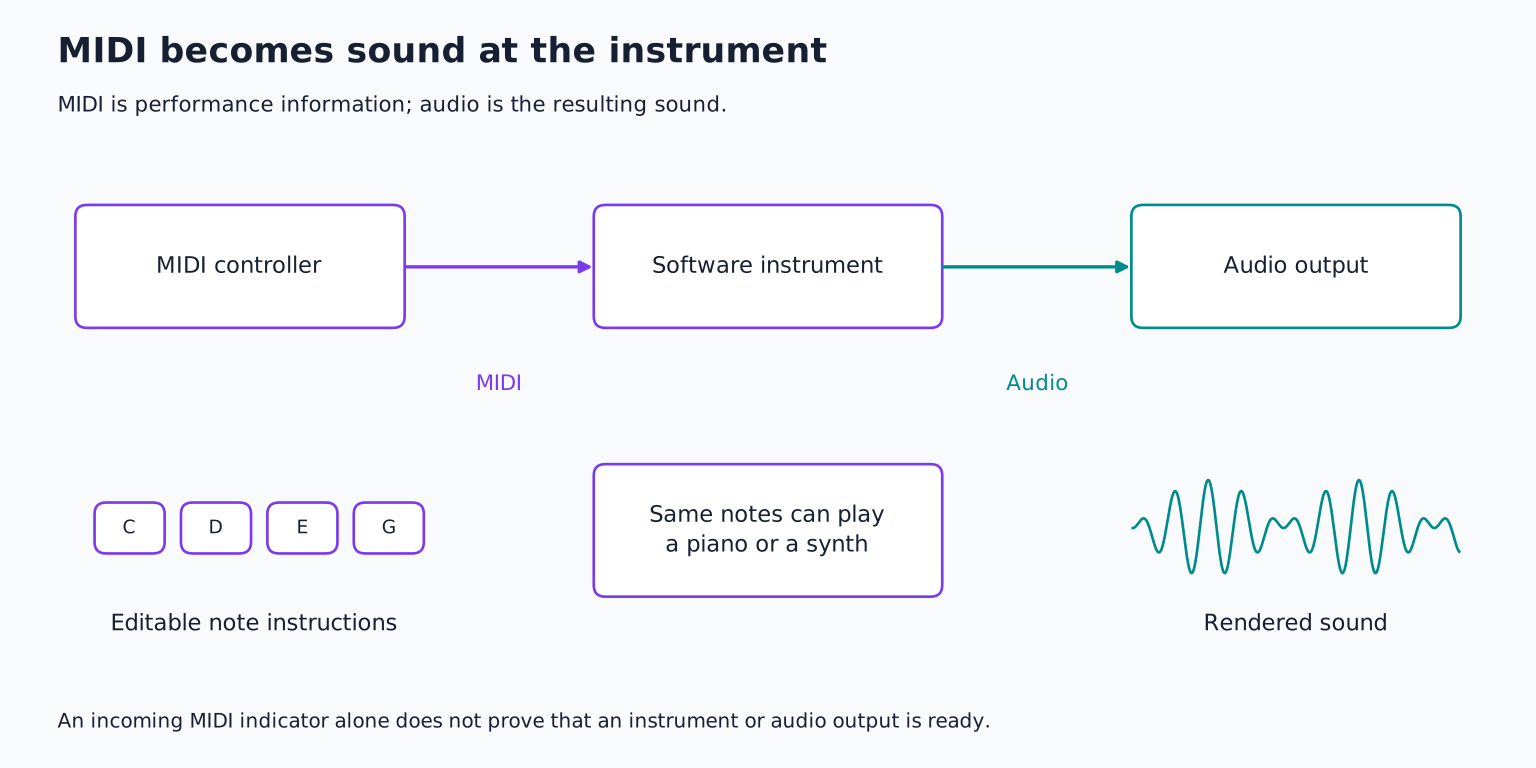
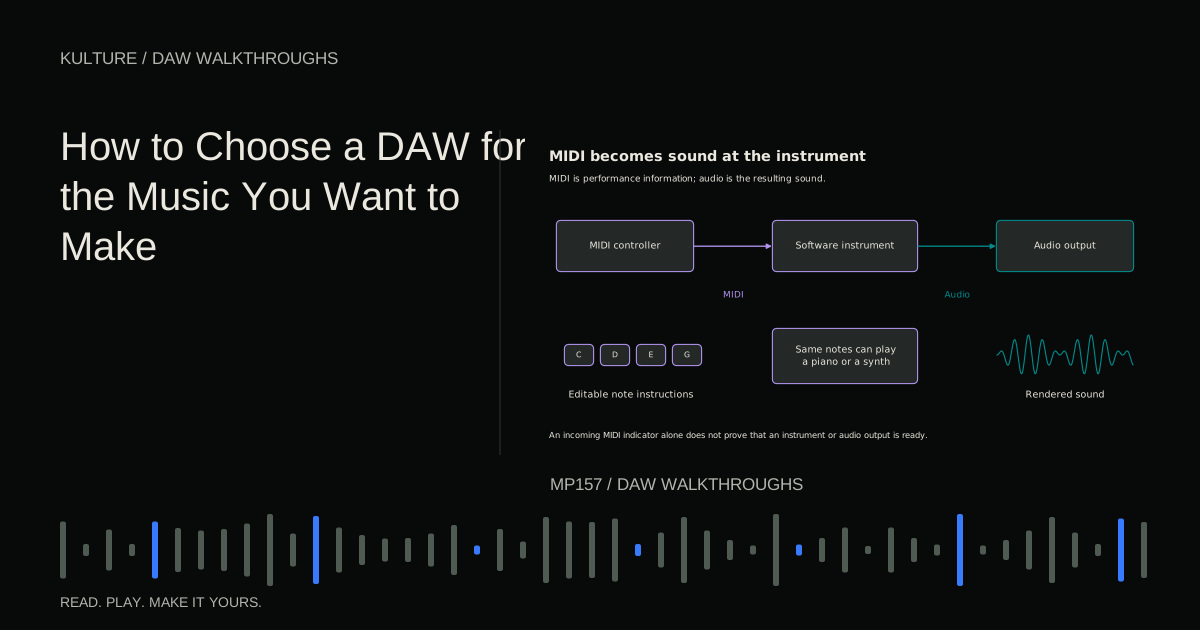
Use the new track control to create a Software Instrument track. Choose a simple piano or electric piano patch from the Library. A patch can include the instrument and related processing, so changing patches can alter more than the basic sound generator.
Play a few notes from a connected MIDI keyboard. Without one, open Musical Typing from the Window menu and use the onscreen key map. Musical Typing turns computer keys into note controls; it is useful for learning but less expressive than a velocity sensitive keyboard.
Confirm that the instrument's meter and Stereo Out respond. If the meter moves but you hear nothing, inspect the output device. If no instrument audio appears, try another simple patch and check that the selected track is the intended software instrument.
Apple documents keyboard and Musical Typing options in Play software instruments.
Record a four bar chord idea
Turn on the metronome and a count in if helpful. Record one chord per bar:
| Bar | Chord notes |
|---|---|
| 1 | C, E, G |
| 2 | A, C, E |
| 3 | F, A, C |
| 4 | G, B, D |
Use the middle register and hold each chord for most of its bar. You are recording MIDI performance data, so imperfect note starts can be edited without rerecording the sound itself.
If playing three notes at once is difficult, record one note per bar first, then add the other chord notes in the Piano Roll. The purpose is to understand the relationship between the region and the instrument, not to pass a piano exam.
Stop after four bars. The green MIDI region represents the performance. Double click it to open the Piano Roll and inspect note starts, lengths, and velocities. A late note appears farther right than the intended beat; an accidentally held note extends into the next chord.
Correct obvious mistakes individually. If you quantize, which moves note timing toward a chosen grid, use a value appropriate to what you played. Quarter note chord starts do not require sixteenth note rhythmic complexity. Listen after correction rather than assuming a visually tidy pattern is always more musical.
Add bass and a restrained drum part
Create another Software Instrument track with an available bass patch. Enter C, A, F, and G in a low register, one root for each chord bar. Use notes on beat 1 and beat 3, ending them before the next attack if the preset sustains heavily.
The bass does not need to duplicate every piano note. Its root movement clarifies harmony while its rhythm interacts with the drums. If the low end becomes muddy, move the piano's lower notes upward or shorten the bass before adding EQ.
For drums, choose an installed drum kit instrument and create a MIDI region. Audition its key mapping to identify kick, snare, and hi hat. Put kick on beats 1 and 3, snare on 2 and 4, and hats on eighth notes. Alternatively, an available Drummer or Session Player drum workflow can provide accompaniment, but manually entering this small pattern makes the timing explicit.
Lower alternate hat velocities. Leave the final eighth note of bar 4 empty. That small gap can help the four bar phrase breathe without a large fill.
Record one audio phrase
Add an Audio track. For one microphone, choose its mono input rather than an unused stereo pair. Name the track Voice or Guitar, arm it, and select one monitoring method.
If you use interface direct monitoring, avoid also hearing a delayed copy through software monitoring. If you need Logic's effects while performing, use software monitoring with a stable low latency setup. The buffer size lesson explains how to balance response and reliability.
Set interface gain while performing the loudest phrase. Leave headroom and avoid input clipping. For a microphone, follow its power requirements and use headphones to reduce backing track leakage. For a direct guitar, select a suitable instrument input. Never connect an amplifier's speaker output to the interface.
Record a short phrase over the four bar backing. Then record a second complete attempt. Apple explains the track input and recording workflow in Record sound from a microphone or instrument.
For the first project, choose the stronger complete take instead of immediately building a complicated comp. Listen for timing, tone, and convincing phrasing. A slightly imperfect coherent performance can be more useful than a collection of disconnected syllables.
Edit regions without losing the performance
Trim excessive silence before the audio phrase while preserving the breath or attack that begins it. Leave enough space after the final note for its natural decay. Apply short fades at cuts if clicks appear.
MIDI and audio editing are different. Moving a MIDI note changes an instruction sent to the instrument. Moving an audio region relocates recorded sound. Stretching or pitch correcting audio can introduce artifacts, so do not apply those tools automatically to every take.
Keep an untouched take or earlier project version. If you later decide an edit removed expression, you should be able to return to the original rather than trying to reconstruct it from fragments.
When copying regions, distinguish ordinary copies from aliases or loops if you use those features. A repeated region may behave differently from a separately editable version. Confirm which one you created before changing only the ending.
Arrange sixteen bars with one clear high point
Repeat the four bar backing to sixteen bars. Use this simple plan:
- Bars 1 to 4: piano and light drums.
- Bars 5 to 8: add bass and the recorded phrase.
- Bars 9 to 12: repeat the phrase with the full backing.
- Bars 13 to 16: remove the vocal, simplify drums, and end on C, E, G.
Add a short lead note or vocal pickup only if there is an obvious empty space that benefits from it. More tracks are not required to make a section feel different. Removing bass for a bar or changing chord duration can create a meaningful contrast.
Set the cycle area around the section you are editing, then turn cycle off for a full listen. It is easy to refine the same four bars repeatedly while never hearing whether the entire miniature song works.
Make a basic balance in the Mixer
Establish the recorded phrase at a clear level, then bring the piano and bass underneath it. Add drums until the rhythm supports rather than masks the performance. Keep an eye on Stereo Out for overload.
Use pan sparingly at first. A central vocal and bass with a modestly wider backing can be enough. Do not confuse moving a mono source with changing the width of a stereo instrument patch; the controls and results can differ.
If the vocal needs space, add a small reverb through a send or insert. Listen to the final consonants and spaces between words. If the reverb fills every gap, reduce its amount or decay. Compare with the effect bypassed at a similar perceived level.
Avoid treating a preset mastering chain as a finishing requirement. The first success is a balanced, complete arrangement that exports correctly.
Bounce a listening file and preserve the project
Choose File > Bounce > Project or Section. Select an uncompressed PCM format such as WAV, confirm the start and end, and include the intended decay after the last note. Verify that the tracks feed the output you are bouncing.
For this learning copy, leave normalization off if you want to assess the levels you actually mixed. That is a deliberate comparison choice, not a universal delivery rule. Choose the sample rate and bit depth appropriate to your project and intended use.
Apple's bounce instructions distinguish the rendered audio from the editable project and explain output selection. Open the bounced file in another player and check the whole song, especially the opening and ending.
Save the project again and verify that its recorded audio is included in your backup. Your next exercise is to make a second version with a different vocal take and one altered chord rhythm, then compare the two without changing listening volume. Continue with the home recording lesson if performance capture was the hardest part, or the arrangement lesson if the loop was easy but the structure felt uncertain.
TAKE IT INTO YOUR OWN MUSIC
Your next session.
Choose File > Bounce > Project or Section. Select an uncompressed PCM format such as WAV, confirm the start and end, and include the intended decay after the last note. Verify that the tracks feed the output you are bouncing.
Notes and progress stay in this browser.

![Ableton Live for Beginners: Make and Export Your First Loop: Kick, snare and closed hat triggers on a sixteen step grid: [[1, 9], [5, 13], [1, 3, 5, 7, 9, 11, 13, 15]].](/assets/guide-art/ableton-live-for-beginners-make-and-export-your-first-loop-7eb7fd8bcc.svg)