This guide uses REAPER 7's standard desktop workflow on Windows or macOS. Themes and personalized shortcuts can change appearance, so menu and function names are more dependable than a screenshot's exact button position. The official user guide page provides the current manual and reference materials.
Understand REAPER's flexible tracks
REAPER does not require entirely separate track types for audio and MIDI in the way some DAWs do. A track can hold media items and host effects or instruments; its input, recording mode, routing, and content determine its role.
A media item is a piece of material placed on the timeline. It can contain recorded audio or MIDI instructions. A take is a version of material within an item's recording or editing context. You can work with one item and one take initially, then explore more elaborate take editing later.
Flexibility is useful, but it means you should name tracks clearly. A track called Lead Vocal tells you more than Track 1, especially when the same kind of track could also host a synthesizer or act as a bus.
TRY IT HERE
Make it your session
Turn the steps into a plan you can save.
Ready when you are. Audio starts only when you press Play.
Keep experimenting in the beat maker LabConfigure audio before recording
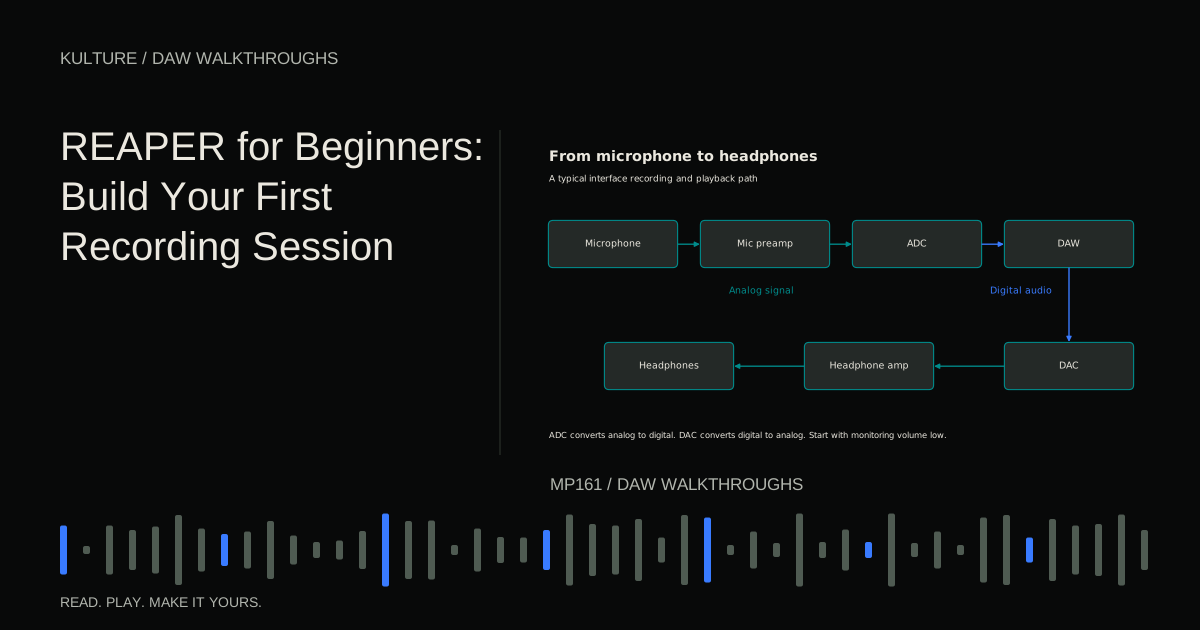
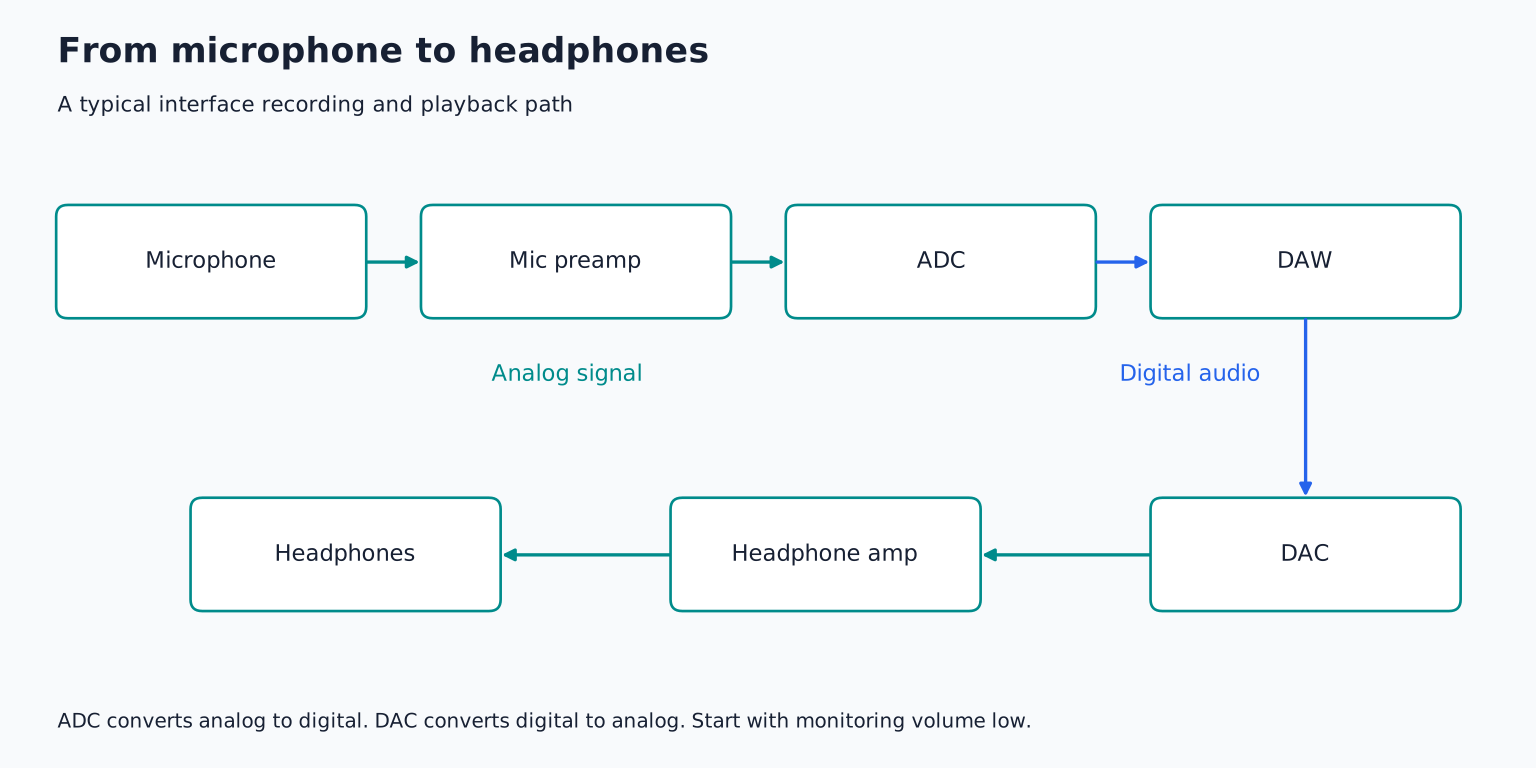
Open Options > Preferences and inspect Audio > Device. Select your intended audio system and device. On Windows, use the interface manufacturer's supported ASIO driver when applicable. On macOS, select the appropriate Core Audio device.
Enable the input and output ranges you need. If the interface has several channels, confirm which numbered input your microphone or instrument uses and which output pair feeds your headphones or speakers.
Start with a stable buffer suitable for recording, such as 128 or 256 samples, then test rather than assuming either value is correct for every system. A smaller buffer can reduce software monitoring delay while increasing processing pressure.
Import a known audio file into a temporary track and play it quietly. If you cannot hear that file, fix output setup before adding microphone or MIDI complications. The no sound guide provides a signal path sequence.
Save a project with its own media folder
Choose File > Save Project As and create a dedicated folder for First REAPER Session. Use the save options that create a project subdirectory and copy relevant media into it when appropriate. The RPP project document stores session information; external audio files still matter.
Set the tempo to 88 BPM and the time signature to 4/4. Turn on the metronome for recording if a steady pulse is useful. You can make free time recordings in REAPER, but a fixed grid makes this first exercise easier to arrange.
Choose a simple goal: record eight bars of guitar, voice, percussion, or another source you can capture cleanly. If you have no microphone or interface, use a short recording you already own and proceed with the editing and instrument sections.
Create and arm an audio track
Insert a new track and name it Main Recording. Select its mono input for a single microphone or direct instrument. A stereo input pair is appropriate only when you intend to capture two related channels as stereo.
Arm the track. Set its recording mode to record the input, not the processed output, for this basic clean recording. Choose whether you will monitor through REAPER or directly through the interface.
If monitoring through REAPER, enable input monitoring and listen for delay. If using direct monitoring, avoid a second delayed software path. Hearing two copies can produce a hollow or echoing sound even though the recorded signal is fine.
Set input gain at the interface while performing the loudest part. Leave room for unexpected peaks and avoid clipping. Use the correct input type: microphone for a mic, instrument/Hi Z for a suitable direct guitar connection, or line for appropriate line level equipment. A power amplifier's speaker output must never feed a normal interface input.
REAPER's official Quick Start reference summarizes input setup, track arming, monitoring, and recording controls.
Record a complete phrase
Place the edit cursor at the beginning and start recording. Perform the eight bar phrase, then stop. Keep the take when the save recorded media prompt appears, if your configuration presents one.
Play it back from a little before the entrance. Listen for three things: whether the first attack is intact, whether the loudest passage distorts, and whether the room or background noise distracts during gaps.
Record another attempt without changing the setup. For a beginner friendly comparison, use a second clearly named track and mute the first while recording. REAPER's take system can manage alternatives efficiently, but separate tracks make the initial comparison obvious.
Choose the stronger complete performance before making detailed edits. Keep the other muted rather than deleting it immediately. Performance selection and technical editing are different decisions.
Edit items with small, audible changes
Trim unused silence by dragging an item's edge. In an ordinary non destructive edit, you are changing which portion plays rather than erasing the original recording. Keep the source file and avoid destructive cleanup while learning.
To divide an item, place the edit cursor at the intended point, select the item, and use the split command; S is the standard shortcut in the default configuration. Move a section only after checking whether snapping is set appropriately for the musical grid.
Add short fades at exposed boundaries if you hear clicks. Dragging fade handles changes the transition into or out of an item. A crossfade can smooth an overlap between two recordings, but it cannot hide every mismatch in timing or tone.
Try a concrete edit: remove a long pause after the phrase, then leave enough decay for the last note to sound natural. Compare a tight ending with a more generous one. The correct choice is the one that supports the performance, not simply the smallest waveform.
Add a simple MIDI instrument
Choose Insert > Virtual instrument on new track. For a built in sound source, ReaSynth can provide a basic synthesizer tone. It is not a large piano or orchestral library, so choose another compatible instrument only if you already have one installed and licensed.
Create a four bar time selection on the new track and insert a new MIDI item. Open it in the MIDI editor. Draw a low C in bar 1, A in bar 2, F in bar 3, and G in bar 4, each on beat 1 and lasting two beats.
This bass pattern assumes your recorded source is compatible with C major or A minor. If your recording uses another harmony, choose its chord roots instead. Do not force unrelated bass notes under a performance simply to follow a diagram.
Lower ReaSynth's track level before auditioning, because a plain sustained tone can be unexpectedly prominent. Adjust the note lengths and sound controls to create a short, clear accompaniment. Repeat the four bar item to cover eight bars.
Build a second layer only if it helps
If your recording is mainly rhythmic, add a chord instrument playing C, E, G, A, C, E, F, A, C, and G, B, D. If the recording already contains rich harmony, a single answering note may be enough.
Leave a gap where the main phrase is most expressive. For example, place E and G near the end of bar 2 and D and B near the end of bar 4, rather than playing continuously. Listen to whether the new part answers the recording or competes with it.
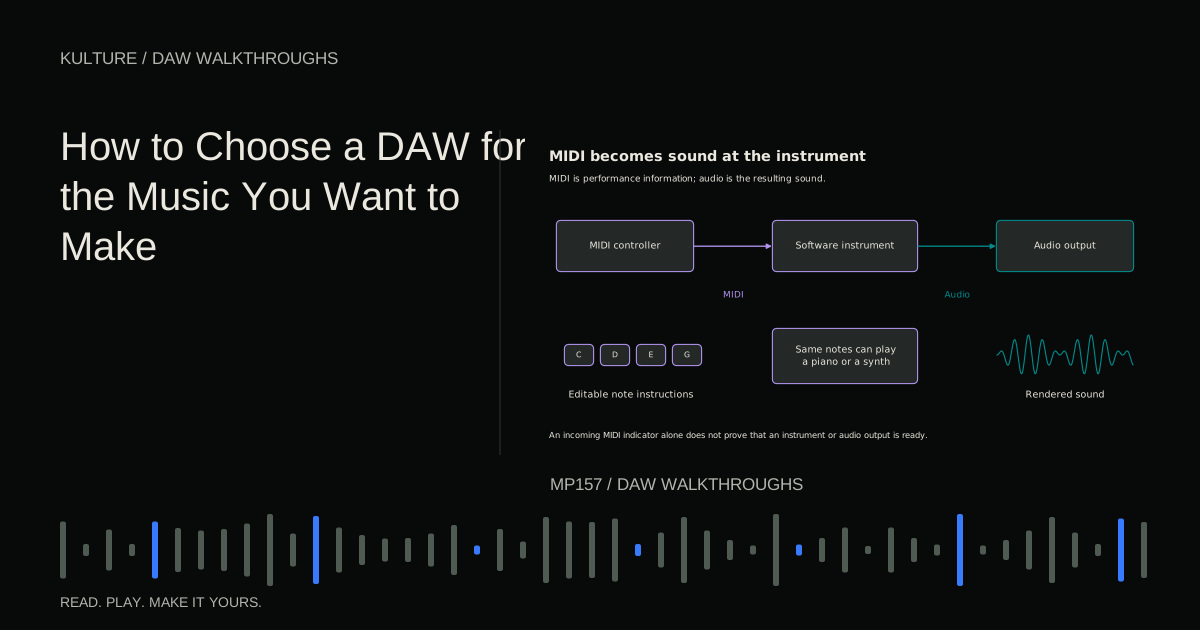
This is a useful moment to understand MIDI versus audio. The bass item's note data remains editable independently of its sound, while the recorded performance is already audio.
Balance with the Mixer and one effect
Use the Mixer or track controls to establish the main recording first, then bring in the bass and any additional layer. Keep the master output from overloading. The headphone level controls how loudly you listen; it does not repair clipping inside the mix.
Open the main recording's FX chain and try ReaEQ only if you hear a specific issue. For example, remove unnecessary low rumble with a cautious high pass filter while checking that the source retains its useful body. Do not apply a memorized cutoff to every voice or instrument.
If you add reverb, compare the dry and processed sound in the full mix. A subtle effect can place the recording in a space; an excessive tail can cover the gaps that make the rhythm work.
Keep effects reversible. For this first session, record clean input and use ordinary playback effects rather than printing an uncertain chain into the only recording.
Render a stereo listening copy
Choose File > Render. Set the source to the Master mix and choose bounds that cover the intended project or time selection. Select a stereo WAV output, a clear filename, and a location you can find.
Allow enough time for the final note and effects to decay. If you choose a time selection that ends exactly at the last note onset, the file will be cut short even though the arrangement looks complete.
Render, then play the file outside REAPER. Confirm that it contains the chosen take, the bass entrance, and the full ending. Save the editable project separately and verify its media is included in your backup.
Your next exercise is to create a second eight bar section by removing the bass for two bars and changing one recorded phrase. Render both versions and compare the arrangement rather than adding more plugins. Use the loop to arrangement lesson to develop that contrast into a longer song, while keeping this small session as a dependable recording template.
TAKE IT INTO YOUR OWN MUSIC
Your next session.
Choose File > Render. Set the source to the Master mix and choose bounds that cover the intended project or time selection. Select a stereo WAV output, a clear filename, and a location you can find.
Notes and progress stay in this browser.

![Ableton Live for Beginners: Make and Export Your First Loop: Kick, snare and closed hat triggers on a sixteen step grid: [[1, 9], [5, 13], [1, 3, 5, 7, 9, 11, 13, 15]].](/assets/guide-art/ableton-live-for-beginners-make-and-export-your-first-loop-7eb7fd8bcc.svg)