This guide covers the current desktop recording workflow on Windows and macOS. Pro Tools editions differ in track limits and included instruments. Use an instrument supplied with your installed edition, and consult its current documentation rather than assuming an old Pro Tools First tutorial describes today's product.
Set the Playback Engine first
Open Setup > Playback Engine and select the audio interface or supported audio device you intend to use. This choice determines the available audio hardware path. If you select the wrong device, the track's input labels may not correspond to the sockets you connected.
For software monitoring, start with a responsive but stable hardware buffer, then test it under playback load. You can use a larger buffer later while mixing. Keep headphone volume low while checking new routes.
Create a new local session with a clear name, such as First Pro Tools Session, in its own folder. Choose a sample rate appropriate to your work; 44.1 or 48 kHz and 24 bit recording are practical examples for many beginner projects. Use a collaborator's or video workflow's required format when applicable.
Avid's input and output guide explains selecting the Playback Engine and assigning track routes. Do not confuse operating system audio playback with the device Pro Tools has selected.
TRY IT HERE
Make it your session
Turn the steps into a plan you can save.
Ready when you are. Audio starts only when you press Play.
Keep experimenting in the beat maker LabKnow what the track types do
Choose Track > New. For this exercise, create:
- A mono Audio Track for one microphone or direct instrument.
- A stereo Instrument Track for a software instrument.
- A stereo Master Fader assigned to the main output path you use.
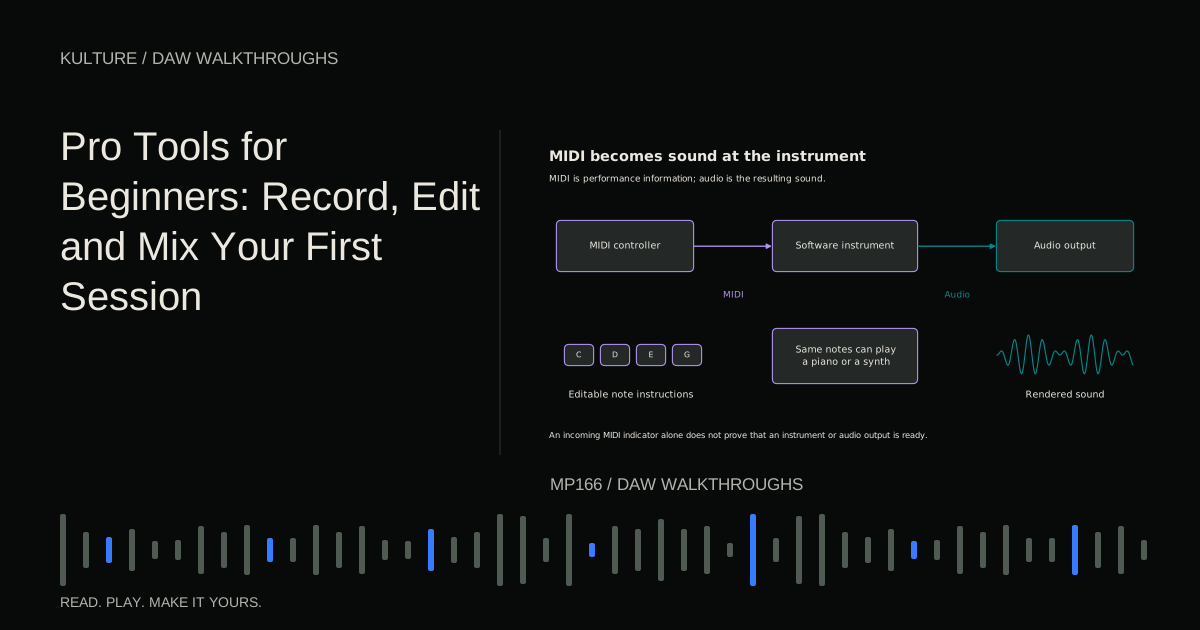
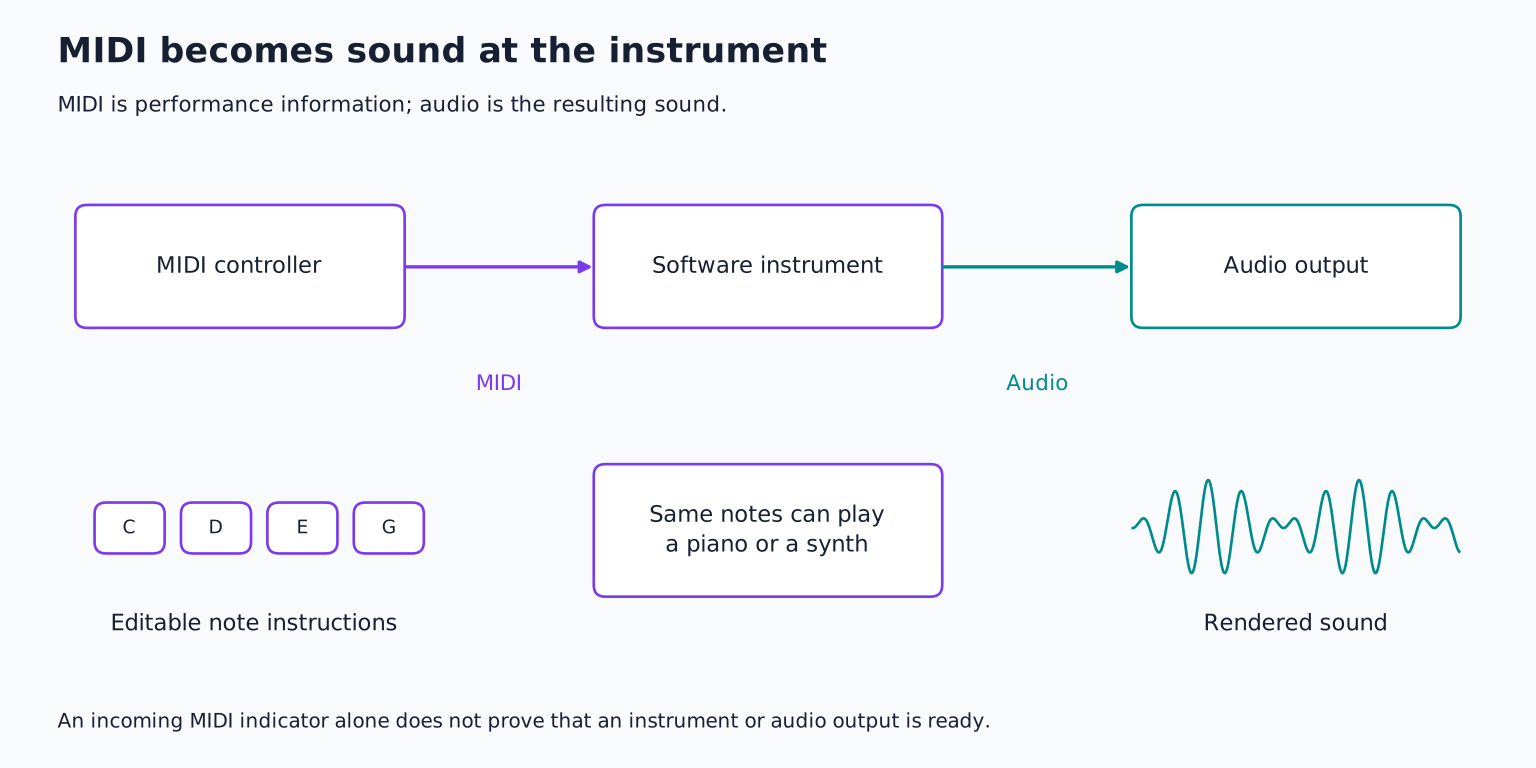
An Audio Track records and plays audio. An Instrument Track combines MIDI performance handling with an instrument's audio path. An Aux Input is useful for buses and effect returns, but does not act like an ordinary recording track. A Master Fader controls and meters its assigned output or bus path; tracks are routed to that path, not into the Master Fader as though it were an Aux input.
Use samples as the audio track's timebase for this initial fixed tempo recording and ticks for the musical instrument track. Sample based placement is tied to absolute sample time; tick based placement follows musical positions. Timebase choice alone does not automatically time stretch an audio performance.
Avid's track creation reference explains formats, types, and timebases. Name the tracks before recording so the session remains readable.
Distinguish Edit and Mix windows
The Edit window organizes clips along a timeline. It is where you record, trim, move, and arrange material. The Mix window presents channel controls such as inserts, sends, pan, faders, and routing.
They show different aspects of the same session. Moving a clip in Edit changes when it plays; moving a fader in Mix changes its channel level. You can expose some routing and insert controls in the Edit window too.
Avid's Edit window guide identifies the track controls and editing tools. Begin with the Trim, Selector, and Grabber concepts: change a boundary, select a time range, or move a clip. The Smart Tool combines functions according to pointer position, which is convenient after you understand each operation separately.
Choose a simple tempo and recording target
Set the session to 90 BPM and 4/4. Add a click track using the session's click track command if you want a metronome. Make sure the click is audible at a comfortable level in headphones, not blaring from speakers into a microphone.
Record eight bars of a simple original phrase. A guitar progression of C, A minor, F, and G repeated twice works well, but use a source you can perform comfortably. If you sing, use a short melody with clear rests.
For a first recording, a complete modest performance is more useful than a technically ambitious passage that requires constant stopping. You are learning capture and editing as well as playing.
Assign input, arm, and monitor
On the Audio Track, select the interface input carrying your source. Use mono input 1 for one microphone plugged into input 1, for example. Set the output to your main stereo listening path.
Arm the track, then check the incoming meter while performing the loudest section. Adjust gain at the interface to avoid clipping and leave headroom. Lowering a Pro Tools fader after an overloaded recording input does not repair the captured distortion.
Choose either software monitoring or the interface's direct monitor route as appropriate. Hearing both can produce a doubled or hollow sound. If using a software guitar amplifier, you may need software monitoring to hear the processed tone.
Use the microphone's specified power arrangement and an appropriate input type. A direct guitar needs a suitable instrument input or DI route. Never connect a power amplifier's speaker output directly to an interface microphone or line input.
Record enable the transport and start playback to capture the take. Stop at the end and listen back before changing the setup. If the waveform is present but playback is silent, inspect output routing and input monitoring state.
Keep alternative takes with playlists
A playlist is an alternative arrangement of clips on a track. It is useful for retaining several takes without creating an unwieldy pile of duplicate tracks.
Create a new playlist for the second attempt and give it a clear name. Record the same phrase again, then compare the takes. Do not delete the first simply because the second has a cleaner opening; the first may have stronger phrasing elsewhere.
For this lesson, choose the best complete take. Later, you can build a comp, a combined performance assembled from selected sections. Avid's playlist guide explains how playlists support that workflow.
If combining takes, choose edit points in gaps where possible and listen across the join. A crossfade can smooth a waveform transition, but it cannot make two very different vocal tones automatically match.
Edit without moving the whole song accidentally
Use Grid mode when placing material on musical boundaries. Use Slip mode when you need free placement independent of the grid. Shuffle mode moves surrounding material as edits change duration, so avoid it until you deliberately want that behavior. Spot mode places material at specified locations.
Avid's edit mode guide explains these differences. The wrong mode can make a reasonable edit produce a surprising arrangement change.
Trim excess silence before the first phrase, but preserve its breath or attack. Add a short fade if the boundary clicks. Leave the last note enough time to decay. Compare the edit in context rather than judging only by waveform appearance.
Save a new version before extensive edits. Keep the original take and session media so you can restore a natural phrase if a tighter edit loses expression.
Add a software instrument accompaniment
Insert an available AAX instrument on the stereo Instrument Track. Pro Tools does not load an arbitrary VST3 or Audio Unit directly as an AAX plugin; install the supported format for your product.
Choose a simple piano, bass, or pad preset. Create or record a four bar MIDI phrase. If your recorded progression is C, A minor, F, and G, enter the roots C, A, F, and G as short bass notes, or these chord groups in a higher register:
| Bar | Notes |
|---|---|
| 1 | C, E, G |
| 2 | A, C, E |
| 3 | F, A, C |
| 4 | G, B, D |
Repeat the phrase across eight bars. If the recording uses another key or progression, adapt the notes rather than forcing unrelated harmony underneath it.
Make the accompaniment rhythm different from the main performance. A sustained guitar part may benefit from short piano answers; a rhythmic guitar may need only a long pad. Listen for space around the main phrase.
Build and balance a short arrangement
Extend the material to sixteen bars. Begin with the accompaniment alone, introduce the recording, repeat the main phrase, then reduce layers for the ending. Keep a clear final chord or deliberate fade rather than an accidental cutoff.
Use the Mix window to establish the main performance first and add accompaniment beneath it. Watch the main output path for clipping. If the instrument masks the voice or guitar, change register, rhythm, or level before adding several processors.
For a reverb return, create a stereo Aux Input, assign an unused bus as its input, insert a reverb, and send some of the source track to that bus. Keep the return routed to the main output. Set the reverb's wet/dry behavior appropriately for a shared return so you do not unintentionally duplicate the dry signal.
Begin with very little send level. Raise it until the space is useful, then compare with the send muted. The words or notes should remain clear.
Bounce the mix and check it elsewhere
Select the intended timeline range, including the final decay. In modern Pro Tools, choose File > Bounce Mix. Older material may call this Bounce to Disk. Confirm the Mix Source is the main output or bus carrying the complete mix.
Choose WAV and an interleaved stereo file for a single two channel listening copy. Use the intended sample rate and bit depth. Offline bounce is suitable for ordinary software only sessions when supported; external hardware paths may require real time rendering.
Avid's Bounce Mix support instructions and Quick Reference Guide document that command. Play the result in a separate application and confirm the chosen take, accompaniment, and ending are all present.
Keep the editable session and its Audio Files folder in your backup. Your next exercise is to create a second playlist, record one improved phrase, and export an alternative mix without overwriting the first. Use the recording lesson for better capture and the session delivery guide when you are ready to hand the work to someone else.
TAKE IT INTO YOUR OWN MUSIC
Your next session.
Select the intended timeline range, including the final decay. In modern Pro Tools, choose File > Bounce Mix. Older material may call this Bounce to Disk. Confirm the Mix Source is the main output or bus carrying the complete mix.
Notes and progress stay in this browser.

![Ableton Live for Beginners: Make and Export Your First Loop: Kick, snare and closed hat triggers on a sixteen step grid: [[1, 9], [5, 13], [1, 3, 5, 7, 9, 11, 13, 15]].](/assets/guide-art/ableton-live-for-beginners-make-and-export-your-first-loop-7eb7fd8bcc.svg)