There is an important naming change: PreSonus Studio One Pro became Fender Studio Pro in 2026. Fender introduced version 8 under the new name, and the current online manual identifies version 8.1. This guide follows that current documentation while explaining older Studio One terminology where it affects the steps. The separate Fender Studio app is a different product. Fender's announcement confirms the rebranding.
Song versus Session
Older Studio One versions call the recording document a Song. Current Fender Studio Pro documentation calls it a Session. The musical task is the same: it contains your arrangement, tracks, processing, and references to media.
For this lesson, create a recording Session, rather than a mastering Project or a live performance Show. Those other workspaces serve different jobs. If you are using Studio One 7 or earlier, look for the corresponding Song commands and consult that version's manual when labels differ.
Save the new document in a dedicated folder as First Studio Song. Set 4/4 time and a tempo of 100 BPM. Use a fixed tempo while learning so that note placement and recorded audio are easy to compare.
TRY IT HERE
Make it your session
Turn the steps into a plan you can save.
Ready when you are. Audio starts only when you press Play.
Keep experimenting in the beat maker LabEstablish input and output routes
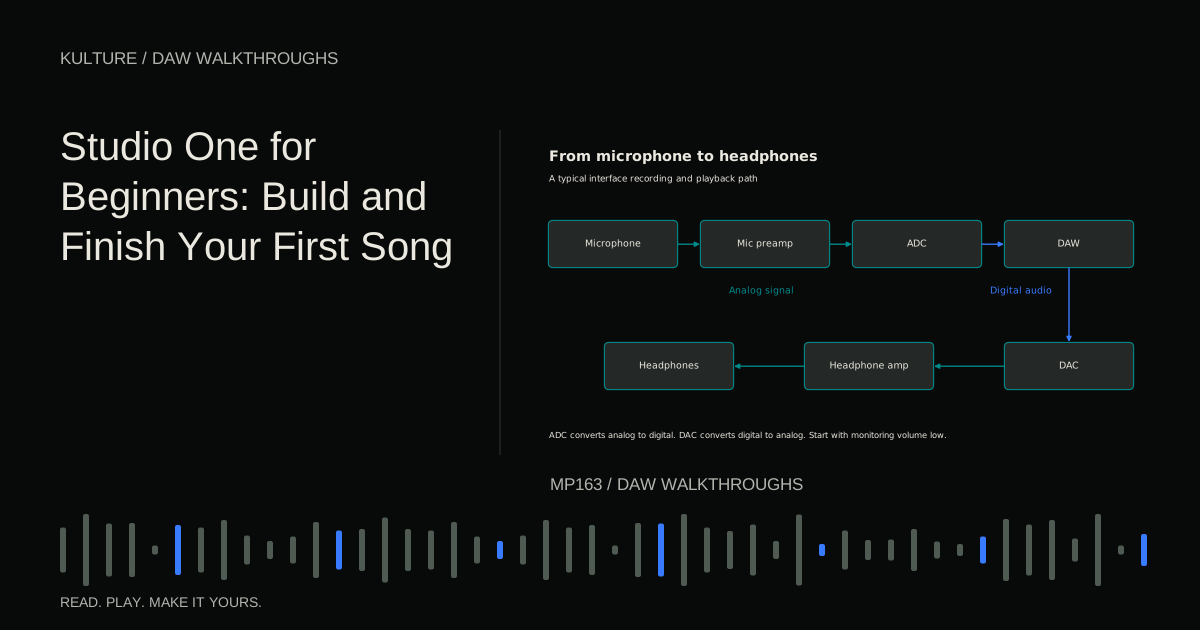
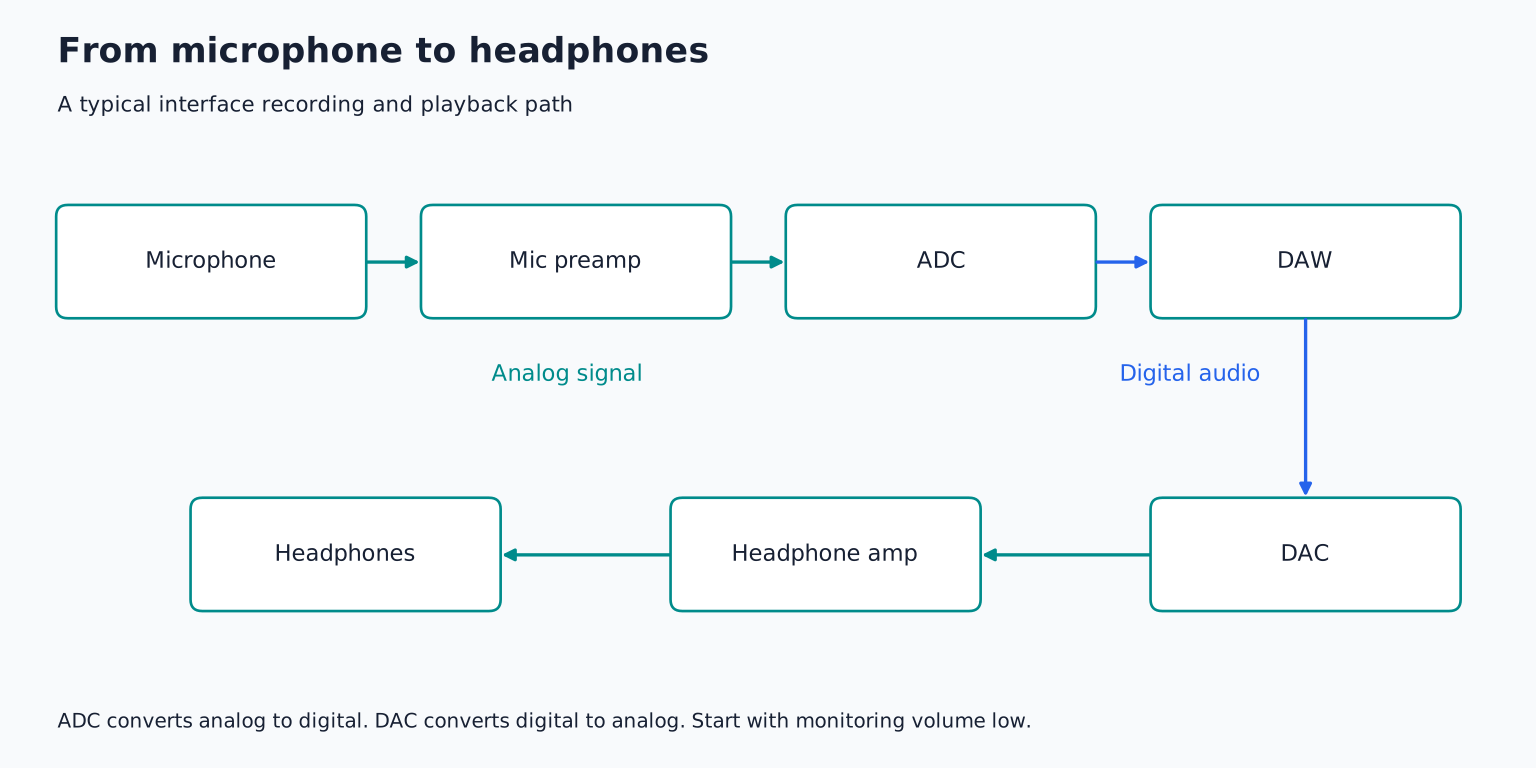
Select the intended audio device in the application setup. Then inspect Session > Session Setup > Audio I/O Setup in the current version. Older Studio One versions use the Song setup terminology.
Create or verify a stereo Main output mapped to the physical outputs you listen through. If recording one microphone, verify a mono input mapped to the correct interface socket. A named input in the software is a route; it must correspond to the actual hardware port.
Fender's Audio I/O documentation explains this mapping. Test a known audio file quietly before adding complex instruments. If the output is silent, solve that route first.
For live software monitoring, choose a buffer that feels responsive and remains stable. For direct monitoring through your interface, avoid also hearing a delayed software copy. The latency lesson explains the distinction.
Add instruments from the Browser
Open the Browser's Instruments tab and drag an installed instrument into empty Arrange space. This creates an Instrument Track routed to the instrument. Choose an available piano or keys sound and rename the track Keys.
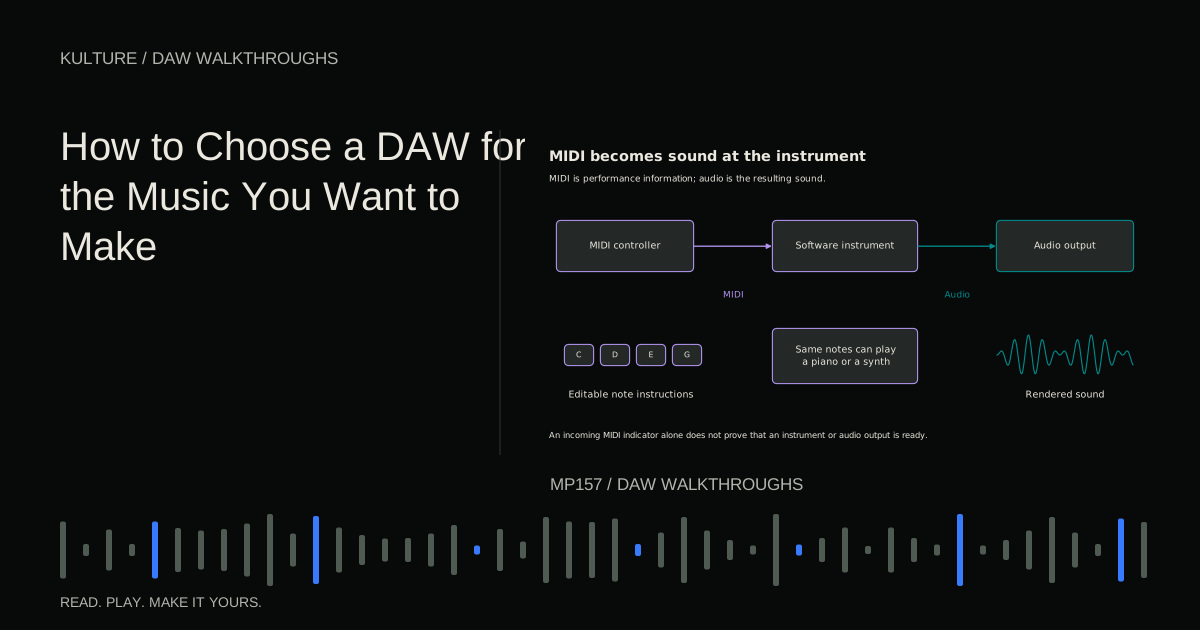
An Instrument Track contains note performance data. The instrument generates audio, which appears through an Instrument Channel in the Console. That distinction matters when troubleshooting: note activity on the track is not the same as audible instrument output.
Fender's instrument track manual documents drag and drop creation and the track to instrument relationship. You can also use Track > Add Tracks and choose an Instrument type.
If you use a MIDI controller, configure it as a Keyboard in External Devices and select it as the track input. Simply seeing an All Inputs choice does not prove the controller has been configured. You can complete the lesson by drawing notes if no controller is available.
Draw the first four bar part
Create an Instrument Part covering bars 1 to 4, ending at the start of bar 5. Open it in the Note Editor's Piano view. Use the Paint tool to enter notes and the Arrow tool to select, move, and resize them.
Enter one chord per bar:
| Bar | Notes |
|---|---|
| 1 | A, C, E |
| 2 | F, A, C |
| 3 | C, E, G |
| 4 | G, B, D |
Keep the notes in a middle register and make them last about three beats. Leave the final beat of each bar mostly clear. Play the phrase and listen for the change from one chord to the next.
The Note Editor documentation describes Piano, Drum, and Score views. Use Piano view here because pitch and duration are visible directly. You do not need to read staff notation to enter this example.
Try moving one note in each chord up an octave. The chord retains its basic identity but changes its spacing and register. Keep whichever version leaves room for the bass without sounding disconnected.
Add a bass with a different rhythm
Drag a second installed instrument or bass preset into the Arrange view. Create a four bar part and enter A, F, C, and G in a low register.
Place a short note on beat 1 and another on the “and” after beat 2 of each bar. End the second note before beat 4. The bass now supports the same harmonic changes as the keys while adding a separate rhythmic shape.
If the preset glides unexpectedly, inspect its monophonic and glide settings or choose a simpler sound. If notes hang after their visible ends, the instrument's release or sustain behavior may be responsible. The note editor shows instructions; the sound generator decides how those instructions decay.
Balance the bass under the keys. If both feel heavy in the same range, change the piano voicing or note length before adding an elaborate processing chain.
Make drums easy to read
Load an installed drum instrument, such as Impact XT if included in your content, and choose a straightforward kit. Create a one bar part and use Drum view if it makes the mapped sounds easier to identify.
Put kick on beats 1 and 3, snare on 2 and 4, and closed hi hat on eighth notes. Repeat this across four bars. Lower every second hat's velocity so the repeated pattern has a clear accent cycle.
In the fourth bar, remove the last hat and add one quieter snare on the final sixteenth note. Listen to the return to the first kick. If the extra snare sounds like a mistake rather than a pickup, remove it or move it earlier.
Use the actual drum map labels or auditioned notes. Octave names and kit mappings differ across software, so copying an unrelated tutorial's note number without listening can trigger the wrong sound.
Record a short audio phrase
Add a mono Audio Track, choose the configured microphone or instrument input, and name it Voice or Guitar. Enable recording and the intended monitoring route. In the current application, record enable and monitor controls are separate, even when settings link their behavior.
Set interface gain while performing the loudest phrase. Leave headroom and avoid clipping. Use headphones for microphone recording, and follow the microphone manufacturer's power requirements. For direct guitar, use an appropriate instrument input; an amplifier's speaker output must never feed a normal interface input.
Record four bars, then a second complete take. Compare phrasing and tone before editing. The Audio Tracks manual explains input selection, recording, and monitoring in this application.
If the track meter moves but no waveform is captured, check the record state and selected input. If playback is silent after recording, inspect monitoring behavior, mute, output routing, and the Console channel rather than immediately replacing the microphone.
Give the song a simple shape
Duplicate the instrumental phrase until you have sixteen bars. Keep only keys and lighter drums in bars 1 to 4, add bass in bars 5 to 8, introduce the recorded phrase in bars 9 to 12, and reduce the arrangement for bars 13 to 16.
Change the last chord to A, C, E and the last bass root to A for a resolved ending. If you used shared duplicates, make the ending independent before editing it. Otherwise the change may propagate to earlier copies.
The Launcher is useful for clip based experimentation, but this first project can stay entirely on the linear timeline. Learning one playback model at a time makes it easier to understand exactly what will export.
Trim recorded audio carefully and add short fades at exposed cuts. Preserve the first breath, pick attack, or consonant. An edit that looks visually tidy can sound abrupt if it removes the performance's natural lead in.
Use the Console to balance audio
Open the Console and establish the recorded phrase first, then bring in the backing. The keys should support the performance without covering it, and the bass should remain distinct from the kick.
Watch Main Out for overload. Lower contributing channels if necessary. Your headphone or speaker knob changes listening volume, not the level stored in the mixdown.
Try one reverb on the keys or voice. Bypass it and compare at a similar perceived level. If it fills every rhythmic gap, reduce its amount or decay. Keep the first mix simple enough that you can explain what each effect contributes.
Save another version before making larger experiments. A clear version history gives you a reliable route back to the arrangement that worked.
Export and inspect the result
In current Fender Studio Pro, choose Session > Export Mixdown. In older Studio One, the corresponding command is under Song. Choose Main Out as the source and stereo as the intended speaker format.
Select a defined range, such as Between Loop with locators around the song and its ending decay. Current versions also offer Session Content and related tail handling, but inspect the resulting duration rather than assuming the automatic range matches your musical intention.
Choose an uncompressed Wave file for the learning copy, an appropriate sample rate and resolution, and a clear local destination. You do not need to enable publishing or upload options to create a file. The Mixing Down manual documents the current menu and range choices.
Play the file outside the DAW and check the opening, the audio entrance, and the final decay. Save and back up the editable Session and its required media separately. Your next exercise is to create a contrasting second section with the same sounds, using the arrangement lesson to turn this first miniature song into a longer finished track.
TAKE IT INTO YOUR OWN MUSIC
Your next session.
In current Fender Studio Pro, choose Session > Export Mixdown. In older Studio One, the corresponding command is under Song. Choose Main Out as the source and stereo as the intended speaker format.
Notes and progress stay in this browser.

![Ableton Live for Beginners: Make and Export Your First Loop: Kick, snare and closed hat triggers on a sixteen step grid: [[1, 9], [5, 13], [1, 3, 5, 7, 9, 11, 13, 15]].](/assets/guide-art/ableton-live-for-beginners-make-and-export-your-first-loop-7eb7fd8bcc.svg)