This tutorial follows Cubase 15 desktop documentation on Windows and macOS. Pro, Artist, Elements, AI, and LE do not have identical features or included content. The core exercise uses ordinary MIDI parts and audio tracks; choose an installed instrument rather than assuming every named preset is included in your edition.
Connect the project to your hardware
Create an empty project in its own folder and save it as First Cubase Arrangement. Select your audio device in the application's audio settings. Then open Studio > Audio Connections, also available with F4 in the default shortcut configuration.
Audio Connections maps Cubase's buses to physical device ports. A bus is a named route inside the application. Create or verify a stereo output bus connected to the pair you actually monitor. For one microphone, verify a mono input bus connected to the socket you use.
Cubase Pro's Control Room adds another monitoring layer. For a new simple project, use one clearly understood listening route rather than configuring several competing monitor paths. Do not disable an existing studio's established Control Room setup without understanding it.
The Audio Connections manual explains the relationship between buses and device ports. If a meter moves but you hear nothing, a disconnected output bus is one of the first things to inspect.
TRY IT HERE
Make it your session
Turn the steps into a plan you can save.
Ready when you are. Audio starts only when you press Play.
Keep experimenting in the beat maker LabSet the musical frame
Set 4/4 time and a fixed tempo of 108 BPM. Use bars and beats on the timeline. Save before adding content so newly recorded audio has an organized project location.
The four bar idea will use D minor, B flat major, F major, and C major. These chords give the exercise a clear repeating movement while introducing one flat note. Their actual notes are listed below, so you can enter them without knowing every scale.
At this stage, do not change tempo after recording unless you understand the relevant audio time stretch settings. MIDI and audio can respond differently to tempo changes. Keep the first project predictable, then explore that behavior deliberately later.
Create an instrument track rather than a silent MIDI destination
Choose Project > Add Track > Instrument. Select an installed instrument, give the track a name such as Keys, and set its output to the intended stereo bus. In Cubase 15, choose MIDI Part as the event type for this exercise when that option is shown.
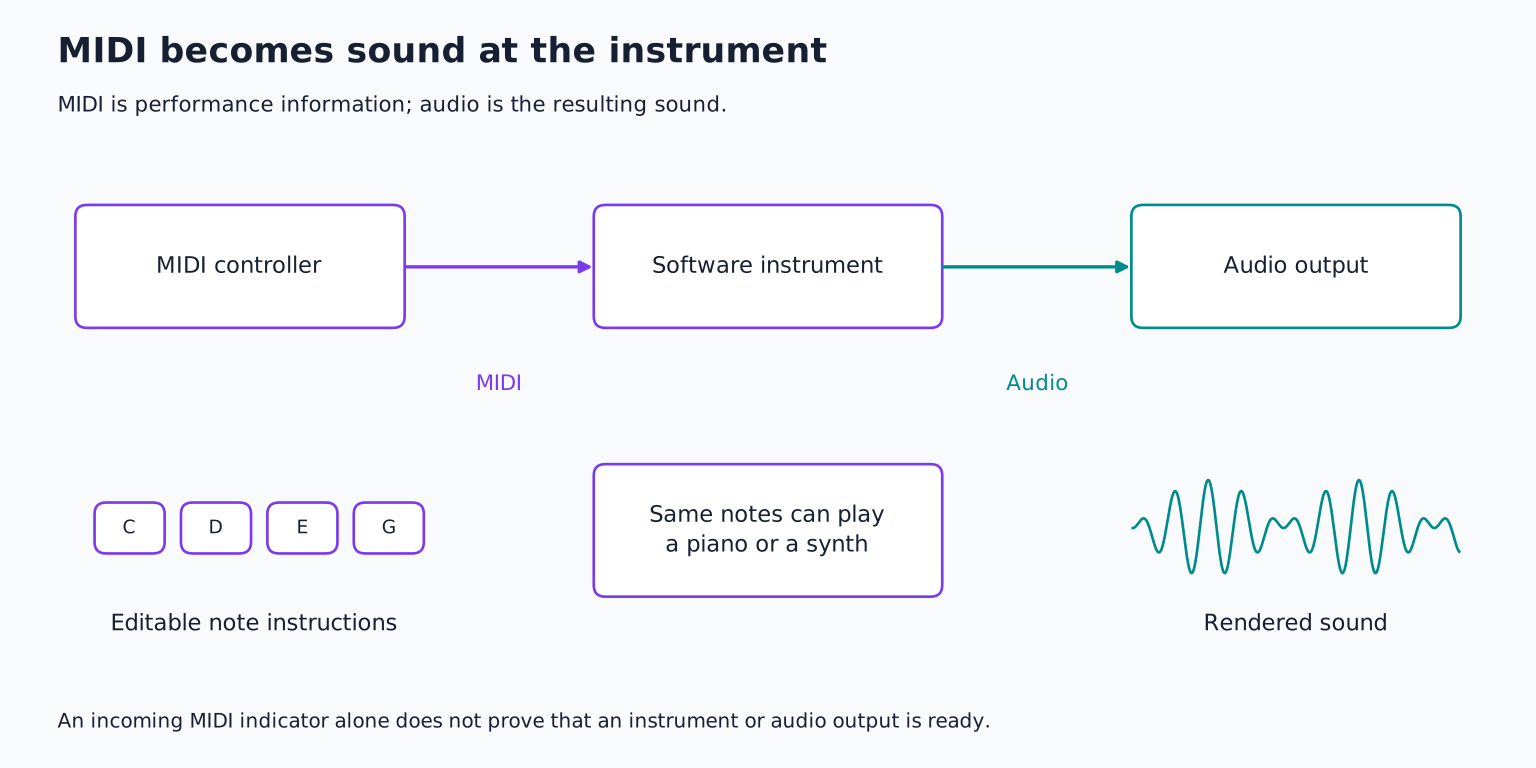
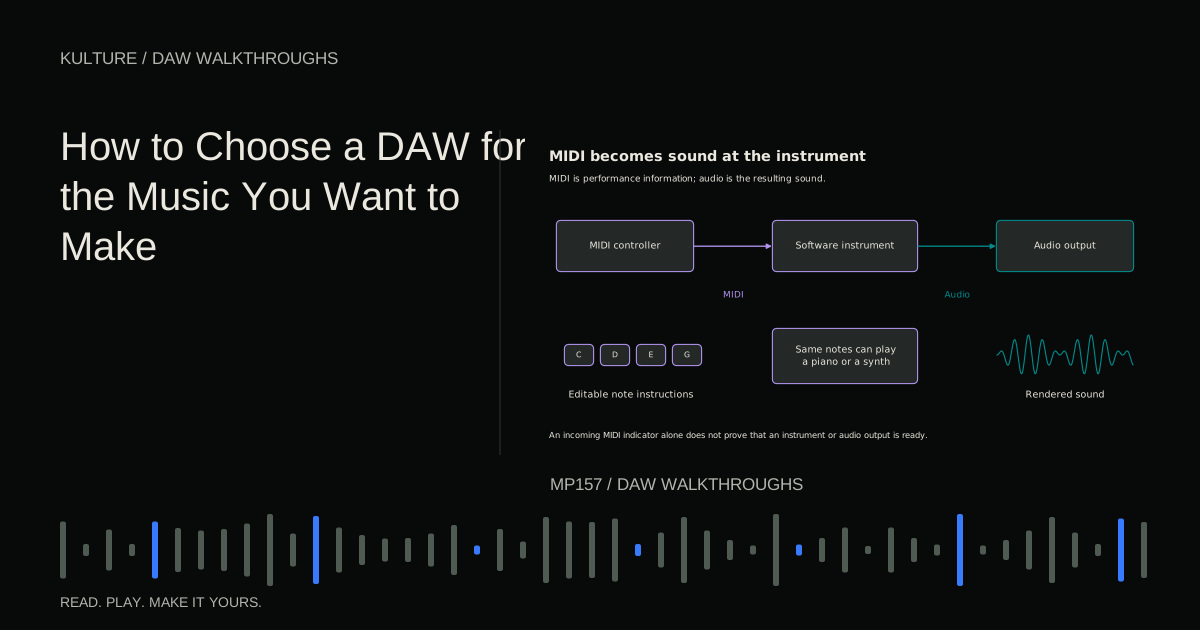
An instrument track combines a note data lane with a software sound source. A plain MIDI track instead needs an appropriate destination, such as a rack instrument or external device. Both are useful, but an instrument track is the simpler first route.
Load a piano or electric piano preset. If using a controller, select its MIDI input and enable the track for playing or recording. Cubase's All MIDI Inputs option depends on which ports are included in that set; it is not a guarantee that every connected control port should be used.
The Instrument track dialog documentation identifies the instrument, input, output, and event type controls.
Draw a four bar MIDI part
Use the Draw tool to create a MIDI part from bar 1 to bar 5 on the instrument track. That range contains four complete bars. Open the part in the Key Editor and choose a useful grid such as quarter notes for chord starts.
Enter these notes together at the beginning of each bar:
| Bar | Notes | Chord |
|---|---|---|
| 1 | D, F, A | D minor |
| 2 | B flat, D, F | B flat major |
| 3 | F, A, C | F major |
| 4 | C, E, G | C major |
Keep the chords in a middle register. Let each last approximately three beats, leaving a short gap before the next bar. Listen to the gaps as part of the rhythm rather than immediately filling them.
A MIDI part is a container for note events. Editing the part's position changes when the whole phrase plays; editing a note inside it changes a specific pitch, start, or duration. Steinberg documents creating these containers in Creating Empty MIDI Parts.
Make a bass part that complements the chords
Add a second instrument track with a simple bass sound. Create another four bar MIDI part and enter the roots D, B flat, F, and C in a lower register.
Play each root on beat 1 and on the “and” after beat 3, using short notes. This leaves space between attacks and gives the phrase a small push toward the next bar. Compare with a version that plays on beats 1 and 3 exactly.
The second version is more squarely aligned with the main beats; the first introduces syncopation, an emphasis between expected strong beats. Neither is universally better. Choose the one that supports the musical character you hear.
If the bass and piano seem to collide, move the piano's lowest note upward or shorten its release. Do not assume an equalizer is the first solution to two parts occupying the same register with long overlapping notes.
Add drums using a mapped instrument
Create a drum instrument track with an available kit, such as an installed Groove Agent SE kit if your edition includes it. Audition pads or keys to identify the kick, snare, and closed hi hat. Drum note mappings vary, so use the actual instrument labels.
In a one bar pattern, put kick on beats 1 and 3, snare on 2 and 4, and hats on eighth notes. Repeat the bar across the four bar phrase. Make the hats on the “ands” slightly softer than those on the numbered beats.
Add one extra kick on the final eighth note of bar 4 only if it leads naturally into the next phrase. If the drum part becomes crowded, remove it. A variation should clarify the phrase, not simply increase event count.
Balance the drums against the bass and piano before adding another sound. The drum pattern lesson offers deeper rhythmic practice after the routing and note entry workflow feels familiar.
Capture a short audio performance
Add a mono Audio track and select the mono input bus connected to your microphone or instrument. Name it clearly, arm it, and choose the intended monitoring method.
Set interface gain while performing the loudest passage. Avoid clipping and leave headroom. For a vocal, use headphones and follow the microphone's power requirements. For a direct guitar, use the appropriate instrument input. Never connect a guitar amplifier's speaker output directly to an interface input.
Record a four- or eight bar phrase over the backing. Then record another full attempt. Keep both while comparing; choose the take with the stronger phrasing before editing tiny timing differences.
If the input meter moves but recording is silent, check the track input and record enable state. If recorded playback is silent while input monitoring is active, check monitoring behavior and switch back to playback as appropriate. Input monitoring and listening to an existing audio event are related but distinct states.
For a complete physical recording walkthrough, use the first vocal or instrument lesson.
Arrange events and parts into sixteen bars
Duplicate the four bar instrumental phrase to sixteen bars. Keep the piano and light drums in bars 1 to 4. Add bass in bars 5 to 8. Bring in the recorded performance for bars 9 to 12, then simplify the ending in bars 13 to 16.
For a final return to D minor, change the last chord to D, F, A and the final bass note to D. If you made shared copies, create an independent version before editing only the ending. Otherwise the change may affect earlier repetitions too.
Use short fades on audio event boundaries where needed. When moving an audio phrase, preserve the lead in breath or pick attack. The visible waveform's loudest part is not always the true musical beginning.
Listen once from the start with no editing. Note whether each entrance is understandable and whether the final chord has enough time to settle. Fix one transition at a time.
Mix simply and export between the locators
Open the MixConsole and adjust relative levels. Keep the main output below overload. Add a small reverb to the recorded performance or keys only if it improves depth without hiding rhythm.
Set the left and right locators around the intended arrangement, including the final decay. Choose File > Export > Audio Mixdown. Select the main stereo output, an appropriate WAV format, a clear filename, and the intended folder.
Steinberg's mixdown instructions emphasize the locator range and output routing. A silent export can result from choosing a route that does not carry the mix, even if another monitoring path is audible.
Play the exported file outside Cubase, then reopen the saved project and confirm its audio media is present. Your next exercise is to make an alternative bass rhythm and compare the two complete exports. Use the eight bar arrangement guide to extend this small project once the instrument, audio, and output paths are reliable.
TAKE IT INTO YOUR OWN MUSIC
Your next session.
Open the MixConsole and adjust relative levels. Keep the main output below overload. Add a small reverb to the recorded performance or keys only if it improves depth without hiding rhythm.
Notes and progress stay in this browser.

![Ableton Live for Beginners: Make and Export Your First Loop: Kick, snare and closed hat triggers on a sixteen step grid: [[1, 9], [5, 13], [1, 3, 5, 7, 9, 11, 13, 15]].](/assets/guide-art/ableton-live-for-beginners-make-and-export-your-first-loop-7eb7fd8bcc.svg)