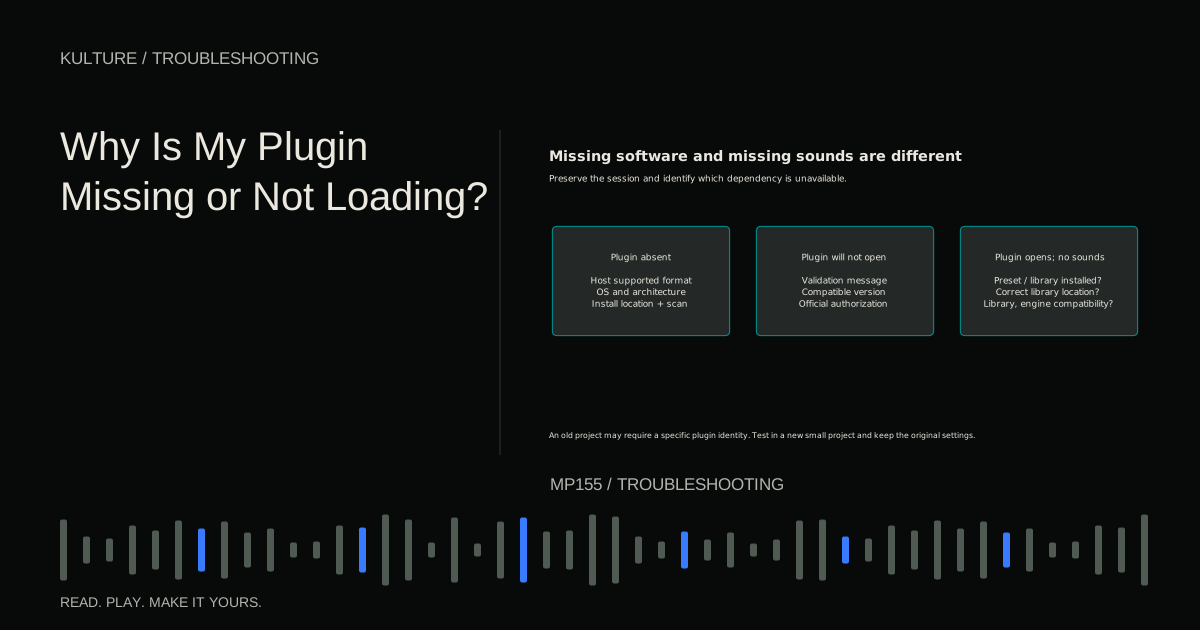
Save a copy before modifying a session that contains unavailable plugins. Their stored settings may still be recoverable once the correct version is installed. Deleting the missing instance can remove useful information.
Match the plugin format to the host
A plugin is a software component loaded inside another application, the host. VST3, Audio Units, and AAX are different plugin formats, not quality rankings.
Logic Pro uses Audio Units. Pro Tools uses AAX. Other DAWs support their own combinations, sometimes varying by operating system and edition. Installing only a VST3 version will not make that product appear as an Audio Unit in Logic or an AAX plugin in Pro Tools.
A standalone application is also not automatically a plugin. Some installers offer a standalone instrument plus one or more plugin formats. Confirm that you installed the format your DAW supports rather than only the app you can launch from the desktop.
Ableton's plugin manual describes its supported plugin sources and activation. Consult your own host's current manual for its exact combination.
TRY IT HERE
Make it your session
Turn the steps into a plan you can save.
Ready when you are. Audio starts only when you press Play.
Keep experimenting in the sample pads LabCheck operating system and processor support
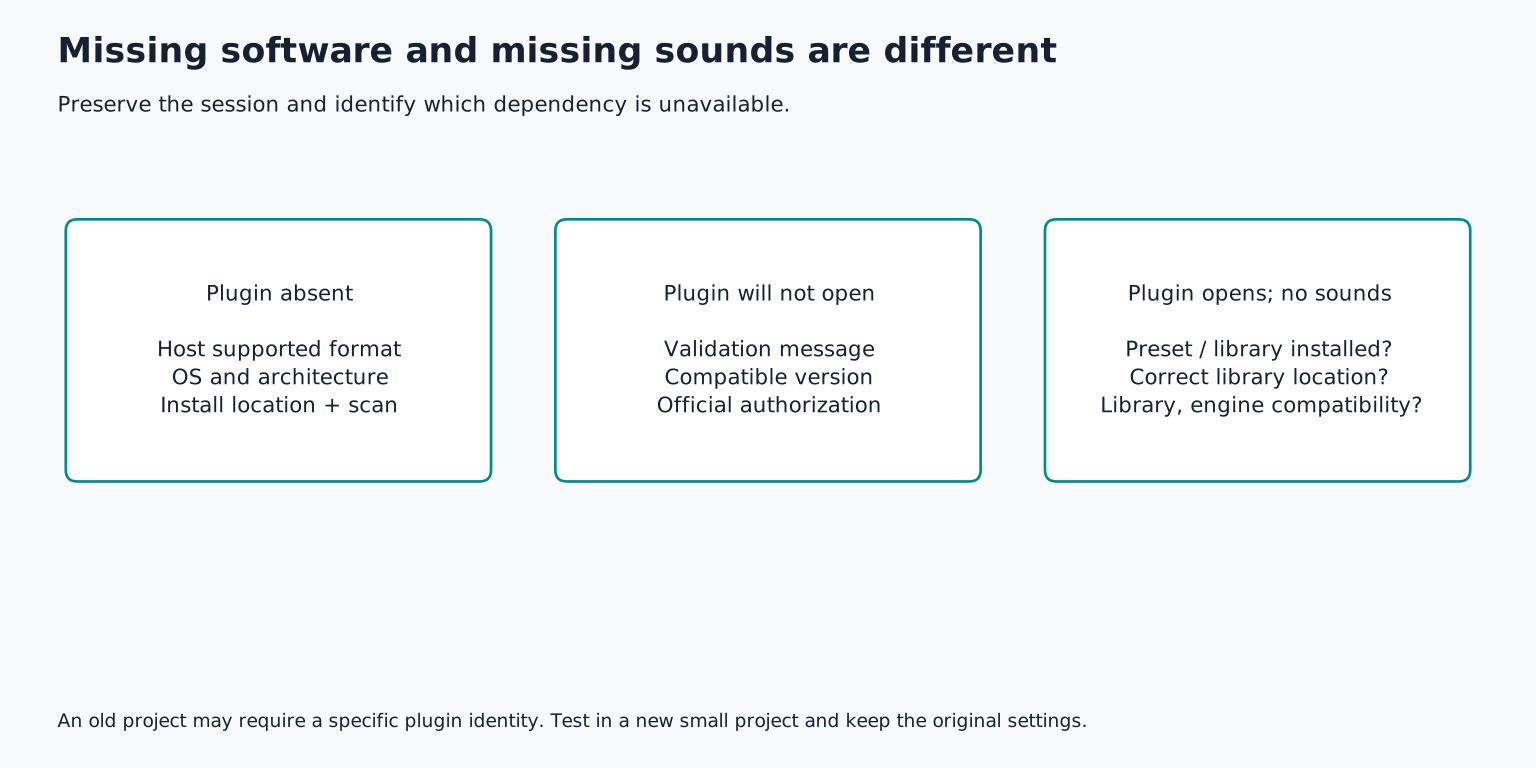
The plugin must support your operating system version and computer architecture. A modern host may not load an old 32 bit plugin. On Apple silicon, native and translated operation can affect which plugin builds are usable; the correct solution depends on both the host and the vendor's supported configuration.
Do not assume that because the installer completes, the plugin is compatible. Read the manufacturer's compatibility statement for the exact product version. A newer major version can change requirements, while an older version may be necessary to reopen a historical session.
Also distinguish the host's edition from its version. A limited edition may not support external plugins or a particular feature. A tutorial for a full edition can therefore describe menus unavailable in your copy.
Write down the DAW version, operating system, plugin version, and format. This four part record prevents vague searches for “plugin not working” from leading you to instructions for an unrelated configuration.
Verify installation before rescanning repeatedly
Use the official installer or vendor application. Follow its documented locations and options. Some formats use standard system directories; some older formats allow custom locations. The DAW must scan the location containing the actual plugin component.
A downloaded installer, ZIP file, preset folder, or sample library is not necessarily the plugin itself. Similarly, dragging a plugin's data folder into a scan path will not install its executable component correctly.
If the vendor requires a separate content library, confirm that both the plugin and its sounds are installed. A visible instrument with no available presets may be a missing content problem rather than a scan failure.
Do not reorganize system plugin folders casually. Moving components can break installers, updates, and other applications. If a custom location is necessary, use the installer and host's documented configuration rather than scattering copies across several folders.
Look in the correct menu
An instrument belongs in an instrument slot or instrument track chooser. An audio effect belongs in an audio processing slot. A MIDI effect may have a separate category. Searching only the EQ menu for a synthesizer can make a properly installed product seem absent.
Check manufacturer submenus and search filters. A renamed company, category filter, favorites view, or hidden plugin setting can conceal an available product. Search the exact product name and inspect the host's full plugin manager rather than only the current short list.
If the plugin appears in the manager but not on a particular track, check whether that track and slot support its type and channel configuration. Mono, stereo, and multichannel variants can differ.
Rescan and read the result
Run the DAW's documented scan or rescan for the specific plugin. If the application reports failed validation, unsupported architecture, or missing authorization, treat that message as evidence. Repeating the same scan without changing the cause rarely helps.
For Logic Pro, Apple's missing Audio Units guidance explains checking the Plugin Manager, authorization status, and selected plugin rescanning. Its instructions also distinguish a plugin that is not detected from one that is detected but fails validation.
A restart may be required after installation or an operating system registration step. Save your work before restarting. Do not immediately delete caches or preferences based on an old forum post; those actions can affect more than one plugin and may not address the cause.
If the host has blocked a plugin after a crash, update to a compatible release and test in an empty project before returning it to an important session. Do not force unsupported software past validation simply to make its name appear.
Authorization and content are separate dependencies
A plugin can install successfully but still need a valid license. Open the vendor's official license manager or documented activation workflow. Confirm the account and machine authorization without sharing passwords, license keys, or account tokens publicly.
A subscription may have expired, an offline license may need renewal, or a license may be assigned to another machine. Follow the vendor's terms and support process. A license problem is not fixed by downloading an unofficial patched copy.
For sampled instruments, locate the expected library using the instrument's own content management function. Keep library version and plugin version compatible. A newer library may require a newer engine, and moving a library can leave stale references.
When only an old session is affected
An old project may request a specific plugin identity or format. Installing a newer major version does not always replace that identity automatically. Likewise, a VST3 edition may not substitute for an older VST2 instance, even when the product name looks the same.
Check the vendor's migration guidance. If supported, install the required older version alongside the new one. Open the project in a compatible environment, preserve presets, and render important tracks to audio. Do not overwrite the original until you verify the migrated sound.
If the exact plugin is unavailable, use any reference mixes or printed stems to guide reconstruction. State clearly which sound is a replacement. A similar preset is not proof that the original settings have been recovered.
Ableton's reinstalling FAQ explains why reinstalling the DAW does not solve third party plugin behavior by itself.
Finish with a repeatable test
Create a new project, load the plugin, play or process a short signal, save, close, and reopen. Confirm that both the plugin and its preset return correctly. Then test the original session copy.
Your maintenance exercise is to record each project's important third party plugins, versions, and formats, and print audio for sounds that would be difficult to recreate. Keep the editable tracks too. For missing audio libraries or recordings rather than missing software, move to the missing media guide; for a plugin that loads but produces silence, follow the signal path checks.
TAKE IT INTO YOUR OWN MUSIC
Your next session.
Create a new project, load the plugin, play or process a short signal, save, close, and reopen. Confirm that both the plugin and its preset return correctly. Then test the original session copy.
Notes and progress stay in this browser.