A DAW project is often a set of instructions plus references to media stored elsewhere. Saving the project document does not always copy every recording, loop, and instrument library into one portable folder.
Protect what still exists
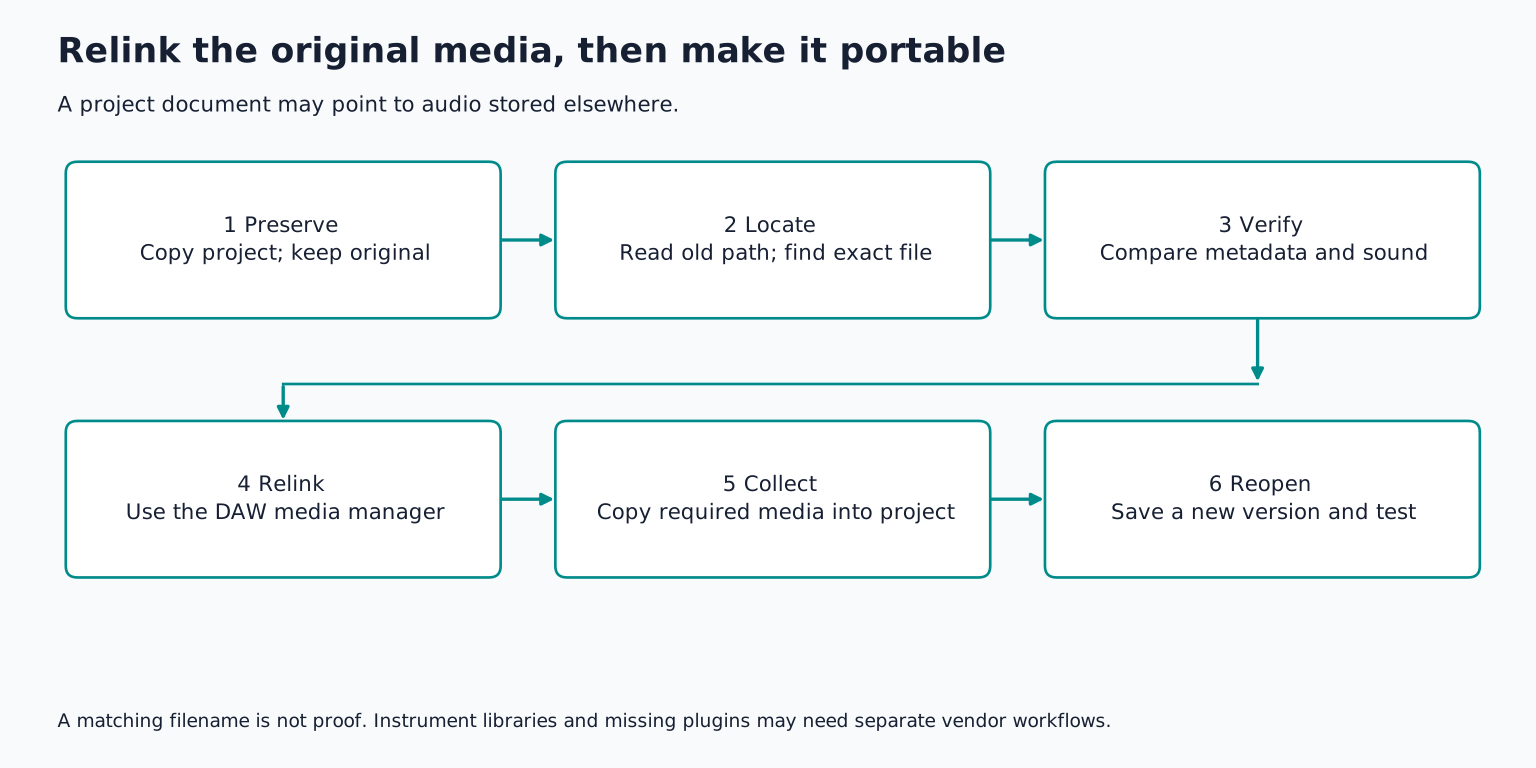
Make a copy of the project folder and keep the original unchanged. If you have an external drive that is failing or disconnecting, avoid repeatedly writing to it. If important data appears physically lost, consider appropriate recovery help before experimenting further.
Take a screenshot or written note of the exact error, missing filenames, and expected locations. The old path can reveal whether the media lived on a removable drive, a downloads folder, a collaborator's computer, or cloud storage.
Do not replace missing samples with vaguely similar files just to remove the warning. That may make the project open while silently changing the music. Recovery should restore the correct media first; reconstruction is a separate fallback.
TRY IT HERE
Make it your session
Turn the steps into a plan you can save.
Ready when you are. Audio starts only when you press Play.
Keep experimenting in the sample pads LabRead the missing path as evidence
Suppose the project expects a file named Kick_07.wav inside an external drive's Sample Packs folder. Check whether that drive is connected and mounted under the expected name or letter. If you reorganized the folder, locate the new path rather than downloading another kick with the same name.
A cloud synced folder may display filenames without keeping the actual file contents locally. Make the required media available offline using the storage service's supported controls, then reopen or rescan the project. A visible placeholder is not the same as readable audio data.
If the project came from someone else, ask whether they used the DAW's copy or collect media option before sending it. The small project file alone may reference audio on their computer that you never received.
Ableton's missing media explanation identifies this reference versus file distinction and its collect media workflow.
Search for the exact original
Start with likely locations: the old project folder, recording folder, Downloads, the source sample library, external drives, and backups. Search the full filename first, then a distinctive portion if needed.
Compare candidate files carefully. Different sample packs can contain generic names such as Kick.wav or Vocal 01.wav. Filename alone is not reliable identification. Check duration, file size, sample rate, and the sound itself. If the DAW reports an expected length or other metadata, use that too.
Relink a small number of files and listen before approving a broad automatic replacement. If the first restored drum suddenly has a different attack or pitch, stop and inspect the match. Automatic search is convenient, but ambiguous names can lead it to the wrong source.
The same recording may have been copied with a changed name. If you are confident about its identity, use the DAW's documented manual relink function. Avoid renaming unrelated files to imitate missing names, because that hides the uncertainty rather than resolving it.
Relink, then collect
Use the application's file manager, missing file dialog, or media pool to point the project to the recovered source. The exact operation varies. Ableton's relinking instructions show one application's automatic and manual search approach.
After the project plays correctly, use its supported function to copy the required media into the project folder. In Live, Collect All and Save serves this purpose for selected referenced media categories. Other DAWs use different terminology, and sampled instrument libraries may remain separate dependencies.
Save a new version and reopen it. Check the beginning, several edited passages, and the ending. If practical, test a copy from a separate folder or backup location to confirm it does not still depend on the temporary recovery path.
Do not disconnect a drive containing your only copy just to test portability. Make a verified backup first and use a controlled test.
Missing instrument libraries are a different case
A sampler or orchestral instrument may manage its own large library rather than using ordinary audio clips in the DAW. If its interface opens but reports missing content, use the instrument vendor's library location or repair function.
Copying the DAW project may not copy that entire licensed library, and sharing it may not be permitted. A collaborator may need their own license and installation. Render the instrument to audio when they need its sound but cannot reproduce its software environment.
A missing plugin itself is different again: the host cannot load the software component. Follow the plugin troubleshooting guide rather than pointing the DAW's audio file search at plugin installers.
When the project will not open
First determine whether other projects open in the same DAW. If every project fails, investigate application, driver, authorization, and system issues. If only one fails, the project or something it loads is a more likely cause.
Try an earlier autosave or backup using the DAW's supported recovery method. Save the recovered version under a new name. Apple's project alternatives and backups documentation illustrates the distinction between alternate versions and saved recovery points in Logic Pro; use the instructions for your installed version.
If the crash occurs while loading a particular plugin, use the host's documented plugin disabled or safe opening method when available. Preserve the original plugin state. A project that opens after bypassing a plugin is not necessarily corrupted; the plugin may be the failing dependency.
Check version compatibility. A project saved by a newer DAW version may not open in an older one. Ask for a compatible export, consolidated tracks, or an earlier format save only if the program supports it. Renaming the file extension does not convert the project.
Recover the music when the session cannot be restored
If no usable project document survives but recordings remain, create a new session and import those recordings. Use timestamps or common start points when available. Without those references, manual alignment may be necessary.
Reference mixes can help reconstruct section order, balance, and effects, but they do not restore every edit or plugin setting. Keep a clear distinction between recovered original data and decisions recreated by ear.
Look for bounced tracks, stems, exported demos, and collaborator copies. An imperfect earlier mix can preserve an arrangement or performance you thought was gone. Ask for relevant files rather than requesting someone else's entire archive unnecessarily.
Prevent the next broken session
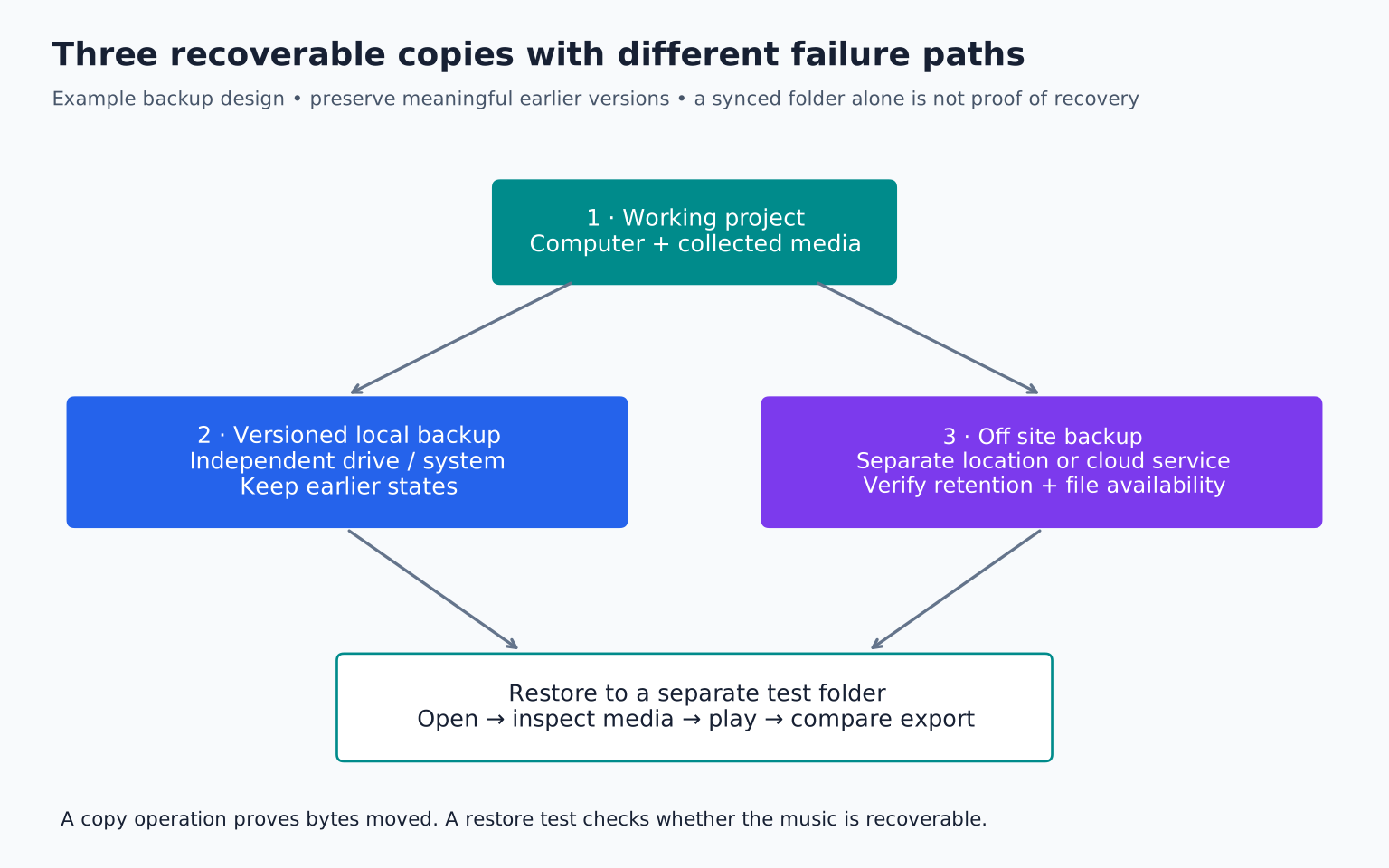
Keep each project in a dedicated folder. Name versions clearly, collect ordinary media before moving or archiving, and retain a separate backup on another storage location. A synchronized folder alone may mirror accidental deletion; understand whether the service also provides version history and recovery.
Periodically reopen an archived copy. A backup is more convincing when you have tested it than when you have only seen its folder name. For important sessions, retain reference mixes and rendered versions of irreplaceable software instrument sounds.
Your exercise is to duplicate a small completed project, collect its media, and open that copy from a new location. Verify that every sound loads, then note any external library or plugin dependency still required. That gives you a practical archive checklist for the next project and prepares you for collaboration across different DAWs.
TAKE IT INTO YOUR OWN MUSIC
Your next session.
Keep each project in a dedicated folder. Name versions clearly, collect ordinary media before moving or archiving, and retain a separate backup on another storage location. A synchronized folder alone may mirror accidental deletion; understand whether the service also provides version history and recovery.
Notes and progress stay in this browser.