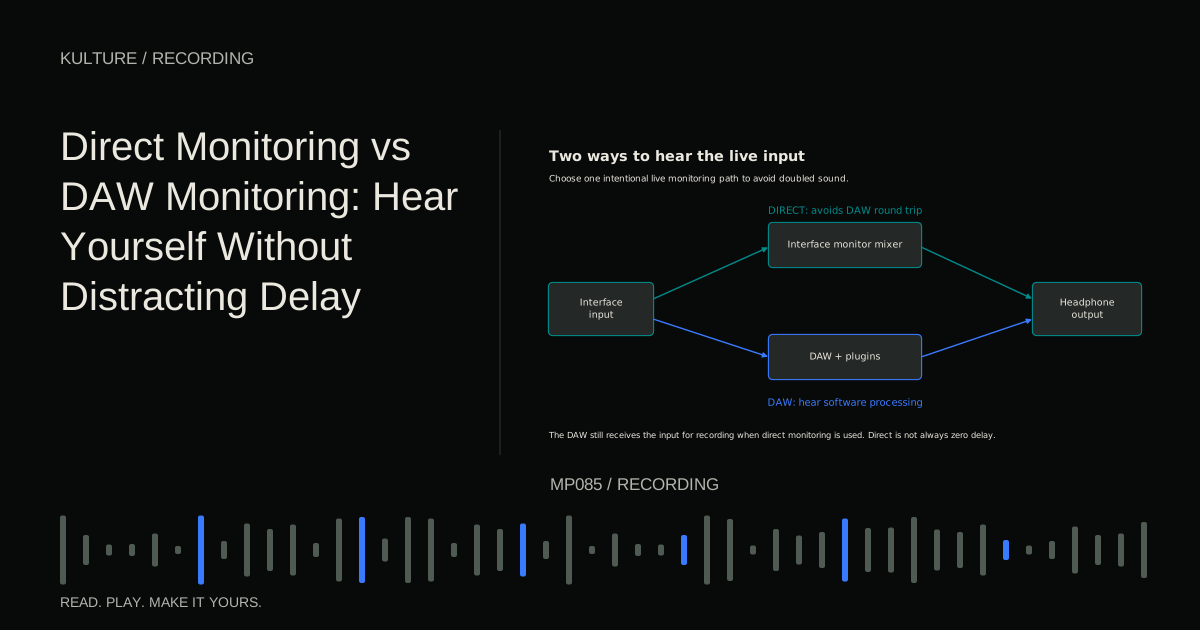
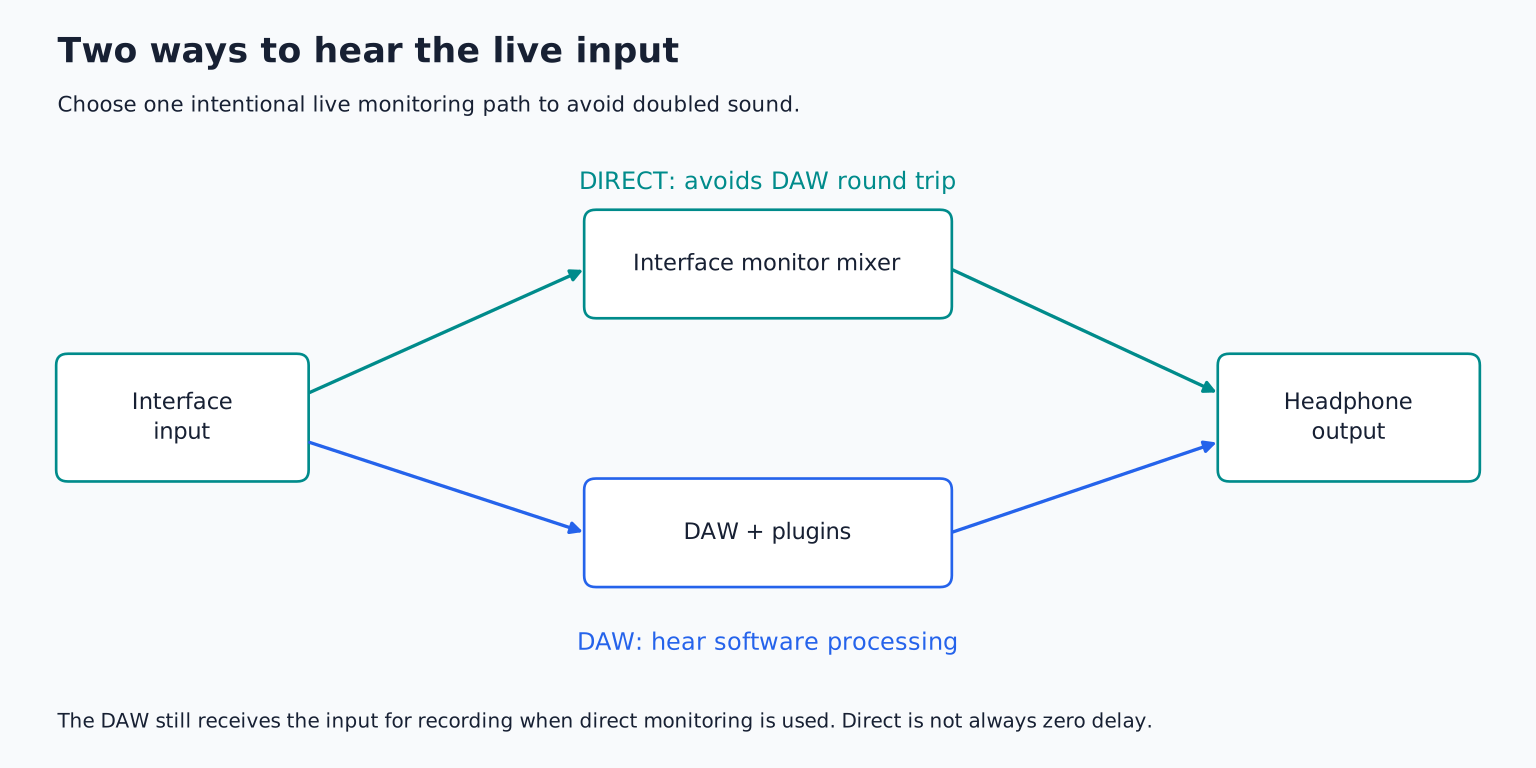
The important beginner rule is to avoid accidentally hearing two versions of the same input. A direct signal plus a delayed software signal can sound hollow, phasey, or like an echo. That sound may exist only in the headphones, while the recorded file is perfectly normal.
Follow the two paths
In a simple direct monitoring setup, the path is microphone interface input interface monitor mixer headphones. The input is also sent to the DAW for recording, but the live headphone sound does not need to complete the ordinary software round trip.
With DAW monitoring, the path is microphone interface input computer recording track plugins and mixer interface output headphones. The extra journey takes time. That delay is called latency.
Some interfaces use analog direct monitoring; others use onboard digital processing. “Direct” does not promise that every product is literally zero delay, but it normally avoids the more variable DAW path. Focusrite's direct monitor explanation describes the basic distinction.
TRY IT HERE
Make it your session
Turn the steps into a plan you can save.
Ready when you are. Audio starts only when you press Play.
Keep experimenting in the sample pads LabWhy the buffer matters
The audio buffer is a block of samples the computer processes at a time. A smaller buffer gives the system less time to finish its work and can reduce delay. A larger one gives more processing room but generally increases latency.
At a 48 kHz sample rate, 128 samples represent about 2.67 milliseconds of audio in one buffer. That does not mean the complete input to headphone delay is 2.67 milliseconds. Input and output buffering, converters, drivers, safety buffers, and plugins can add time.
Use the DAW's reported latency as a starting clue, then judge the actual playing experience. A singer may find a delay distracting that is less noticeable while editing. A guitarist using a software amp may need a lower buffer than someone recording a slow ambient sound.
Set up a simple dry vocal
Connect the microphone and set its input gain safely. Turn on the interface's direct monitor path according to its manual. Turn off software input monitoring for that recording track, while leaving the track armed to capture audio.
Play the backing track from the DAW. Adjust the interface's input/playback blend or monitor mixer so the singer can hear both voice and music comfortably. Some small interfaces provide a fixed blend; in that case, lower the backing tracks in the DAW if they overpower the live input.
Record ten seconds and play it back with the track disarmed. Verify that the file is present and the playback path works. The performer hearing themselves during recording does not prove the DAW has selected the correct input.
Focusrite specifically warns about hearing both monitoring paths. If your voice sounds doubled, check the DAW, interface mixer, and any operating system “listen to this input” feature before moving microphones or adding equalization.
Set up a software guitar amp
A clean DI guitar is the unprocessed electrical signal captured from the instrument. If you want the performer to hear an amp simulator, place that plugin on the recording track and use DAW monitoring. Turn off the corresponding dry direct monitor signal unless you intentionally want to blend it.
Choose a modest buffer, such as 64 or 128 samples as a trial, then play a rhythmically demanding passage. If there are crackles or dropouts, increase the buffer one step. Disable unnecessary high latency processing and close unrelated heavy applications before assuming you need a different computer.
Avoid putting mastering processors, linear phase filters, or look ahead effects in the live monitoring path without checking their latency. Some DAWs offer low latency modes that temporarily bypass or constrain delay producing routes; the exact behaviour is product specific.
Record a test while listening through the amp. Confirm whether the DAW is recording the dry input or the processed signal. Both are possible with different routing. For flexibility, beginners often record the dry input while monitoring the amp plugin, then keep the sound editable.
Can you have direct sound and software reverb?
Sometimes. One useful hybrid is a direct dry voice plus a DAW return that contains only reverb. The performer hears the immediate voice and a slightly delayed ambience, which may be acceptable because reverberation is naturally delayed.
This requires careful routing. The software return must not add another dry vocal. Use a fully wet effect return and make sure no parallel dry path reaches the headphones. If the reverb plugin's wet/dry control is only partly wet, the doubled direct sound can return.
The interface must also provide enough routing flexibility for the intended setup. Do not assume every entry level interface can make separate cue mixes or independently monitor effects. When the routing is becoming confusing, choose a clean dry direct mix first. A reliable performance matters more than elaborate headphone processing.
Monitoring volume does not set recording gain
Input gain determines the level captured by the recording path. Headphone level determines how loudly you hear the monitor mix. A cue mix channel controls the balance within that mix. Changing one is not necessarily a substitute for changing another.
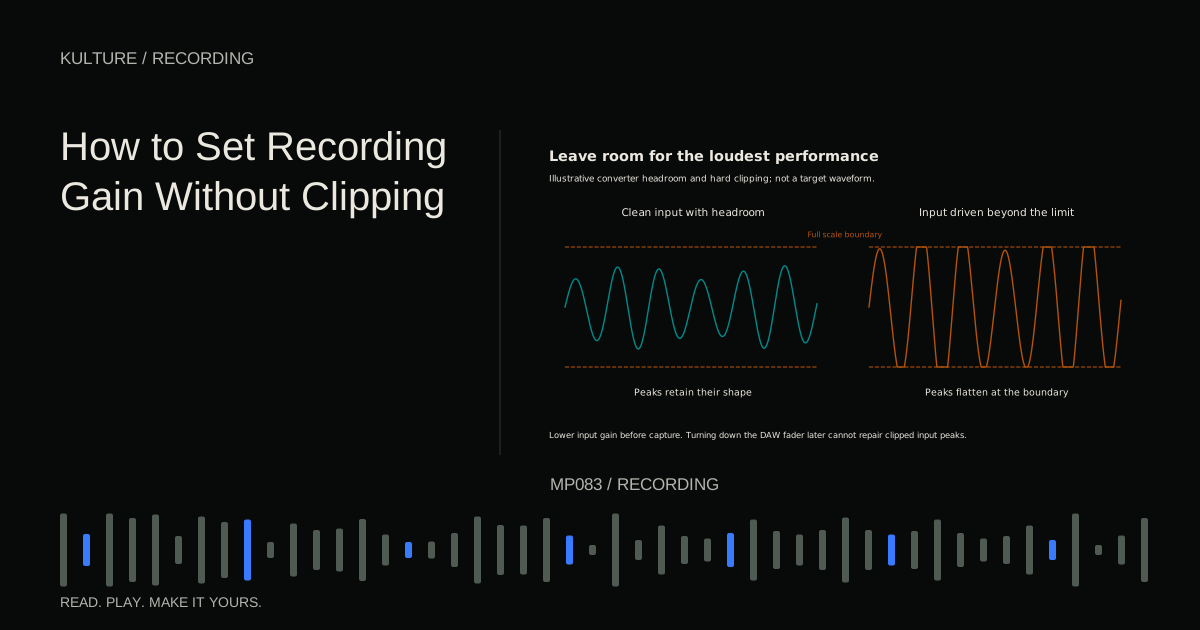
If the backing track is very loud, bring it down. Do not drive the preamp toward clipping just to hear the singer. Likewise, lowering headphones does not protect the recording input from overload. Read how to set recording gain if the controls still feel interchangeable.
Check the headphone output with a low starting level whenever the routing changes. Feedback or an unexpected full level return can be startling. Avoid sending an output back into a monitored input that feeds the same output.
Recorded timing and perceived timing are related, but different
DAWs normally compensate for known recording system delay when placing newly recorded audio. That does not erase the delay the performer experienced while playing. A singer who adjusts their timing to a late headphone signal may still deliver a different performance.
If every overdub lands suspiciously late or early, first check monitoring and driver settings. Do not immediately move every take by an arbitrary number of milliseconds. Test the system and consult the DAW's recording offset procedure when necessary. Incorrect manual compensation can create a second problem.
Bluetooth headphones can introduce additional delay and are usually an awkward choice for live overdubbing. Wired headphones connected to the recording interface keep the path easier to understand.
A ten minute monitoring test
Record the same short phrase with direct monitoring, then with DAW monitoring at two stable buffer sizes. Keep listening loudness similar and avoid hearing duplicate paths. Note which setup lets you perform naturally, whether effects change your playing, and whether the computer remains stable.
Use direct monitoring for the dry session if it wins. Use a tested low latency software setup when the sound depends on plugins. For more detail on the computer side, continue with buffer size and latency. The best monitoring system is the one you stop noticing while performing.
TAKE IT INTO YOUR OWN MUSIC
Your next session.
Record the same short phrase with direct monitoring, then with DAW monitoring at two stable buffer sizes. Keep listening loudness similar and avoid hearing duplicate paths. Note which setup lets you perform naturally, whether effects change your playing, and whether the computer remains stable.
Notes and progress stay in this browser.