Your initial goal is not to assemble a miniature commercial studio. It is to build a working path from a musical idea to a saved project and an audio file you can play outside the software. This guide takes you through that path with a short, original arrangement.
Decide what you need to capture
Think about the source of the music you want to make.
- For electronic beats made from software sounds, the computer creates the audio internally. No microphone is required.
- For singing or acoustic guitar, a microphone converts sound in the room into an electrical signal.
- For an electric guitar recorded directly, an appropriate instrument input accepts the guitar's signal. An amplifier simulation effect can then shape it.
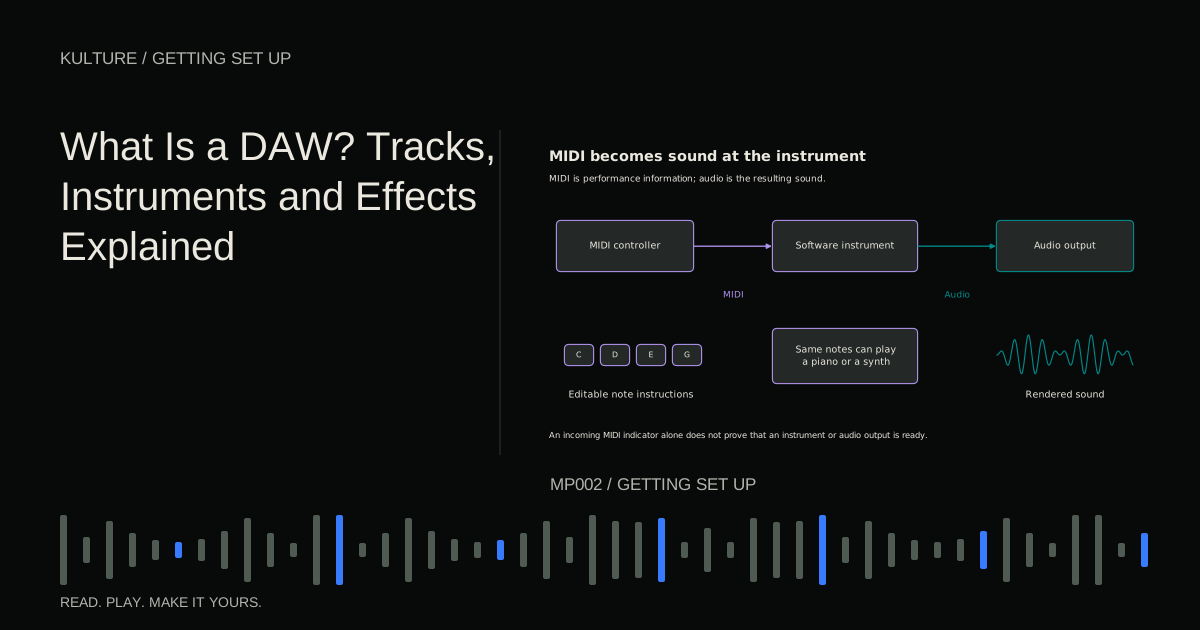
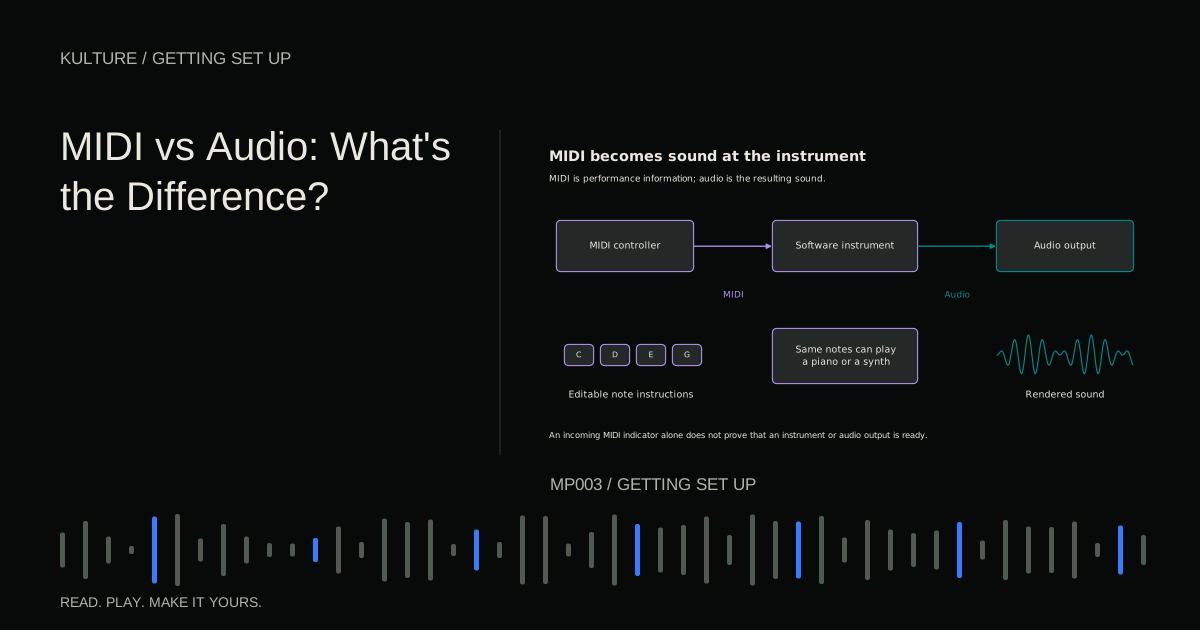
- For a hardware synthesizer, you may record its audio outputs, MIDI performance data, or both. The two are different things.
A digital audio workstation, or DAW, records, edits, arranges, and mixes these sources. If that vocabulary is unfamiliar, start with what a DAW does. Do not buy a second DAW because a tutorial uses it. Most beginning tasks transfer between programs once you recognize the underlying operations.
TRY IT HERE
Make it your session
Turn the steps into a plan you can save.
Ready when you are. Audio starts only when you press Play.
Keep experimenting in the sample pads LabEstablish one reliable listening path
For a software only project, wired headphones connected to the computer are enough to begin. If you already own an interface, connect the headphones to it and select that interface as the DAW's output device. Keep the monitoring volume comfortable and initially low when testing a new route.
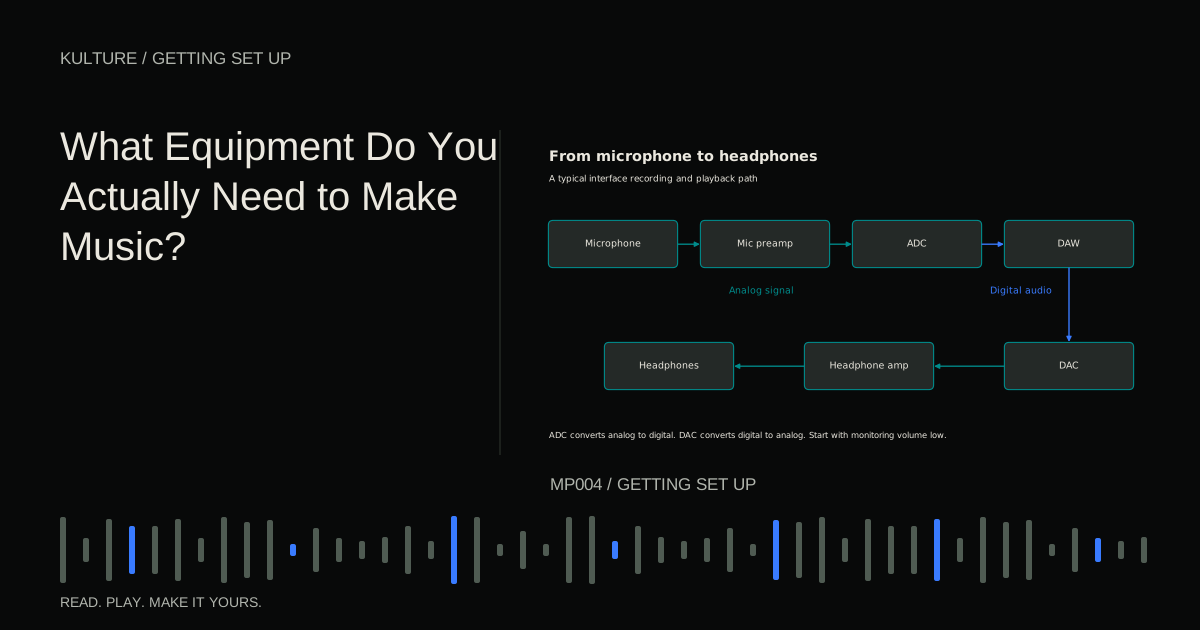
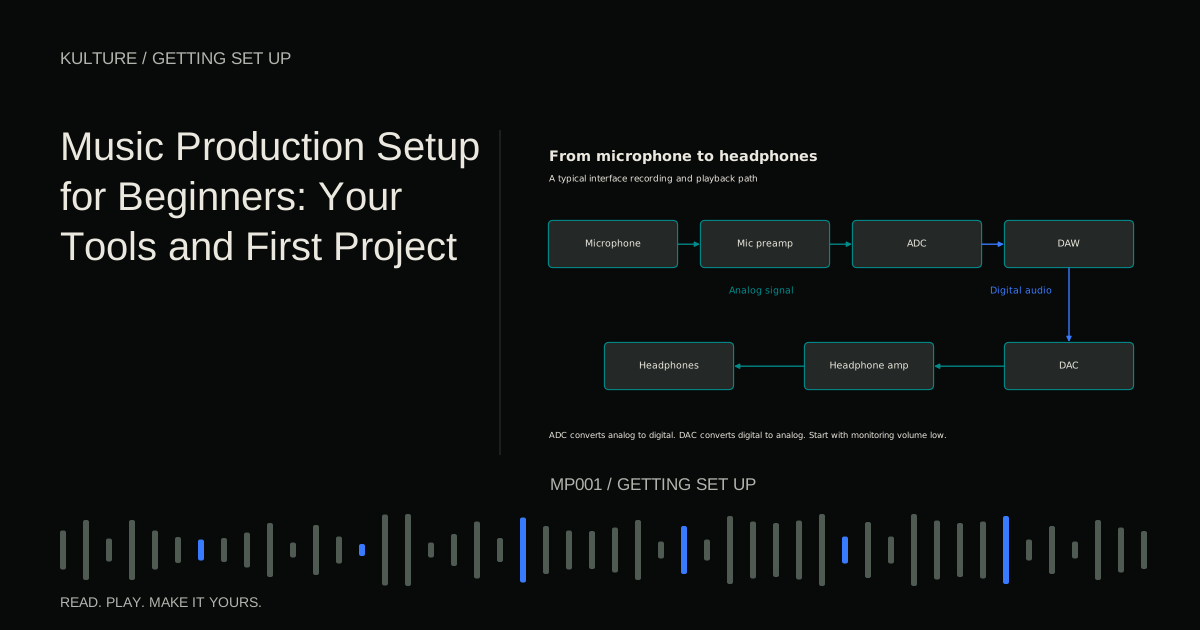
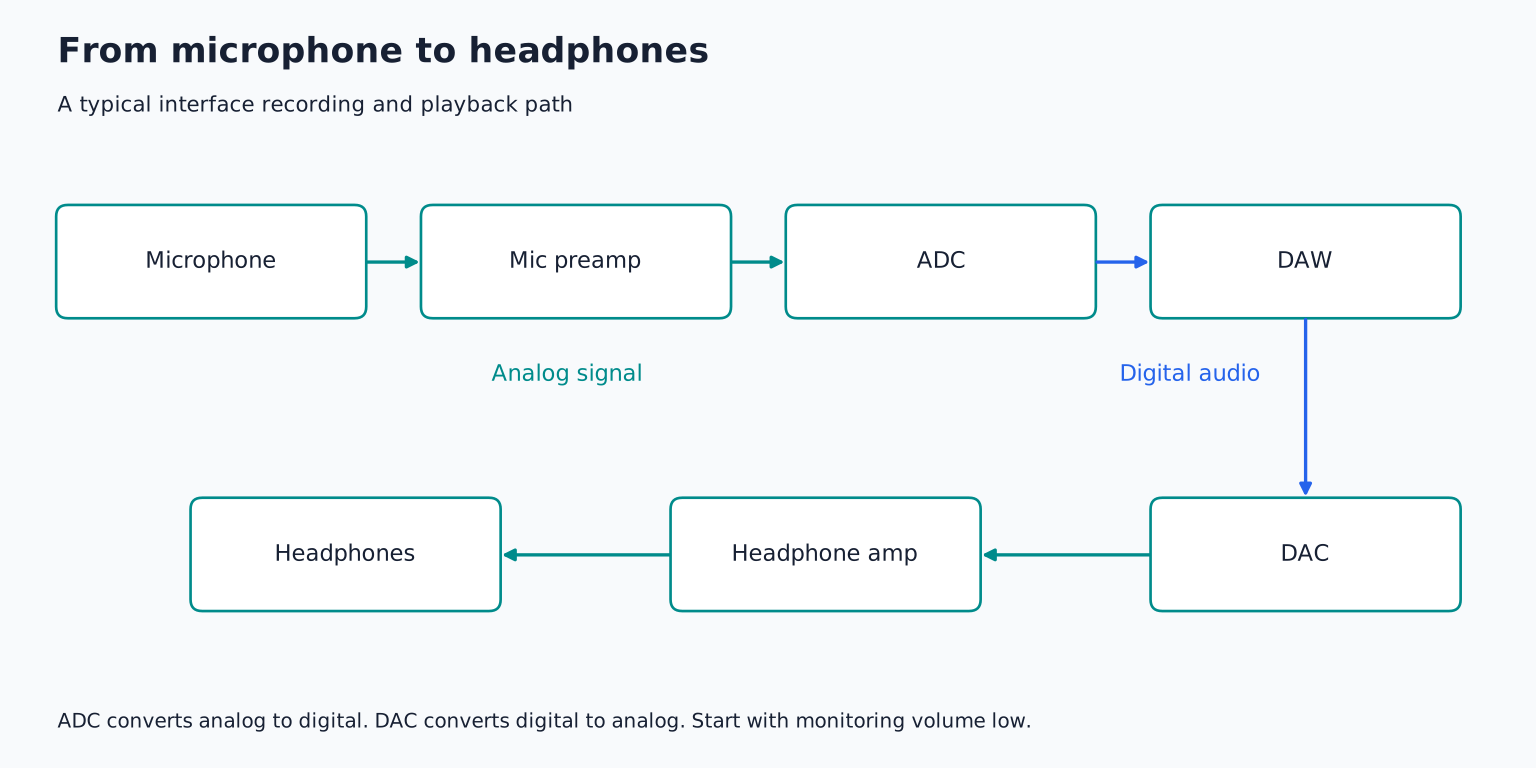
An audio interface connects physical audio sources and listening equipment to the computer. Its microphone preamplifier raises a microphone's small electrical signal; its analog to digital converter turns incoming audio into digital data. Its output converter performs the reverse process for headphones or speakers.
Avoid splitting your first setup between a USB microphone, Bluetooth headphones, and an unrelated interface unless you have a reason. Separate devices can complicate timing, routing, and operating system configuration. Bluetooth often introduces enough delay to make live playing awkward. It can still be useful for a later casual playback check.
On Windows, use the audio interface manufacturer's supported driver when one is provided. On a Mac, choose the intended Core Audio device. Driver and operating system compatibility depend on the specific product. Do not install miscellaneous driver utilities merely because a forum says they improve sound.
Open an existing audio file in the DAW and play it. Confirm that the track meter moves, the main output meter moves, and sound reaches the headphones. That simple test separates output setup from the additional complications of recording.
Set sensible project defaults
Create a project folder with a memorable name, such as First Track 01. Save the project inside it immediately. A project document usually stores instructions and references to recordings; it is not necessarily a self contained audio archive.
Choose 4/4 time and 100 beats per minute for this exercise. Four quarter note beats make one bar here. These are teaching choices, not requirements for good music. At 100 BPM, a four bar phrase lasts 9.6 seconds.
If your DAW offers recording format choices, 24 bit audio at 44.1 or 48 kHz is a practical starting point for many home projects. Use the rate required by a collaborator or video workflow if there is one. Higher rates increase processing and storage needs; they do not repair a poor performance or noisy room.
The audio buffer is a temporary block of samples the computer processes together. A smaller buffer can reduce monitoring delay but makes the computer meet tighter deadlines. For playing software instruments, try a moderately low setting such as 128 samples and change it if your system needs something else. For mixing without live playing, a larger setting is often easier on the computer. Focusrite's device setting guidance illustrates where these controls live for its Windows interfaces; other devices have their own controls.
Build a four part sketch
Use included sounds so that installation and purchasing do not interrupt the exercise. We will use drums, bass, chords, and a short melody.
1. Make the pulse audible
Load a drum instrument or place individual drum samples on audio tracks. In one bar of 4/4, put a kick on beats 1 and 3, and a snare on beats 2 and 4. Add a closed hi hat on each eighth note: count “1 and 2 and 3 and 4 and.” Repeat this for four bars.
Listen for the snare dividing the bar into two halves and the hi hat marking the smaller subdivisions. If the result sounds unexpectedly fast, check whether the sequencer steps represent sixteenth notes rather than eighth notes.
2. Add four chords
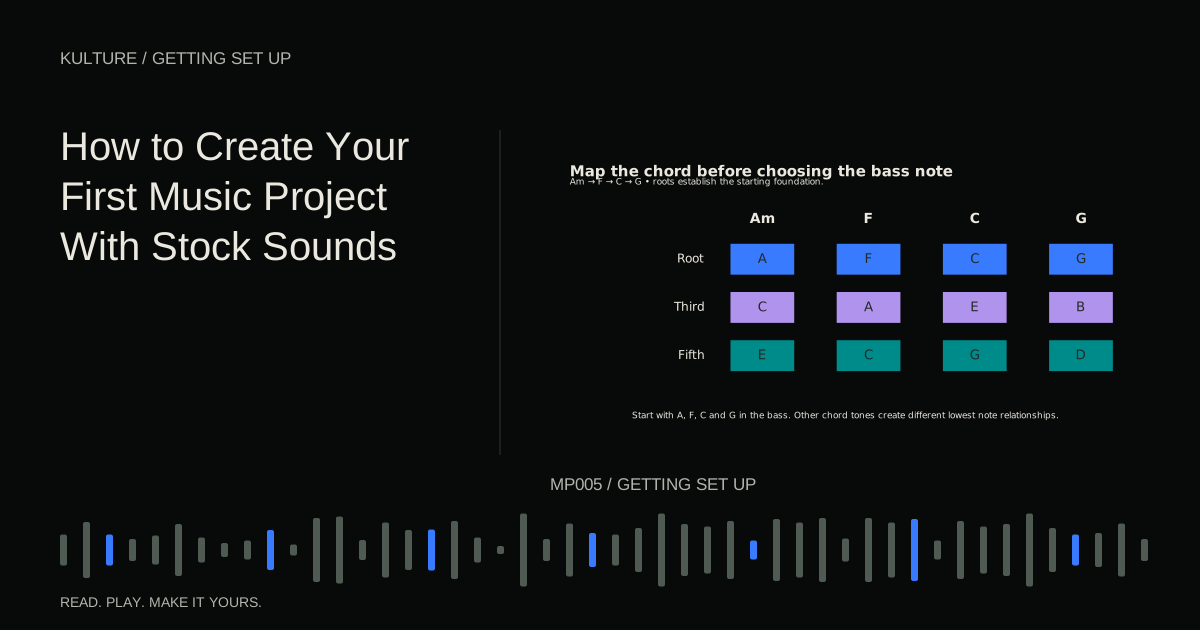
Load a simple piano sound on an instrument track. Draw these notes together, with each chord lasting one bar:
| Bar | Notes |
|---|---|
| 1 | A, C, E |
| 2 | F, A, C |
| 3 | C, E, G |
| 4 | G, B, D |
Choose a middle register where all notes sound clear. Octave labels differ between programs, so note names and relative position are more useful than assuming every DAW labels middle C identically. Shorten the notes slightly if overlapping releases blur the changes.
3. Give the bass a separate role
On a bass instrument, play A, F, C, and G in a lower register, one root note per bar. Use two short notes per bar, on beats 1 and 3, if sustained notes make the sketch feel heavy. A root is the note that names the chord.
Lower the bass until the kick remains easy to hear. You are balancing two musical roles, not trying to make each track impressive in isolation.
4. Write a tiny response
Choose a contrasting sound, such as a pluck. In bar 2, add E on beat 3 and C on beat 4. In bar 4, add D on beat 3 and B on beat 4. Leave bars 1 and 3 empty. Silence helps the phrase sound intentional and leaves space for the chords.
These notes are only one possible example. The exercise is about organizing contrasting parts, not discovering a universally correct melody.
Make a beginning and ending
Duplicate the four bar idea until you have sixteen bars. Use drums and chords in bars 1 to 4, add bass in bars 5 to 8, bring in the melody for bars 9 to 12, and remove the drums in bars 13 to 16. Finish with an A, C, E chord if you want a clear return to the opening harmony.
A duplicated clip may remain linked to its source in some DAWs. Before editing the final chord, learn whether you need to make that clip independent. Otherwise, changing the ending can unexpectedly change the beginning too.
Balance the parts with their volume controls before adding effects. If the main output clips, reduce the contributing track levels. Clipping means a stage has exceeded its available range; simply lowering your headphones does not change the signal being exported.
You can add a little reverb to the piano if you want a sense of space. Compare with the effect bypassed at a similar listening level. If you can no longer hear the chord rhythm clearly, reduce the effect or shorten its decay.
Save two different things
Save the editable project, including recordings and samples where the DAW provides a collect, copy, or consolidate media option. Then export a stereo audio file. Manufacturers use different words for this process: render, bounce, mixdown, and export commonly describe turning the session's output into a file. Ableton's file management manual explains the distinction between saved projects, media, and audio export in one concrete application.
Select the entire arrangement and enough time for the final sound to decay. A WAV file is useful for an uncompressed listening copy. Play it outside the DAW and check the opening, the final note, and any unexpected silence. The project file remains your editable original; the exported mix is the listening result.
Keep a second copy of the project folder on another storage location. Test that it contains the media rather than assuming the small project document is everything.
What to solve before buying more
If the sketch is silent, troubleshoot the selected output, track routing, and loaded instrument. If live notes feel late, inspect the buffer and effects before replacing the controller. If an acoustic recording sounds distant, move the microphone and reduce room noise before shopping for a more expensive model.
Your next exercise is to make another sixteen bar arrangement using the same four sounds but a different drum rhythm and melody. Finish and export it in one session. Then compare which limitation actually interrupted you. Use the equipment decision guide to address that specific limitation, or follow the stock sound project lesson to develop your writing without adding hardware.
TAKE IT INTO YOUR OWN MUSIC
Your next session.
If the sketch is silent, troubleshoot the selected output, track routing, and loaded instrument. If live notes feel late, inspect the buffer and effects before replacing the controller. If an acoustic recording sounds distant, move the microphone and reduce room noise before shopping for a more expensive model.
Notes and progress stay in this browser.